The WYVRN Configuration Editor beta is a GUI tool for creating and editing WYVRN configuration files that control how games react to game events. Use the WYVRN SDK with event names created in the editor that are fed to the SetEventName method to trigger playback.
Use the editor to open WYVRN configurations found within the subfolders distributed by Razer Synapse.
C:\Program Files (x86)\InterHaptics\HapticFolders
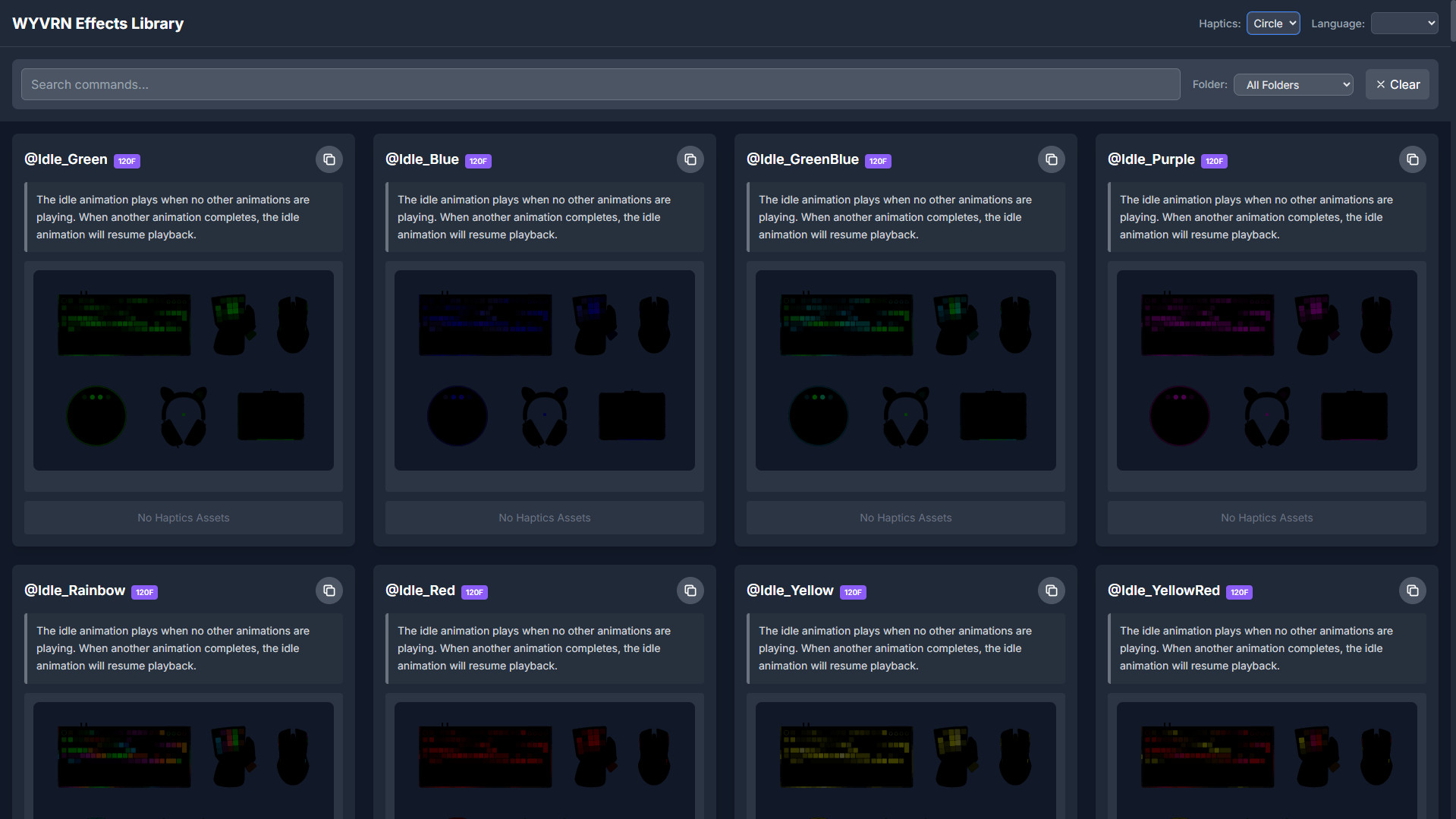
Check out the WYVRN Effects Library to see a configuration that was created with the editor.
Tab - Gallery
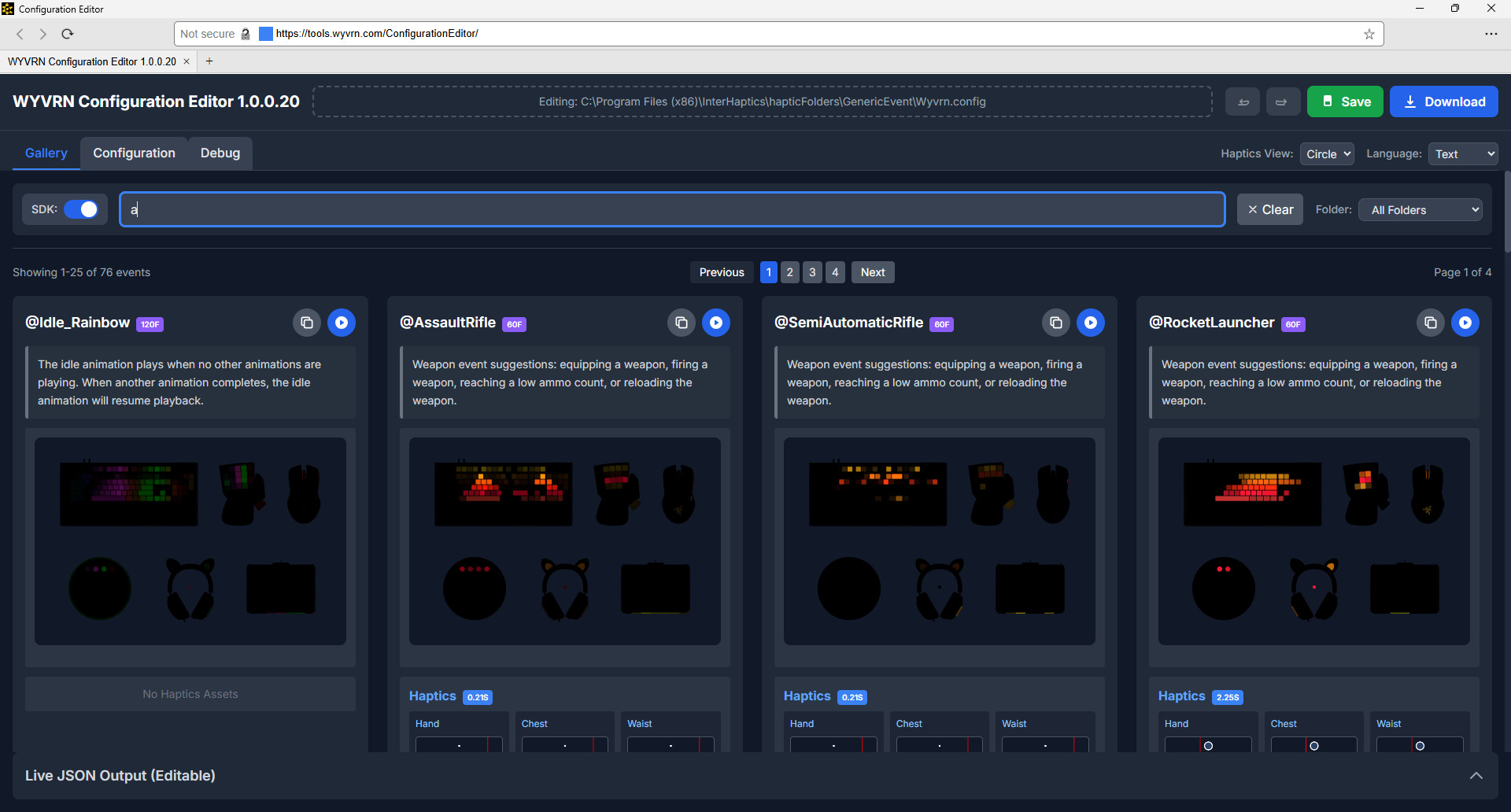
The editor has a gallery tab that is very similar to the WYVRN Effects Library tool.
Toggle - SDK
Playback buttons appear next to each event name that allow playback on local hardware when the SDK toggle is checked.
Tab - Configuration
The configuration tab displays lists of aliases, external commands, and fallbacks with each being selectable so their properties can be edited in the Property Editor. The lists display tags to make finding specific content easier.
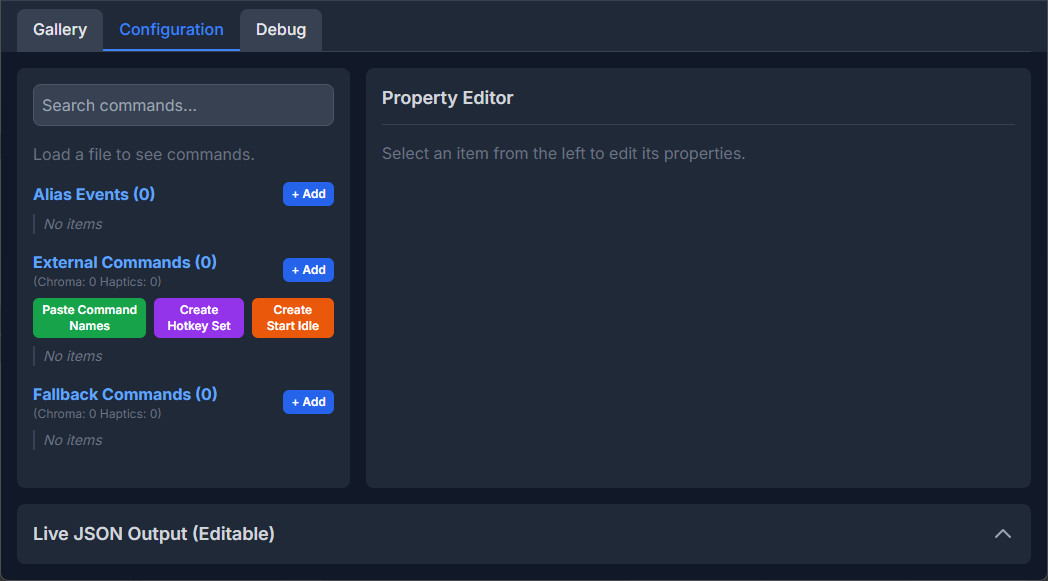
Configuration - Alias
Alias events can map an incoming event name to another event name. This is useful in case the incoming event has a typo and needs rerouted to the expected event.
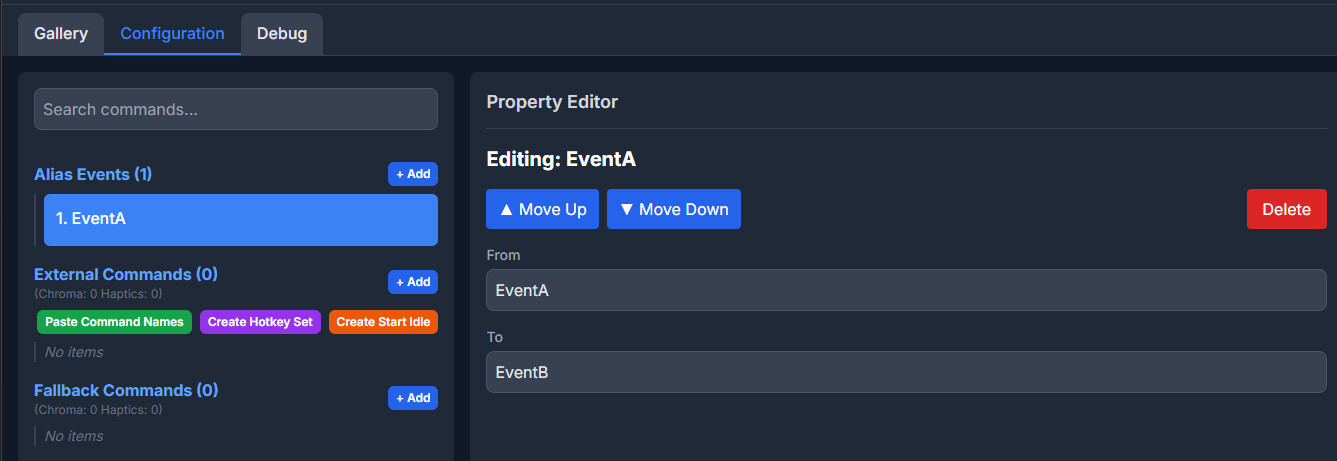
Configuration - External Commands
With an external command selected, the property editor has tabs for General, AI, Chroma, and Haptics.
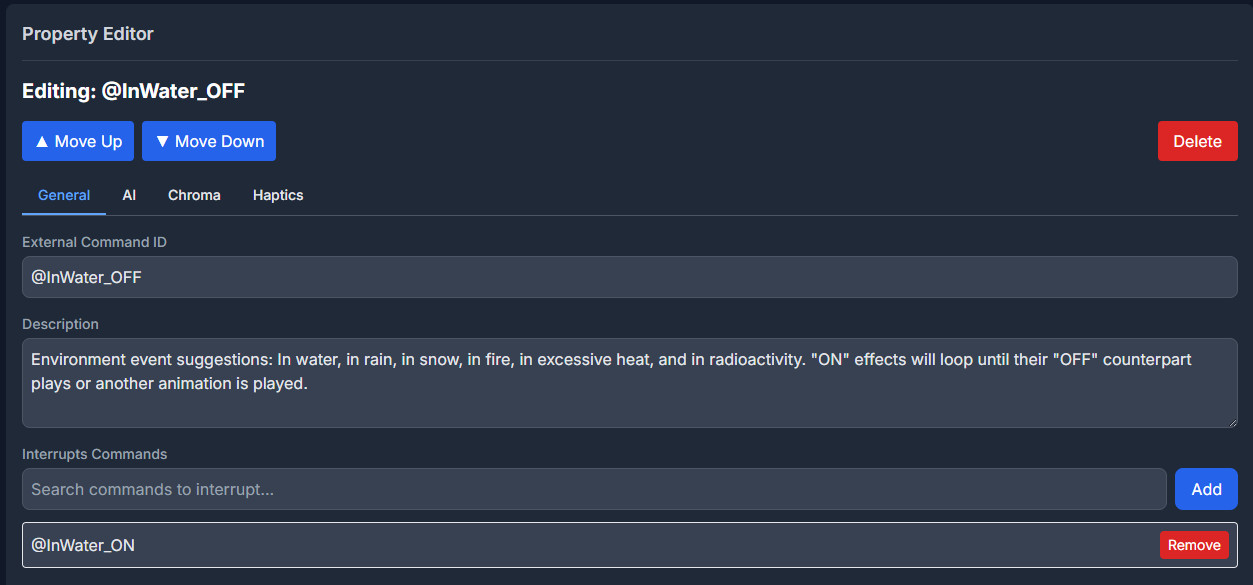
Property Editor - General
The General tab has an editor for the External Command ID which is the identifier that is triggered by SetEventName. Commands have a description that appears in the gallery. Commands can interrupt other commands which can be used to stop playback for a previous command.
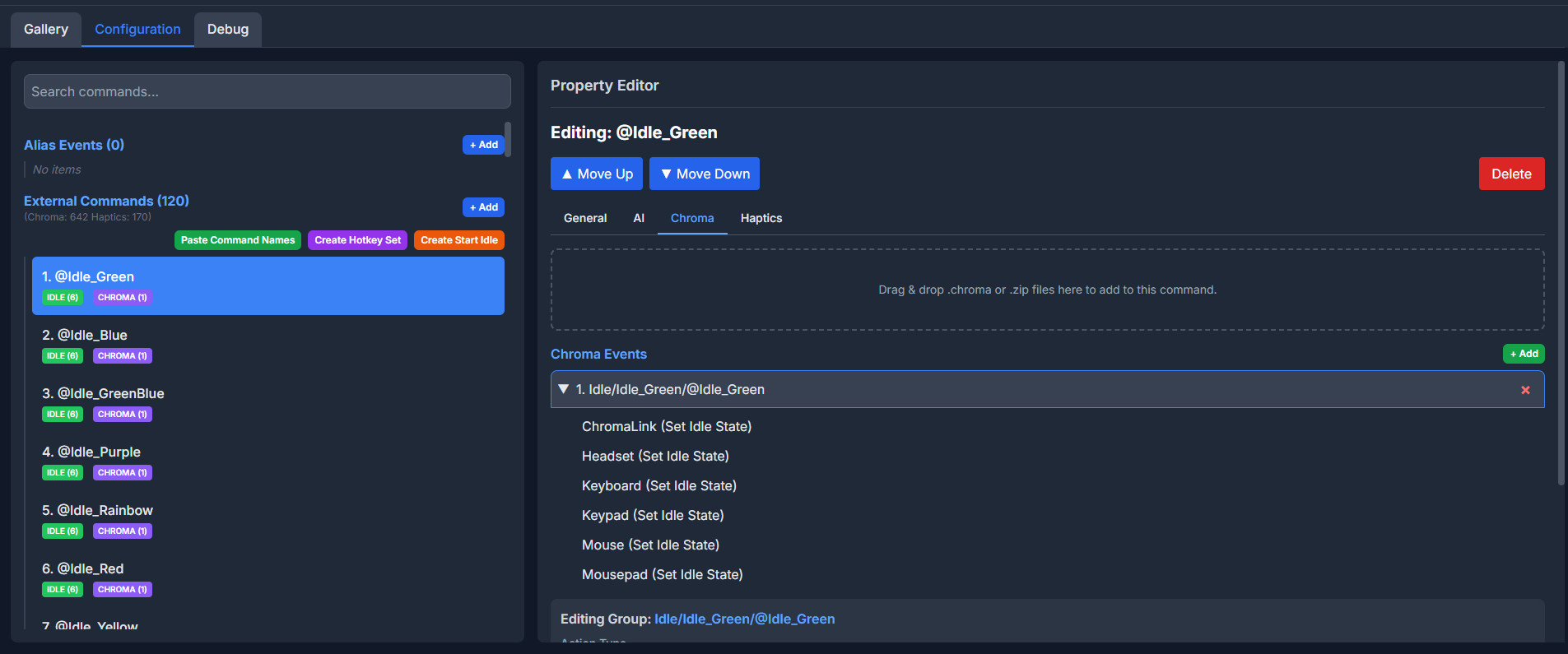
Property Editor - Chroma
The Chroma tab supports editing individual Chroma events and groups of Chroma events.
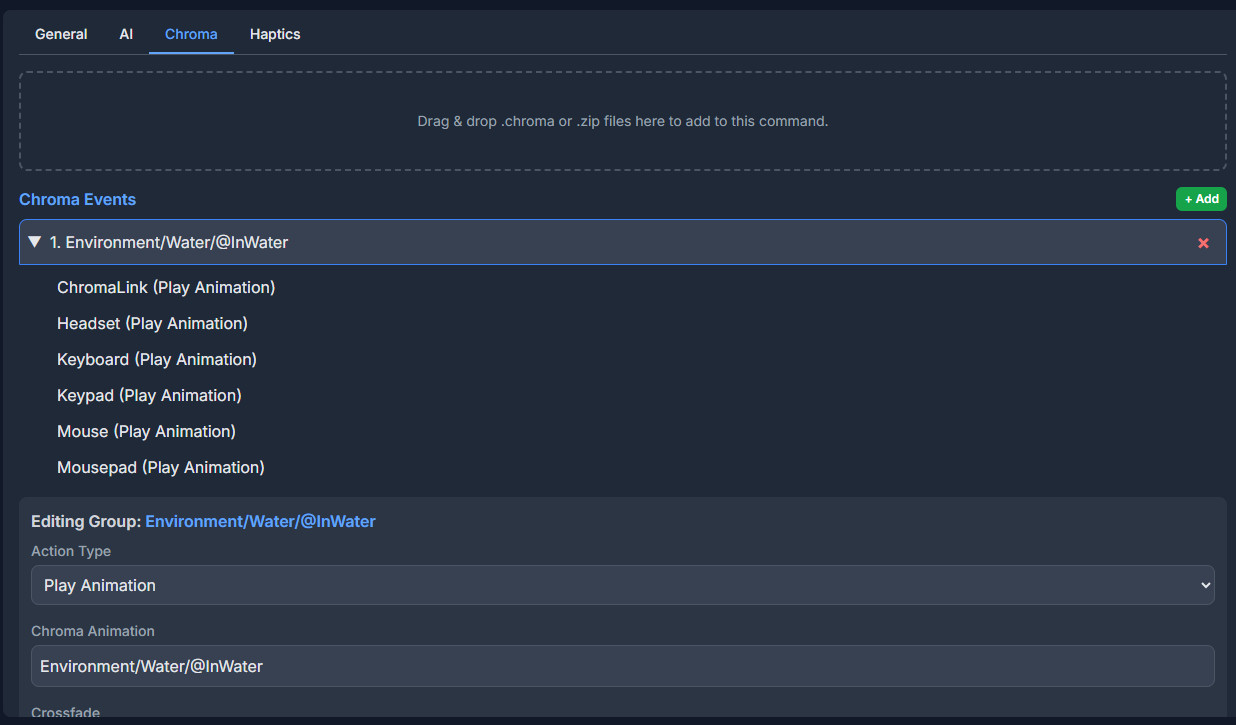
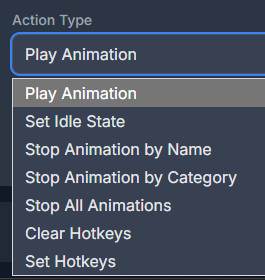
Chroma events have an Action Type each with a different set of properties.
Property Editor - Haptics
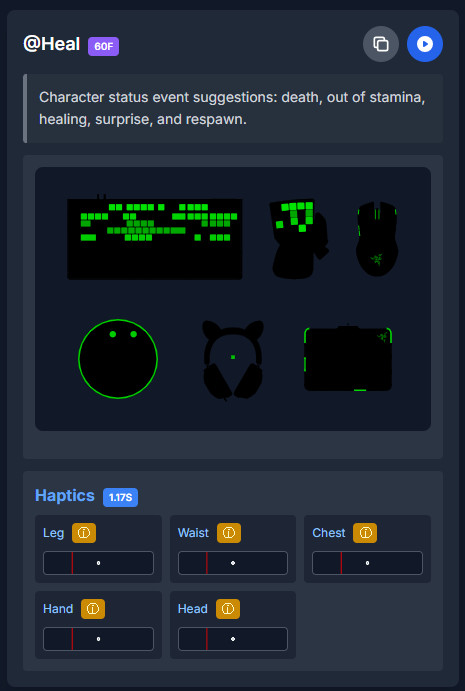
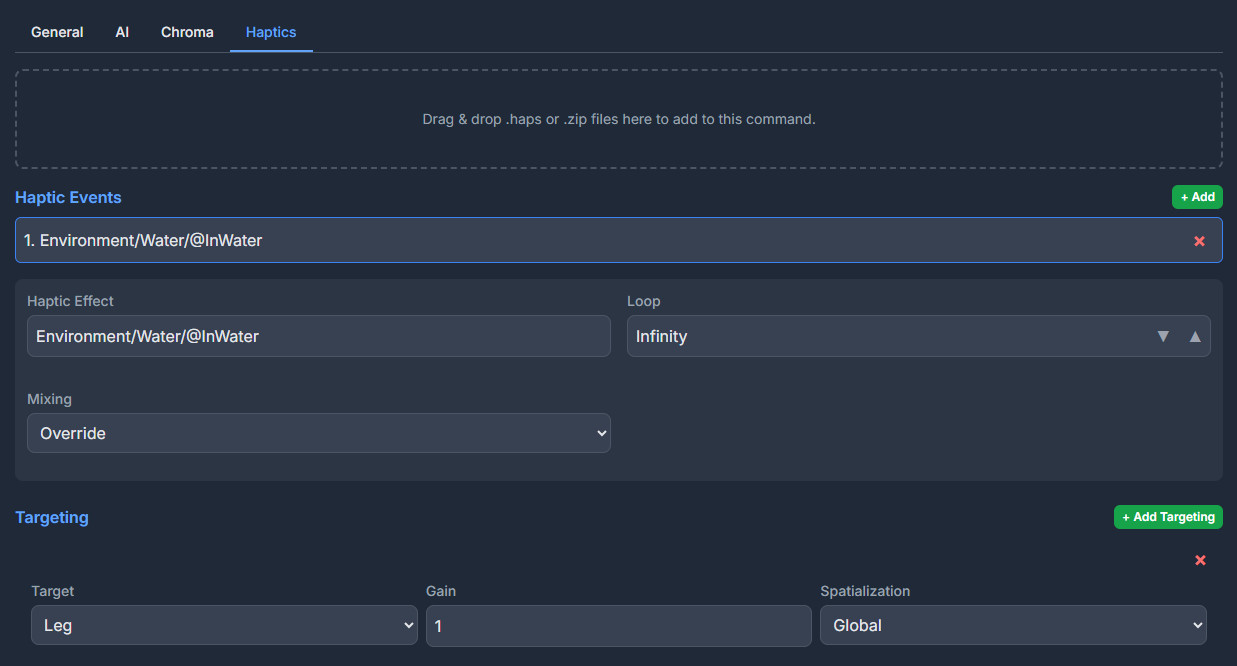
The haptics tab manages haptic events and targeting. Haptic events can have multiple targets that can be found by scrolling down in the property editor.
Live JSON Output
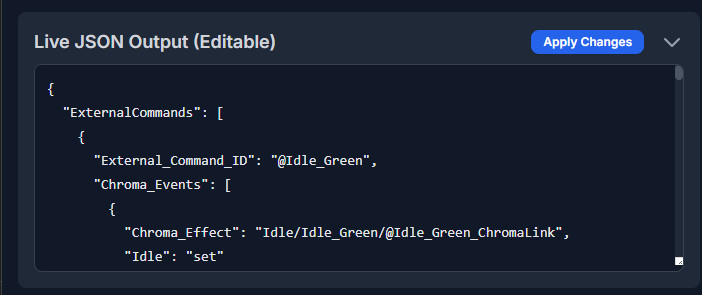
Any UI changes automatically updates the JSON configuration at the bottom of the page.
Tab - Debug
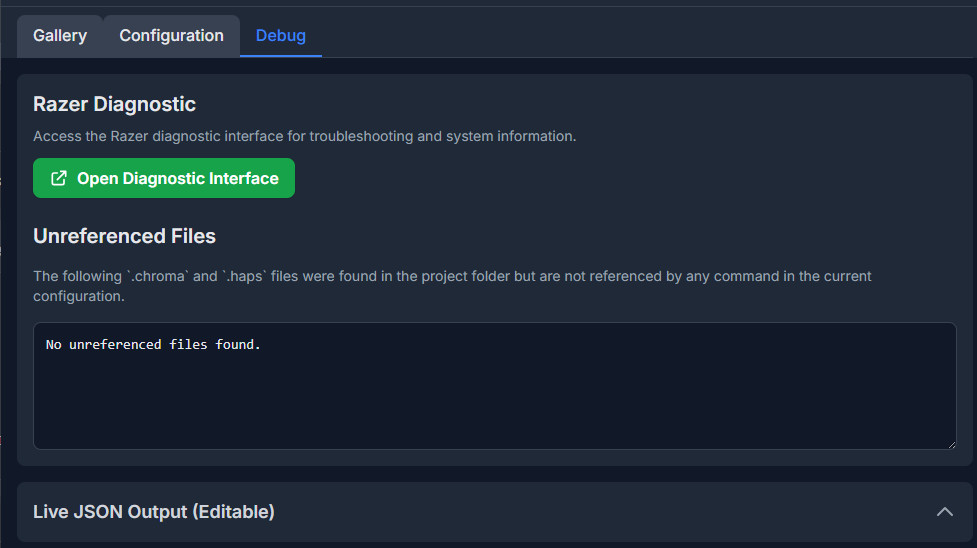
The Debug tab links to diagnostic tools and lists any unreferenced assets that might be missing from the configuration.