Key Features
Introduction
The Razer QA Companion-AI combines intelligent automation with real-time analytics to streamline your game testing workflow. Its powerful features help QA teams capture, track, and analyze gameplay issues effortlessly. From bug detection to performance monitoring: all in one unified platform.
Dashboard
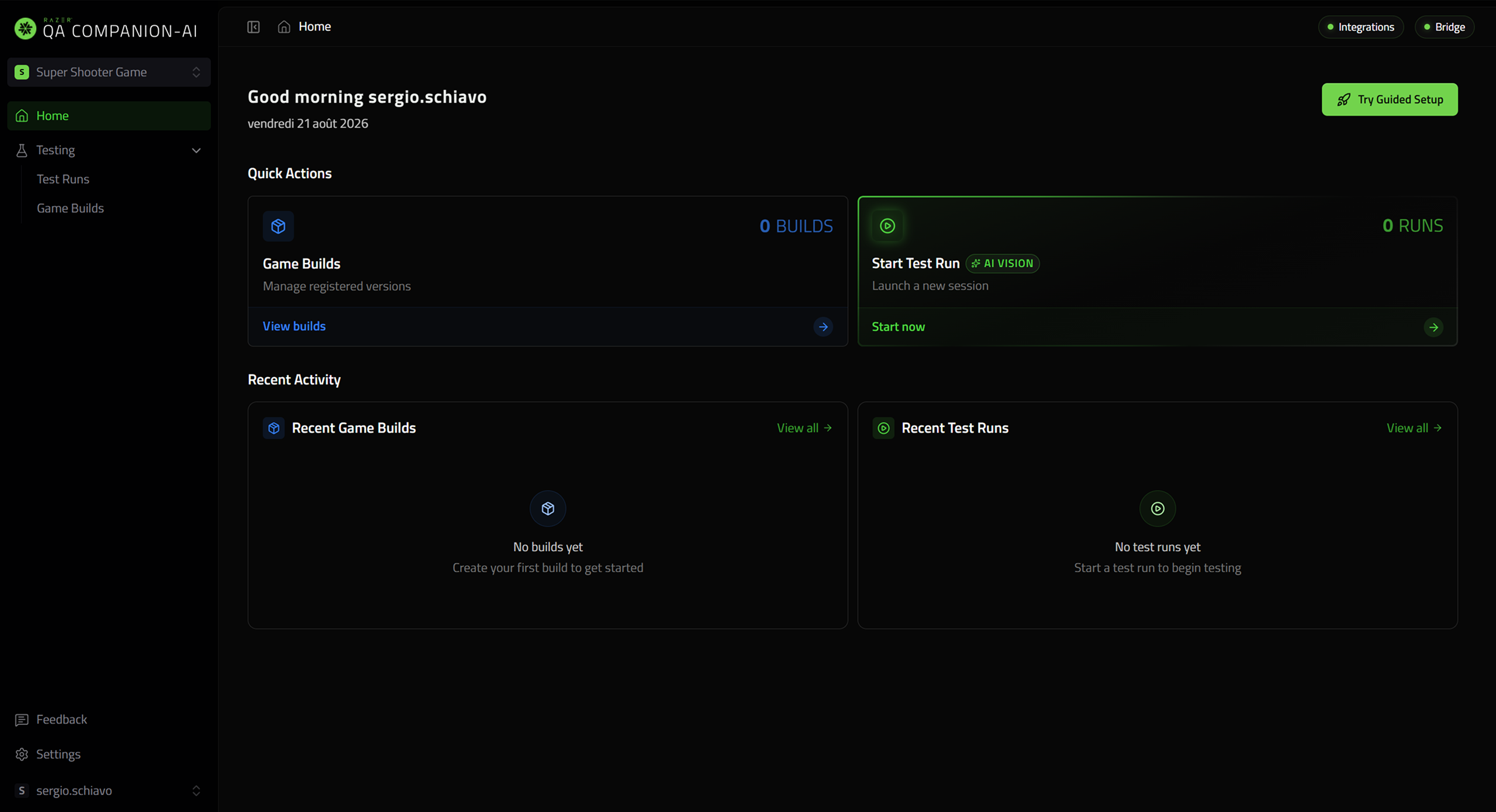
The Razer QA Companion-AI web dashboard is your main interface for managing test sessions, viewing bugs, triggering manual captures, and pushing issues to Jira.
Quick Actions:
- Manage Game Builds
- Recent Game Builds
- Start Test Run
- Recent Test Runs
- Header: Bridge Status + Shortcut to Jira Integrations
- Settings & Utilities
Test Runs
A Test Run is created for every gameplay session. Test Runs are displayed chronologically on the dashboard, making it easy to review previous sessions, compare results, and access all captured QA data from a single place.
Each Test Run acts as a session-level report, grouping together the bugs, media, metadata, and contextual information collected during gameplay.
Test Run Report
A Test Run Report contains all data gathered during a specific gameplay session. It gives QA teams and developers a structured overview of what happened during the session and provides direct access to the bugs reported within it.
Within each report, you can:
- Rename the report
- View the list of bugs
- Manually trigger a bug
- Edit bug metadata (title, severity, description)
- Replay video or annotable screenshot (valid for 24h)
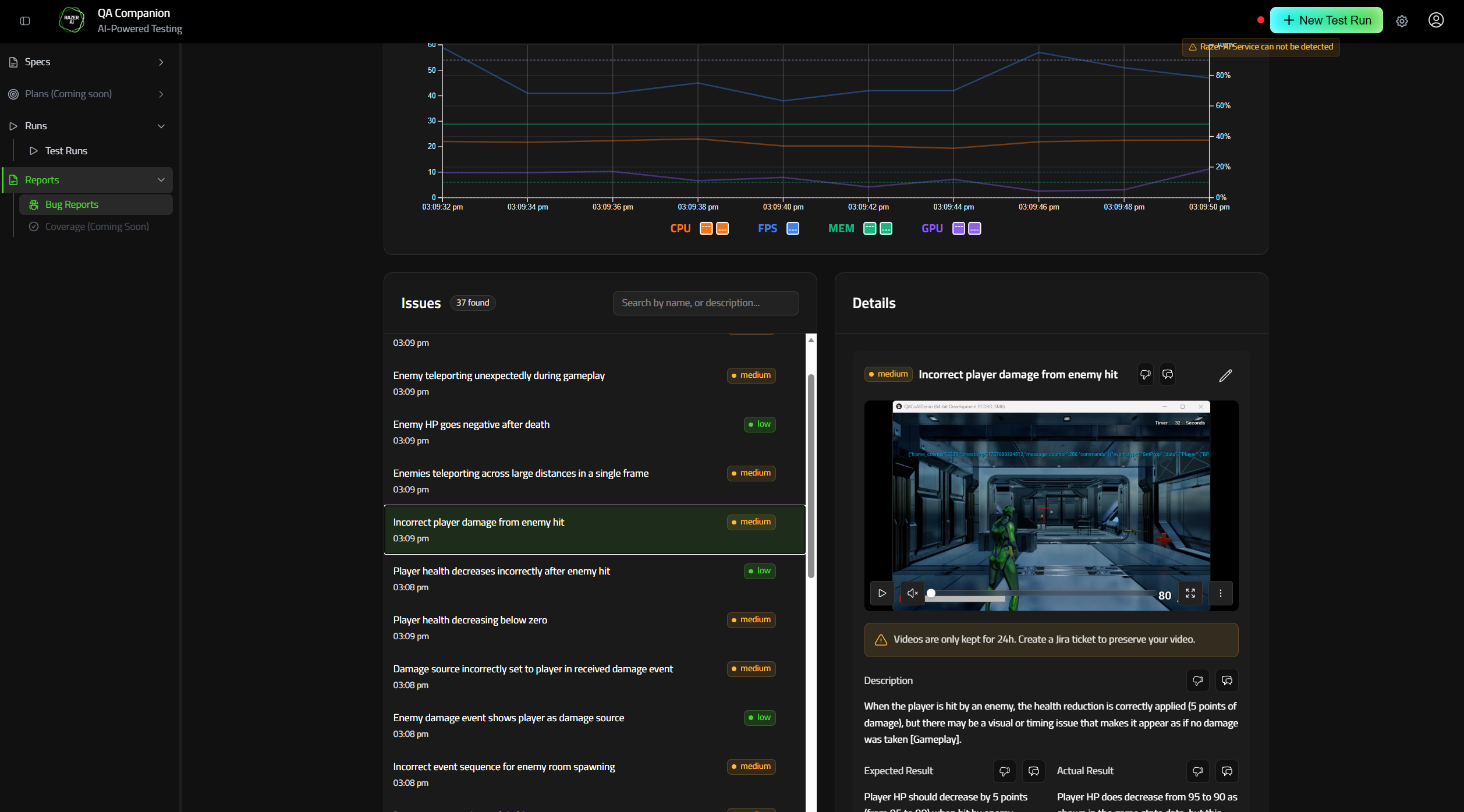
Captured videos and annotable screenshots are available for 24 hours. After this period, media files may no longer be accessible from the report.
Performance Tracking
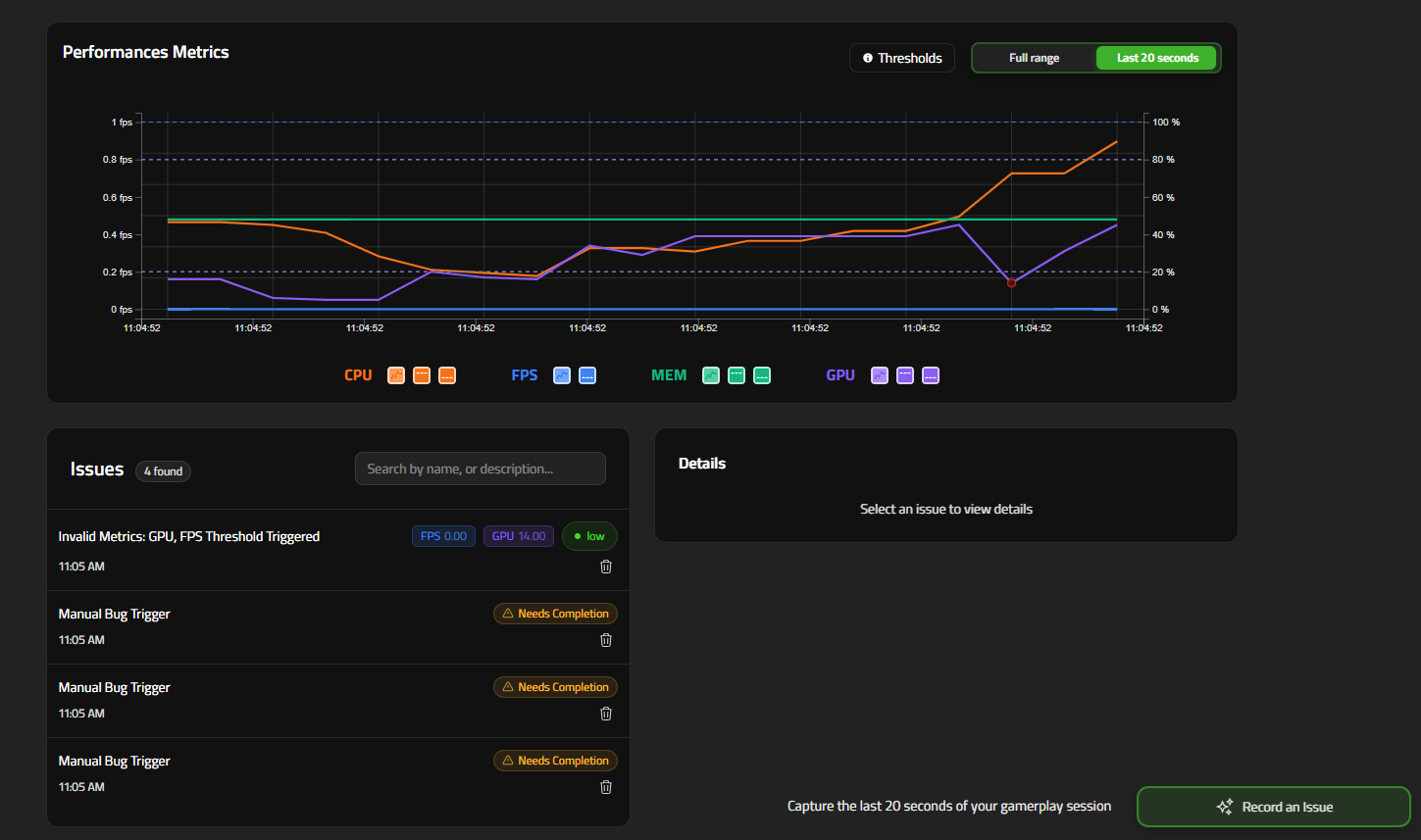
Performance Tracking lets you monitor your game’s FPS, CPU usage, GPU usage, and Memory consumption in real-time while a QA session is running.
When any metric breaches a user-defined threshold, the Companion automatically raises a “Performance Issue” bug entry, tags the exact timestamp, and pins a red dot on the live graph so you can correlate slow-downs with in-game events.
Why it matters
- Catch hard-to-reproduce frame-rate drops early
- Surface hidden GPU/CPU spikes in complex scenes
- Produce objective data for optimization passes
Starting a Session with Metrics Enabled
- Open the web application and click Start a new QA session.
- Select and fill in the usual fields:
- Process Name – Search or select the executable to track (e.g. MyGame).
- Build – internal build tag (max 20 chars).
- In the Performance thresholds panel (see screenshot ①):
- FPS Min – frames-per-second floor (default 30). Drag the sliders or type exact percentages for upper and lower bound thresholds:
- Memory % (0–100)
- CPU % (0–100)
- GPU % (0–100)
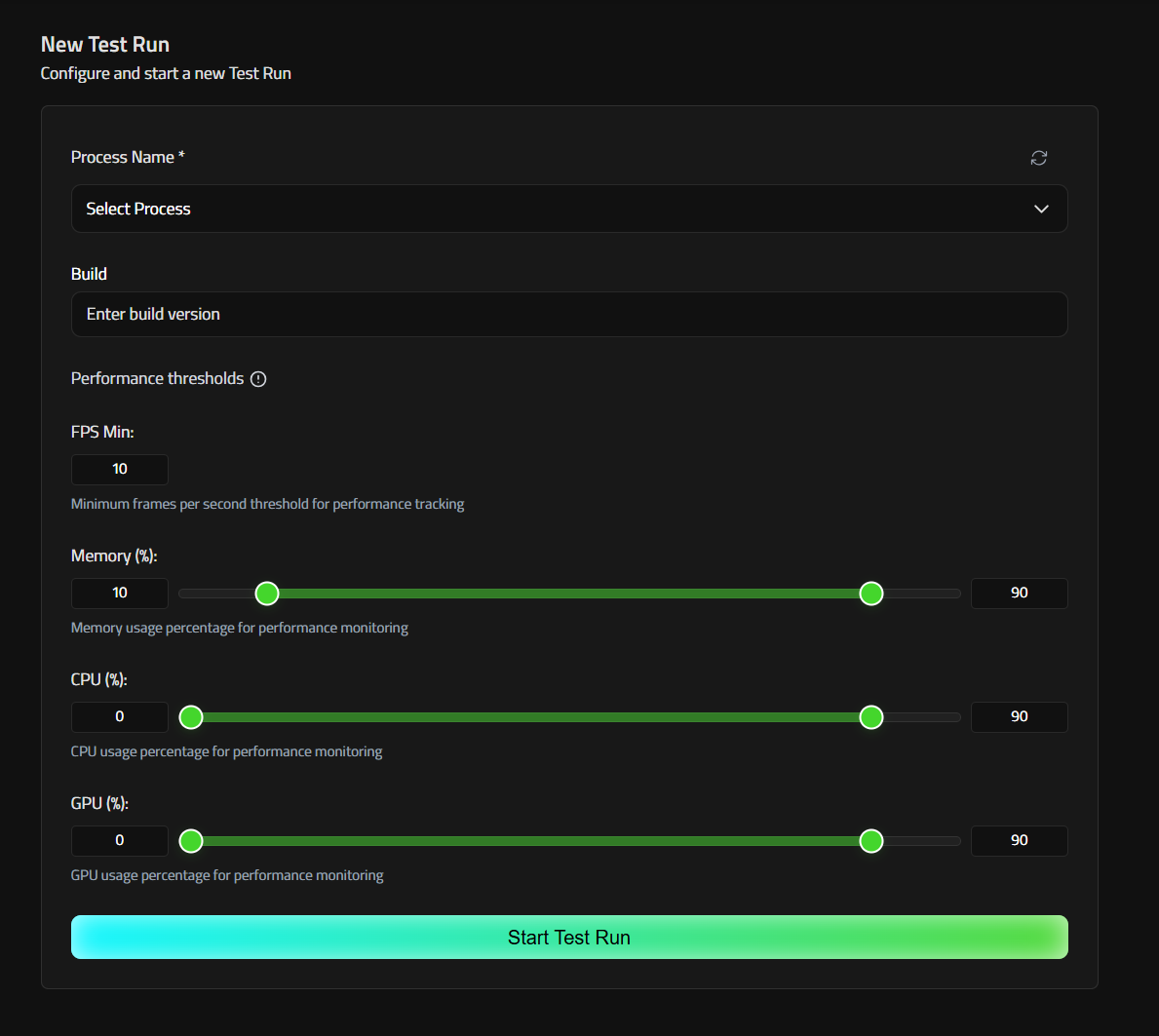
- Click Start new QA session.
- Performance metrics will be tracked and performance issues automatically reported.
Live Graph & Threshold Indicators
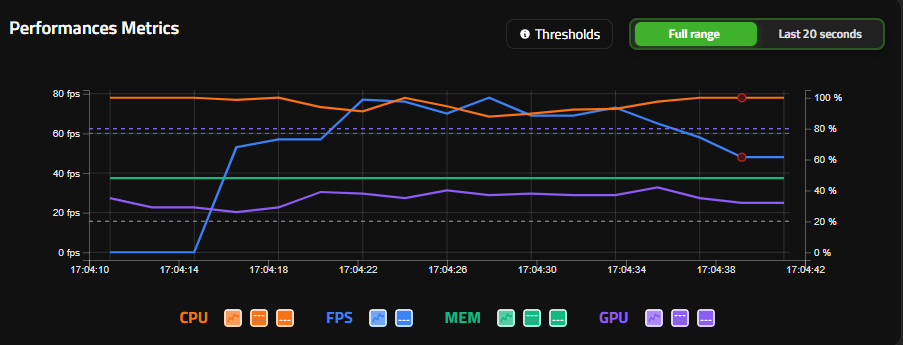
During the session the Performance Metrics graph appears in the Report view:
| Legend | Description |
|---|---|
| Orange line (CPU) | CPU utilization %. |
| Blue line (FPS) | Frames-per-second. |
| Green line (MEM) | System memory utilization %. |
| Purple line (GPU) | GPU utilization %. |
| Red dots | Timestamp when metrics breached thresholds – a “Performance Issue” bug is auto-logged. Checked every 30 seconds. |
Use the Last 20 seconds / Full range toggle to zoom, or hover any point to see exact values and compare against your limits.
Reviewing the Auto-Generated Performance Issues

Each Red dot set creates a bug issue entry:
- Scroll down to the Issues section inside the current report.
- Entries of type Invalid Metrics list:
- Timestamp & metric(s) threshold triggered.
- Snapshot of metric values at that instance.
- 20 s gameplay video (same capture window as standard bugs).
- Edit severity/description if needed.
Bug Report
The Bug Report feature allows testers to record and document issues on demand, ensuring that key visual and contextual information is captured accurately at the moment the bug occurs.
Usage
To manually report a bug using Razer QA Companion-AI:
- In the dashboard, select the currently open report.
- Reproduce the bug you want to capture.
- Trigger the report using one of the following methods:
- Click the Screenshot or Video button located at the bottom right of the interface.
- Use the designated hotkeys:
- Ctrl + B for a Screenshot
- Ctrl + Shift + B for a Video (Manual Bug Report)
- Ctrl + Shift + V for a Vision-AI (AI Bug Detection)
After a few seconds, the new bug will appear in the bug list, automatically linked to the active report. Screenshots can be edited using the in-app annotation interface, allowing you to highlight and comment on specific areas before submission.
Manual Bug Report
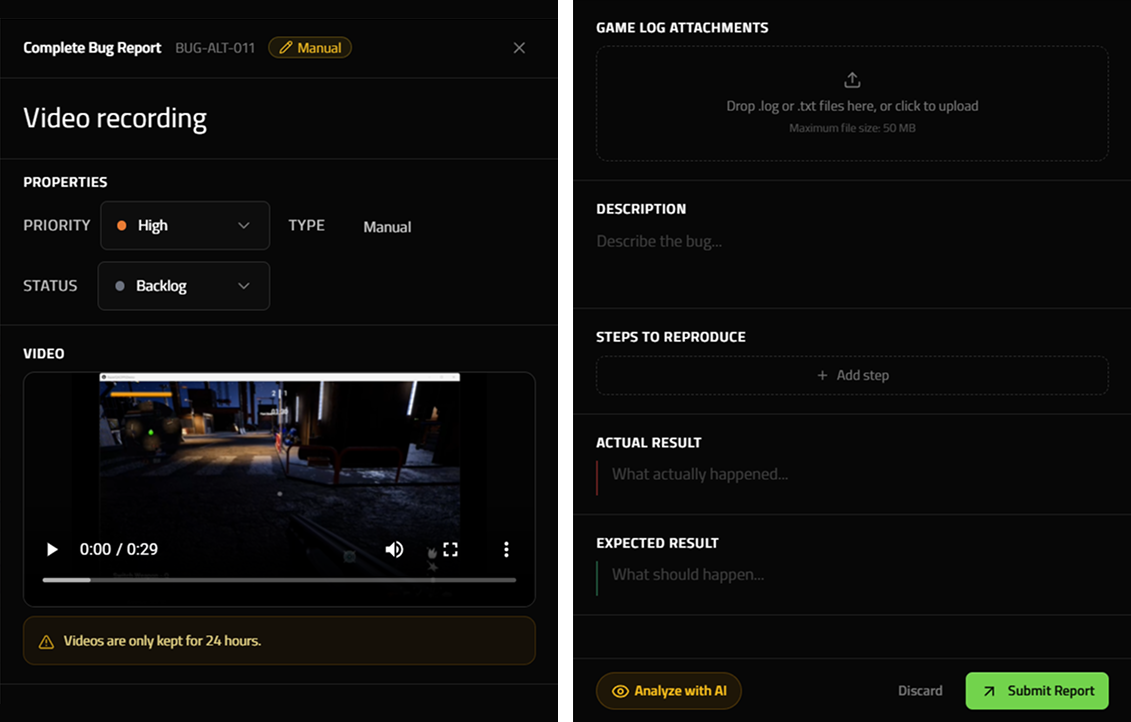
The Manual Bug Report feature allows testers to report a bug at any point during a gameplay session using a dedicated hotkey.
To manually capture a bug, press Ctrl + Shift + V while the QA session is running. When triggered, QA Companion-AI automatically captures the previous 20 seconds of gameplay video and includes it in the bug report, providing immediate visual context for the issue.
The bug report form then opens on the platform, where you can complete the bug details before submitting the report.
In the form, you can provide:
Description: a clear summary of the issue Steps to reproduce: the actions needed to trigger the bug Actual result: what happened in the game Expected result: what should have happened instead Priority: the importance or urgency of the issue Status: the current state of the bug report
Once all relevant information has been added, submit the report. The bug will be saved, linked to the current Test Run, and available for review from the dashboard with the captured video automatically attached.
Vision-AI Bug Report
The Vision-AI Bug Report feature allows testers to trigger an AI-assisted bug analysis during a gameplay session using a dedicated hotkey.
To start a Vision-AI bug report, press Ctrl + Shift + B while the QA session is running. QA Companion-AI automatically captures the previous 20 seconds of gameplay video and sends it for AI analysis.
The video is then analyzed to detect potential bugs or gameplay issues.
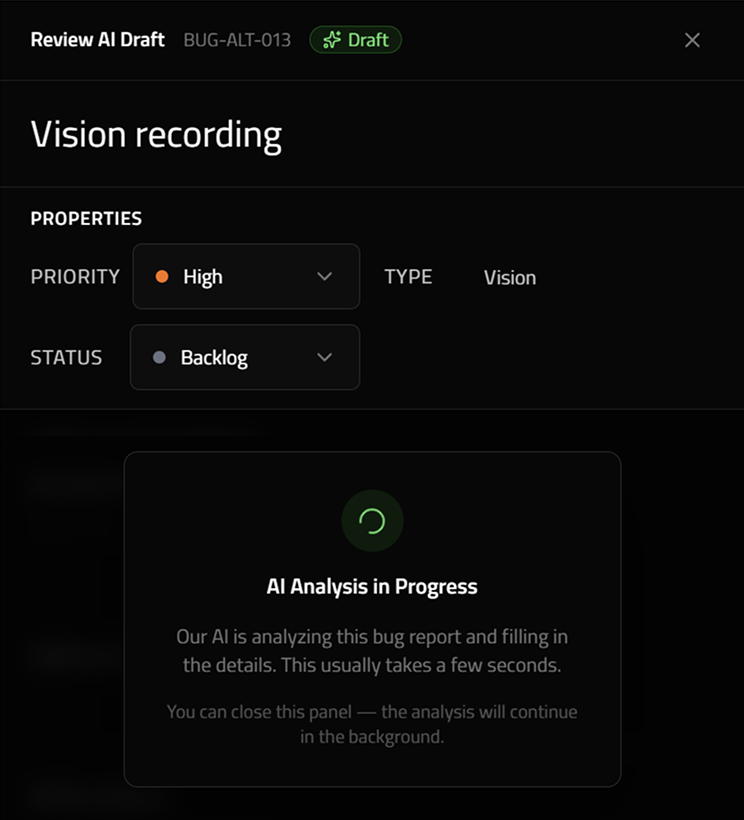
Once the analysis is complete, the detected bugs will appear in the Test Run Report linked to the current session.
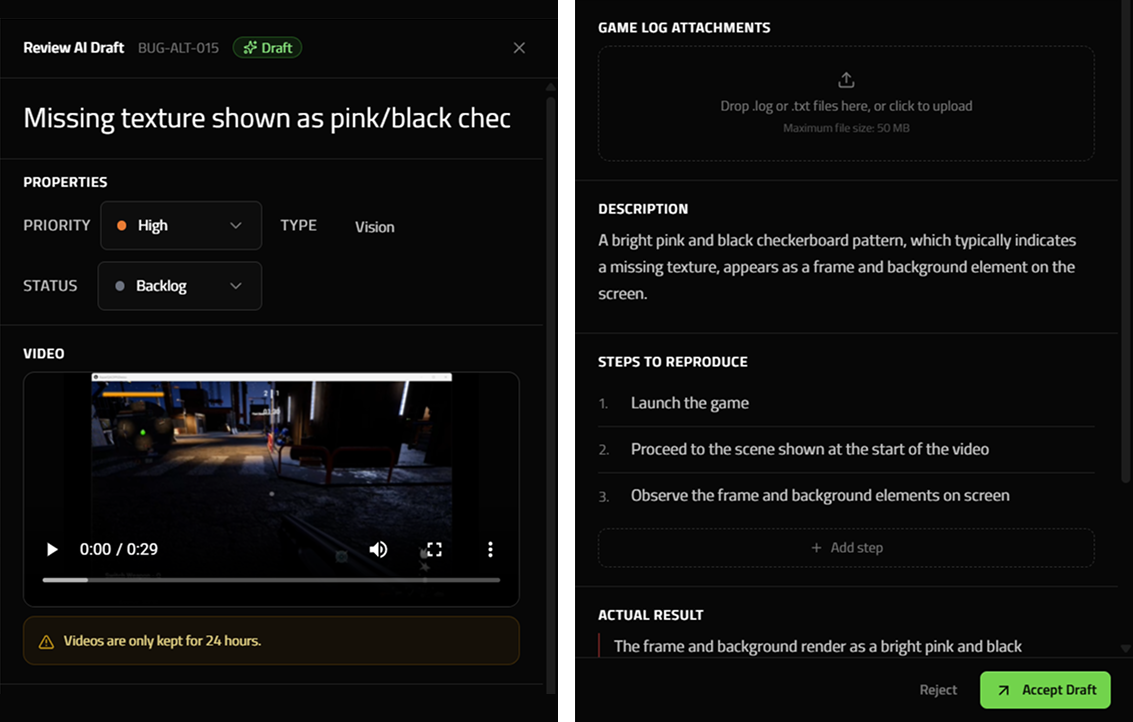
Each AI-detected bug is automatically added to the report with the relevant fields already filled in, including details such as the description, steps to reproduce, actual result, expected result, priority, and status.
This helps testers review AI-detected issues directly from the Test Run Report, reduce manual documentation work, and quickly validate whether each detected issue should be kept, edited, or dismissed.
Bug validation flow
Once a bug has been captured using any available method — Screenshot, Manual Bug Report, or Vision-AI Bug Report — it is added as an entry for review.
You can then either accept or reject the bug entry:
- If accepted, the bug is moved to the Confirmed section.
- If rejected, the bug entry is discarded.
This review step ensures that only validated and relevant bugs are kept in the Test Run Report.
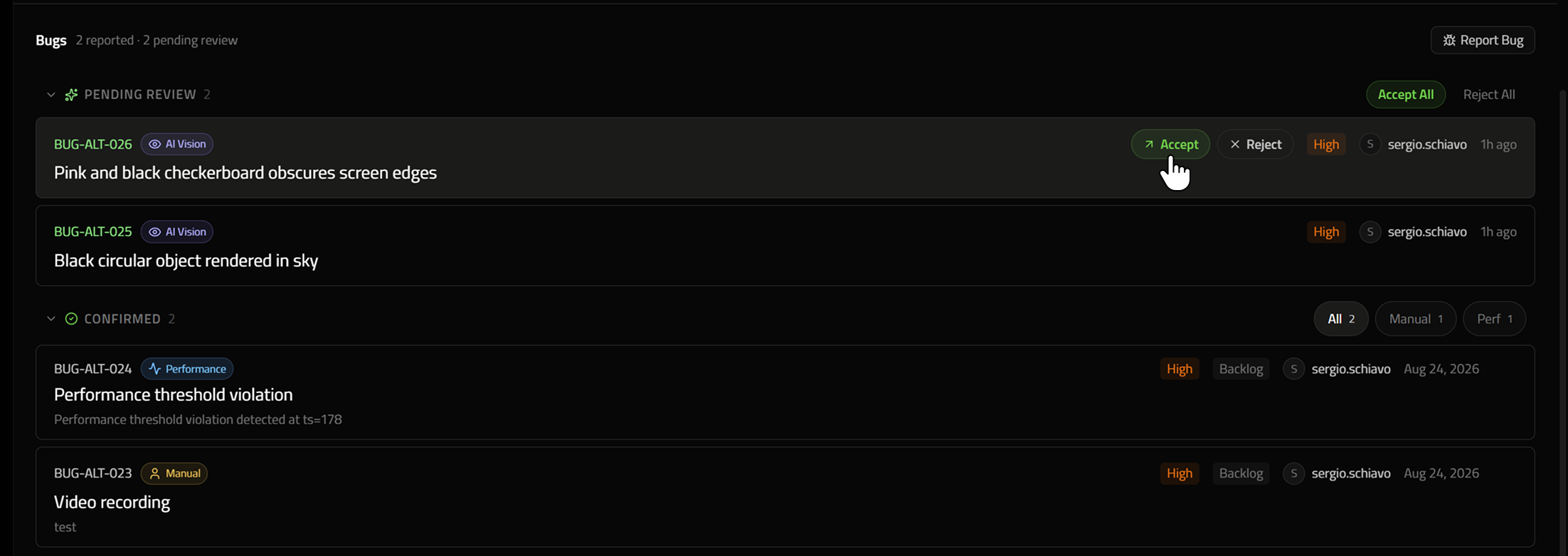
Image and Video storage expiration
Bug-related screenshots and videos are available for 24 hours after capture. After this period:
- Screenshots will no longer be accessible.
- Videos will no longer be playable.
- Jira exports will exclude the screenshot and video content.
- Bug metadata (such as title, description, and tags) will remain available.
Jira Integration Usage
Once a bug has been reviewed and moved to the Confirmed section, you can report it directly to your Jira project using the Jira integration.
From any confirmed bug with valid media attached — either a video or an annotable screenshot available within the 24-hour retention window — you can create a Jira issue directly from the platform.
The Jira integration helps transfer the confirmed bug details into your Jira workflow, including the available metadata, description, and visual evidence, so your team can continue triage and resolution from your existing project management environment.
- Click “Export to Jira”
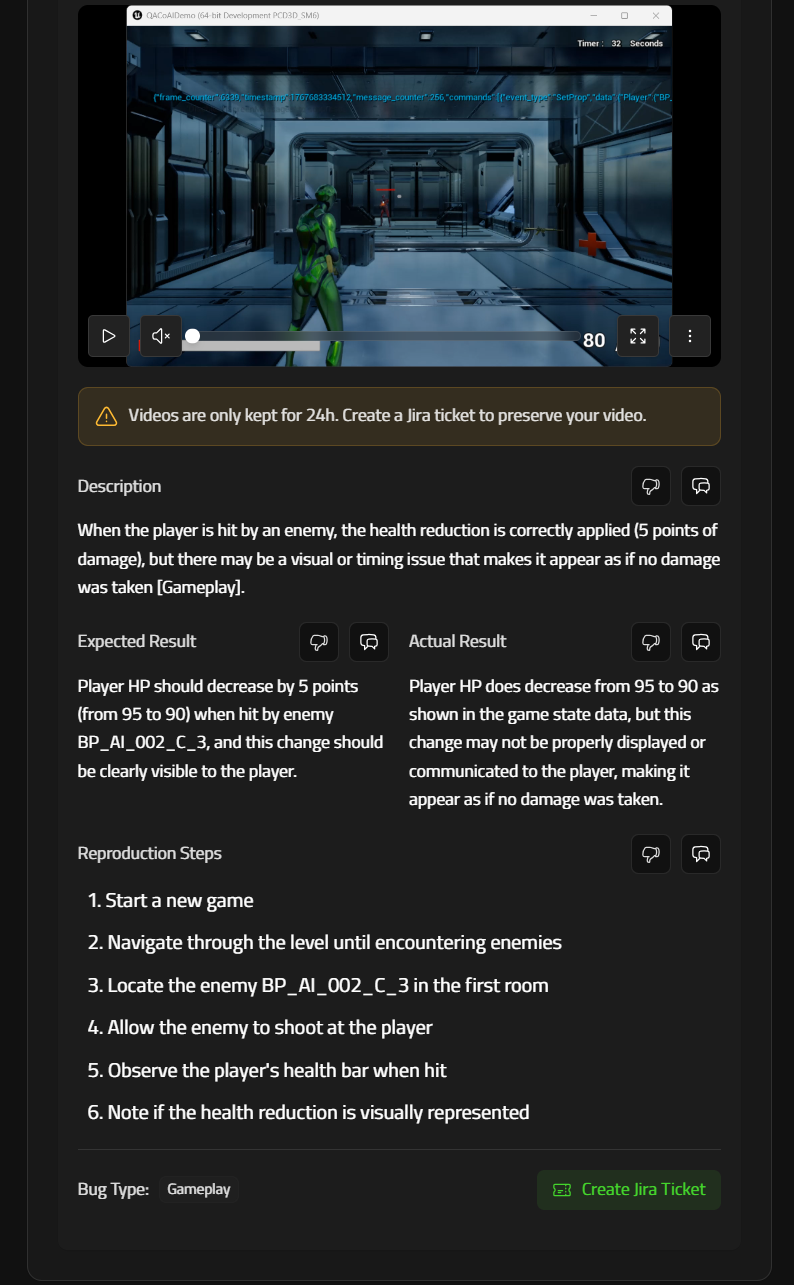
- Fields auto-filled: title, description, severity, reproduction steps
- Video or screenshot is attached if still available
- Expired videos and screenshots are omitted automatically.
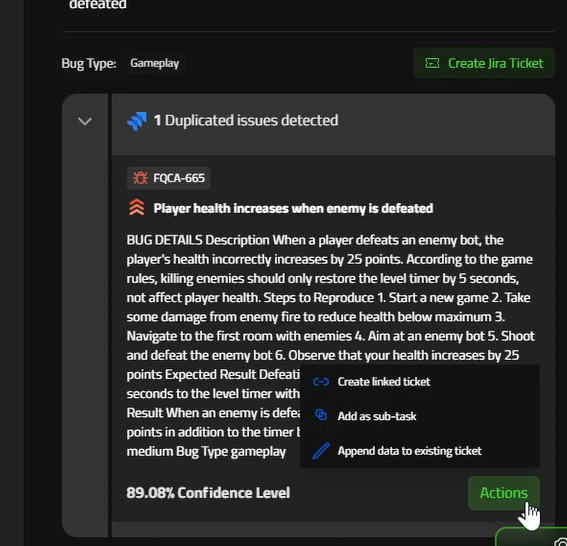
Duplicated bug detection
Our system leverages AI language analysis to verify your tickets within your Jira Project, intelligently identifying duplicate bug reports across projects. This reduces noise, streamlines triage, and improves prioritization by surfacing recurring issues and linking related reports with contextual awareness.
Settings & Utilities
From the General Settings tab, you can:
- Edit project settings
- View your Razer user ID and authentication token
- Connect Jira and manage integration
- Manage cookies and Hotjar tracking preferences
- Access useful links