Getting Started with Razer QA Companion-AI
This guide will help you set up and start using Razer QA Companion-AI for your game testing needs.
Project Setup
- Access the Razer QA Companion-AI web platform and set up your project.
- Download and install the Razer Game Data Bridge on your PC and follow the steps below to complete setup.
- (optional) Integrate with the supported ticketing platform (JIRA) to support your workflow
Razer Game Data Bridge
The Razer Game Data Bridge must be installed on the test machine to capture gameplay footage and screenshots from your game application and securely transmit this data to the cloud, where it is analyzed by our AI models.
To setup the Razer Game Data Bridge:
1 Download the installer via the pop-up on login.
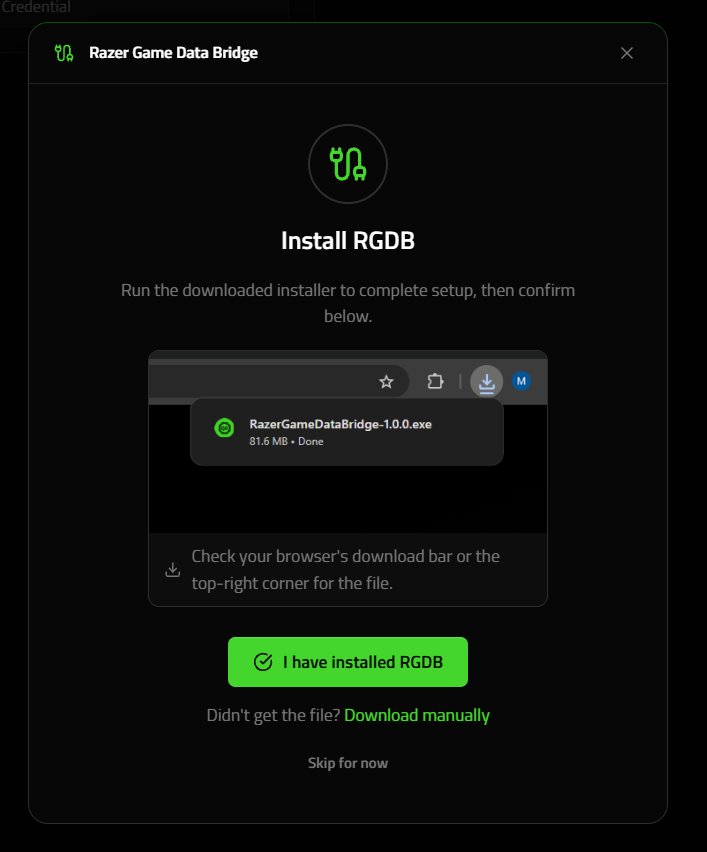
2 Double-click the .exe to install Razer Game Data Bridge.
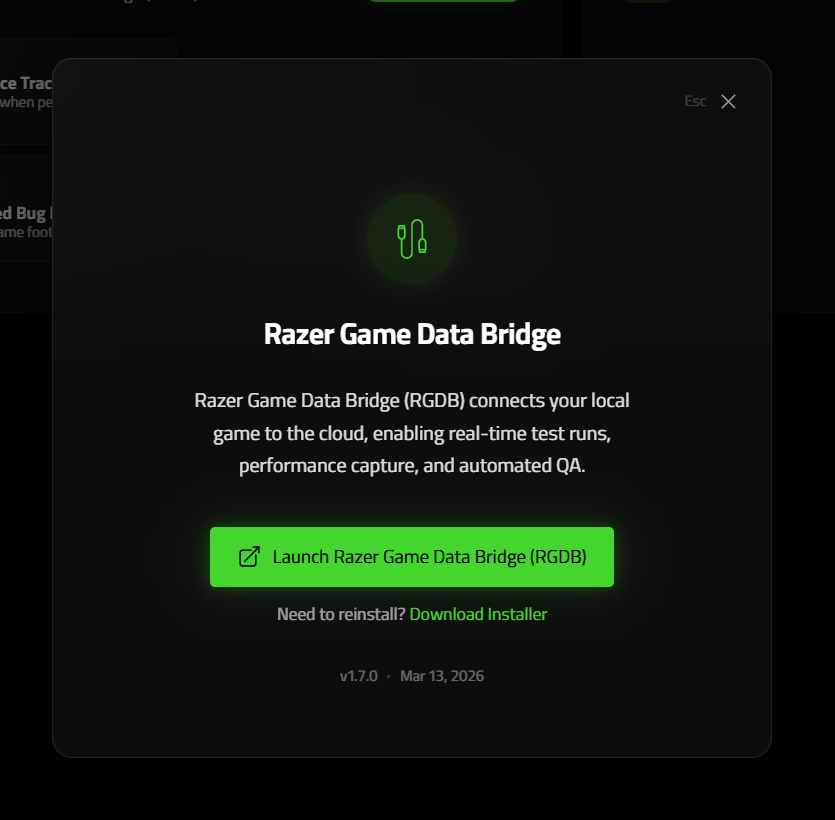
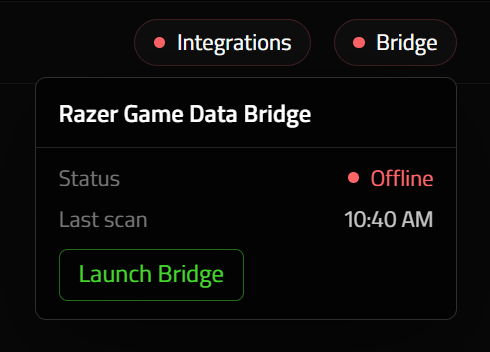
You may access the installer download by clicking on the 'Bridge' red dot on the top nav bar.
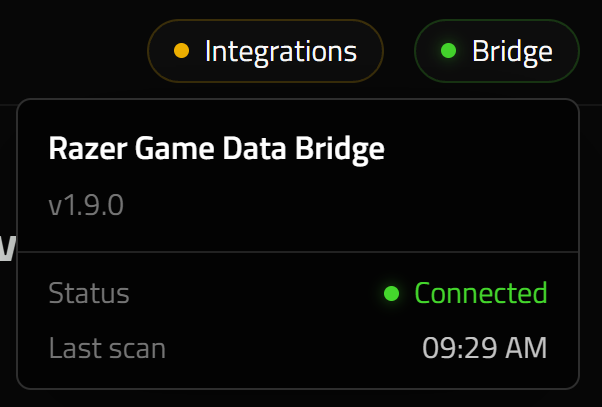
- Once Razer Game Data Bridge is installed and launched, you will notice the green status light on the web application
Jira Integration
To streamline issue tracking, Razer QA Companion-AI allows direct Jira integration.
Setup
- Go to settings in the bottom left corner.
- Select Integrations page
- Click Add Credential
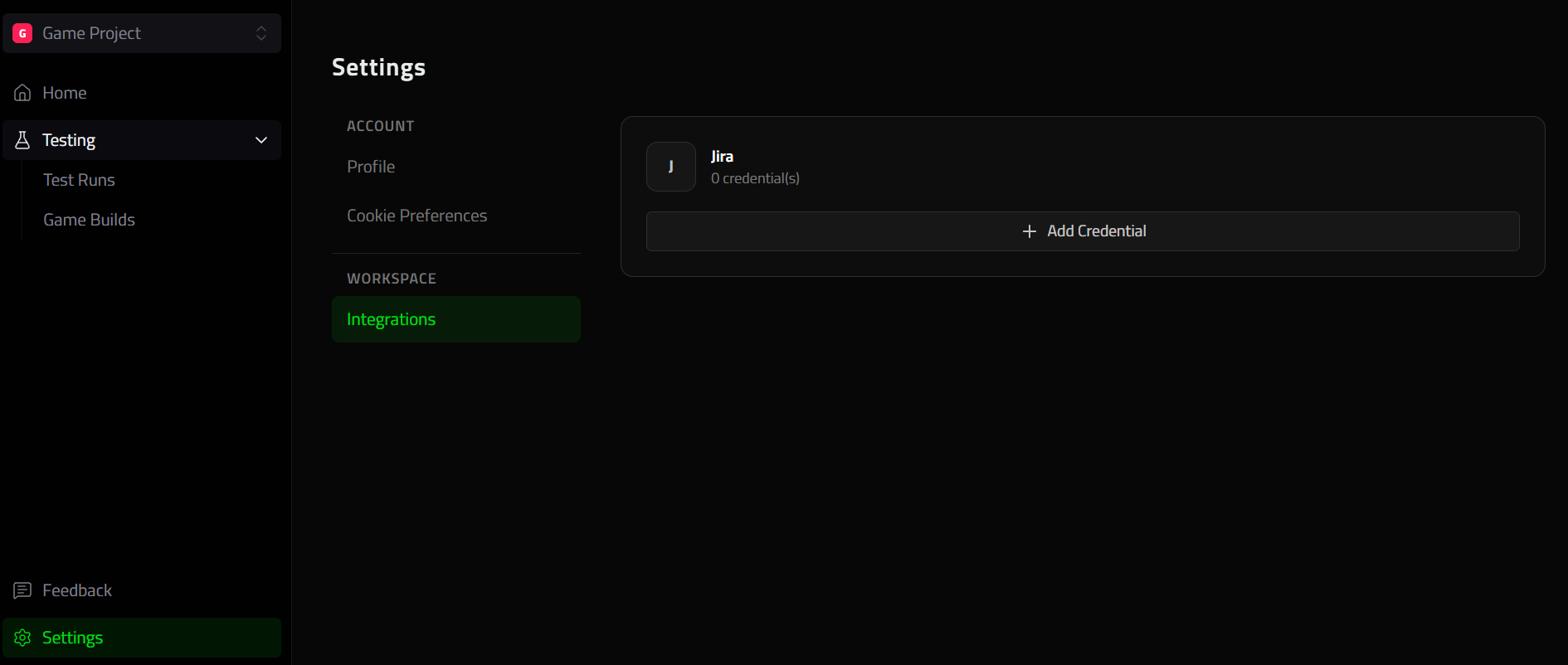
This will open a pop-up where you will fill with your Jira credenials
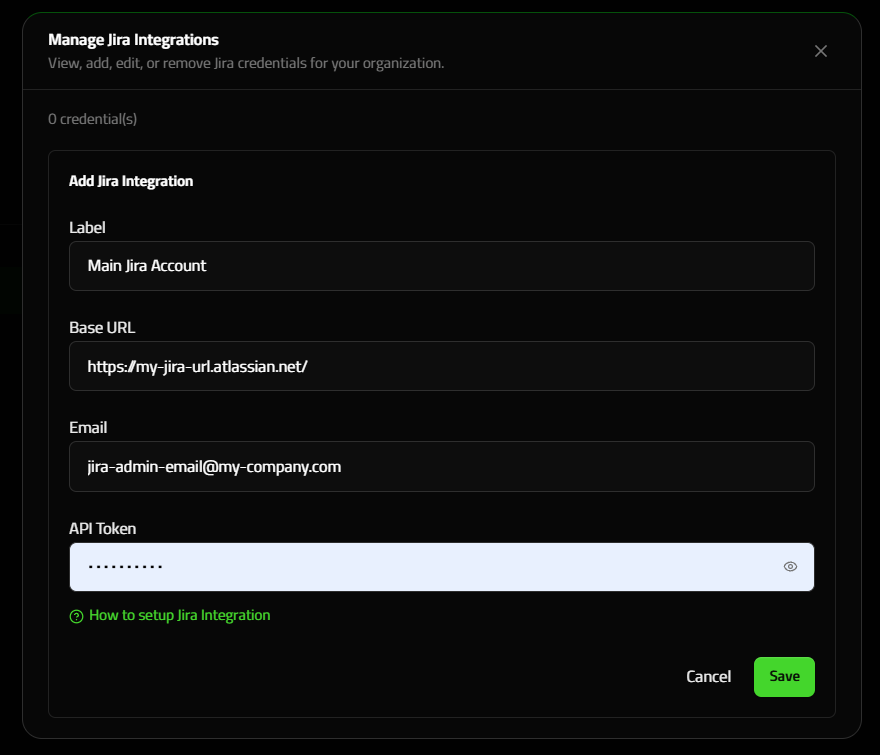
If you need help creating a Jira API key you can follow the following guide: How to setup Jira Integration
Field Mapping
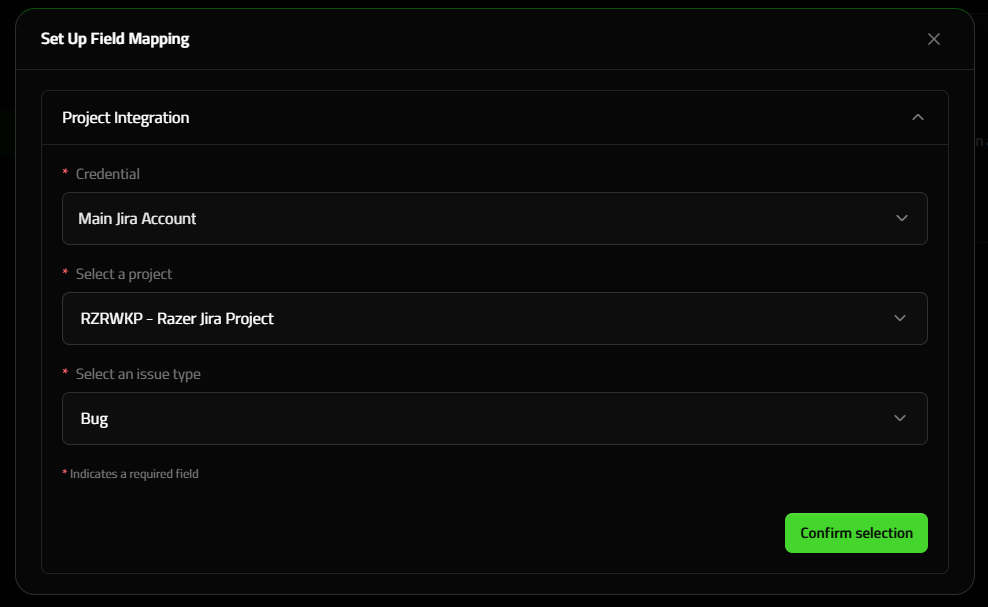
Once your Jira project is connected, you must set the field mappings for each project in order to use this feature.
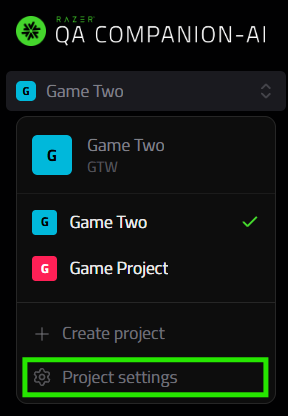
- Go to your project's settings, by clicking on the project selection drop-down an selecting 'Project Settings'
- Go to integrations
- Select 'Get started'
A pop-up will open so you map you fields according to the selected Jira project
Next Steps
Once you've completed the setup: