Batch Audio to Haptics Conversion
The Batch Processing feature in Haptic Composer allows you to convert multiple audio files into haptic effects at once. This is useful when working with sound libraries or when you need consistent conversion across many files. All converted assets are stored as .haps files and can be further refined inside Haptic Composer.
Steps for Batch Conversion
- Open Batch Processing
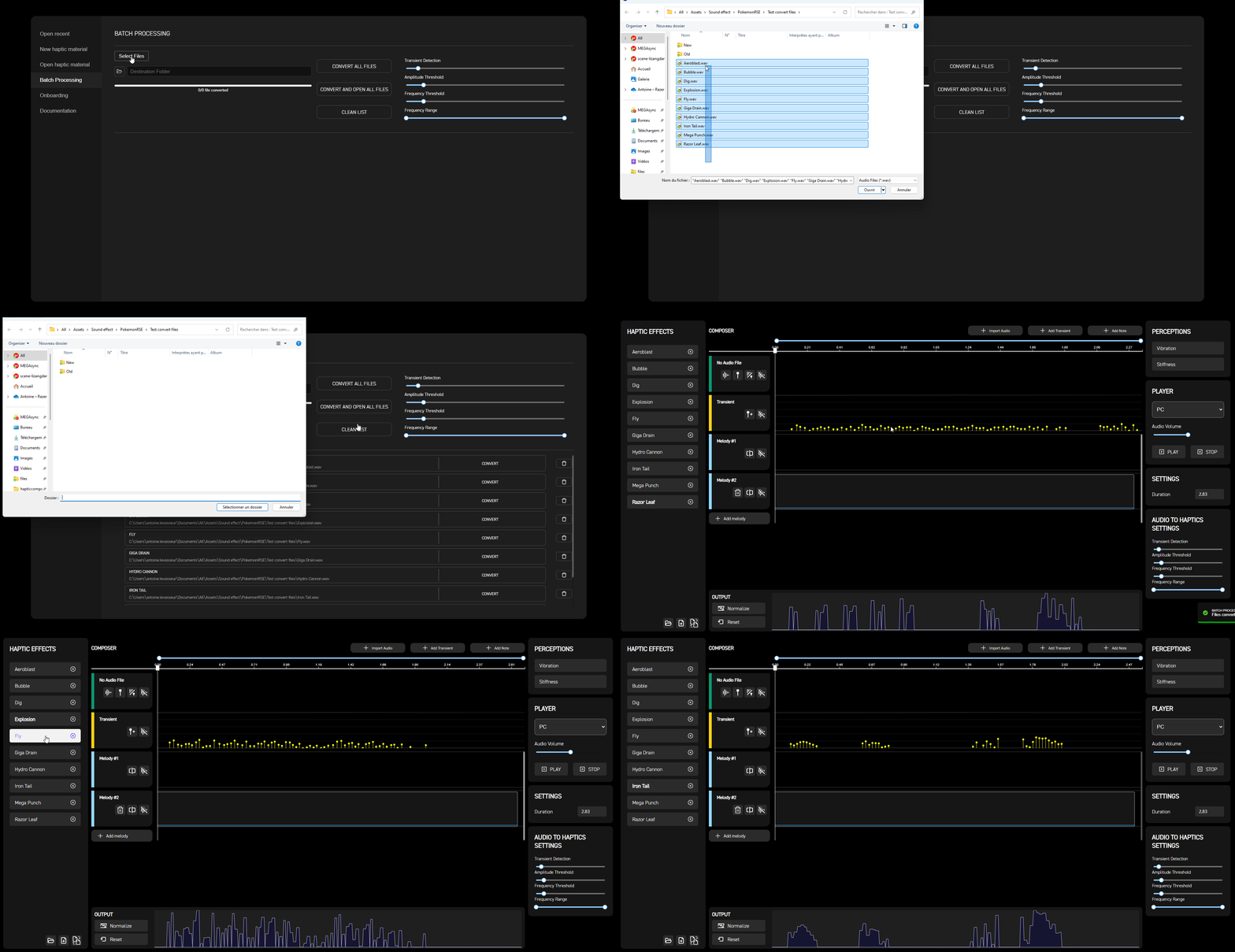
It can be opened directly from the starting menu when opening Haptic Composer. or Press the Batch Processing button in the left panel of Haptic Composer.

-
Add Audio Files
Use Select Files to select individual audio files. -
Select Output Location
Choose the Destination folder where the generated.hapsfiles will be saved. -
Configure Conversion Settings
Set the parameters used for audio-to-haptics conversion. These include:- Transient Detection
- Amplitude Threshold
- Frequency Threshold
- Frequency Range (optimized per device type)
See more on these parameters in the Audio to Haptics Settings chapter(https://doc.wyvrn.com/docs/interhaptics-sdk/haptic-composer/audio-to-haptics-settings/)
The chosen settings will be applied to all files in the batch.
- Run Conversion
Click Convert All Files or Convert and Open All Files to start processing. A progress window will display the status. Once finished, the.hapsfiles will appear in the output folder and/or they will be opened in Haptic Composer.
Notes
- The input format for audio files is WAV.
- Batch conversion uses the same default settings as single-file conversion.
- All resulting
.hapsfiles can be opened and edited directly in Haptic Composer for fine-tuning.