WYVRN Effects Library
The WYVRN Effects Library is a premade set of Chroma and haptics effects that can easily be added to any game. The library has a gallery which makes integration as easy as copy and paste. The event names are intended to be used with the SetEventName method to trigger the event.
Gallery
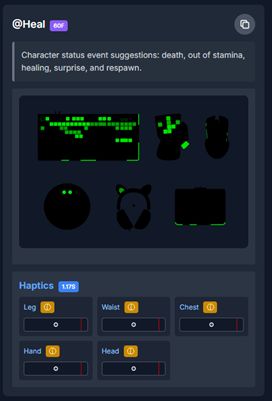
The interactive gallery is available to view in the browser at the following link: https://tools.wyvrn.com/WyvrnEffectsLibrary/. The gallery displays the available events with Chroma and haptic previews for each of the effects if assets are available. Each event has a name, duration, description, Chroma renderer, haptics renderer, and a copy button to generate sample code. The gallery assets are distributed by Synapse automatically for games. New events added to the library will automatically be distributed to end users.
Tutorial
You can follow this 3 minute tutorial on how to jump start your Chroma and haptics implementation in your game.
In this tutorial, you’ll learn how to:
- Install and connect the WYVRN SDK to your game engine.
- Configure Razer Synapse so HD Haptics and Chroma effects run properly.
- Browse, preview, and search the WYVRN Effects Library to find the right effects.
- Copy effect commands into your game build and control how they play in gameplay.
By the end, you’ll know exactly how to integrate ready-made haptic and lighting effects into your game in just a few steps.
Chroma Renderer
The Chroma renderer shows a set of Chroma devices that emulates how the event will display on Razer devices. Chroma durations are in frames. Chroma playback on hardware renders at 30 frames per second.
Haptics Renderer
The haptics renderer can be shown two ways if assets are available for the event.

Haptics Renderer: Chart
Chart view renders as a chart with amplitude as the y-axis and time as the x-axis.

Haptics Renderer: Circle
Circle view renders an animated circle with the radius representing the intensity of the haptics. The red vertical line represents time with the left being the start and the right being the end of the animation.

Code Generation
The gallery can generate code for the integration to make copy and paste easy. Use the language drop down to set the code generation language.

Code Generation: Text
The text option copies the text of the event name. Event names represent the Chroma and Haptics pattern that will play when the event happens.

Code Generation: C++
The C++ option will generate sample C++ code.
WyvrnAPI::CoreSetEventName(L"@Heal");
Code Generation: Unreal
The Unreal option will generate sample code for Unreal C++. See the following page for the guide to setup the library with Unreal:
[WYVRN SDK Unreal Engine Plugin Integration (External) - Indie Developers] (https://doc.wyvrn.com/docs/wyvrn-sdk/unreal-engine/)
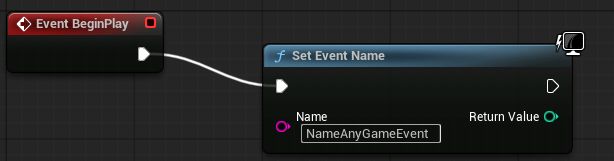
UWyvrnSDKPluginBPLibrary::SetEventName("@Heal");
Blueprints use the text option.
Code Generation: C#/Unity
The C# option will generate sample code for C#.
WyvrnAPI.CoreSetEventName("@Heal");
Event Naming Conventions
Event names in the library use two sets of suffixes. _Haptic and _Chroma select which channel plays. _ON and _OFF start and stop a looping effect.
| Suffix | Meaning |
|---|---|
| (none) | Plays the Chroma animation and the haptic effect together |
_Haptic | Plays only the haptic effect |
_Chroma | Plays only the Chroma animation |
_ON | Starts a looping effect, which plays until you stop it |
_OFF | Stops the matching _ON effect |
The two sets combine. @Slowed_ON_Haptic starts the looping haptic half of @Slowed_ON without the Chroma animation.
Event names are matched exactly, so use the capitalisation shown in the gallery. @Heal_Haptic will play, @Heal_haptic will not. An event name that does not match plays nothing and reports no error.
Event Names: Haptics or Chroma Only
By default an event name triggers both the Chroma animation and the haptic effect. To trigger only one channel, use the _Haptic or _Chroma variant of the event name.
| Call | Plays |
|---|---|
SetEventName("@Heal") | Chroma and haptics |
SetEventName("@Heal_Haptic") | Haptics only |
SetEventName("@Heal_Chroma") | Chroma only |
This is useful when the two channels are driven by different game logic. A weapon can fire haptics on every shot while a single Chroma animation covers the whole burst.
WyvrnAPI::CoreSetEventName(L"@Heal_Haptic");
UWyvrnSDKPluginBPLibrary::SetEventName("@Heal_Chroma");
WyvrnAPI.CoreSetEventName("@Heal_Haptic");
Every event that has both a Chroma animation and a haptic effect provides these two variants. Events with a single channel do not have variants, because there would be nothing to separate. The @Idle_* colours and @Engine_Stop are Chroma only. @Drift_Left_ON and @Drift_Right_ON are haptics only. The gallery shows which channels each event has.
Event Names: Looping Effects
Most events are one-shots that play out on their own. Events ending in _ON describe a state rather than a moment, such as being slowed, poisoned, in water, or sliding down a wall. These effects loop.
A looping effect plays until you stop it. Calling @Slowed_ON and never calling @Slowed_OFF leaves the effect playing for the rest of the session. Every _ON event has a matching _OFF event. Pair them with the game state that started them.
WyvrnAPI.CoreSetEventName("@Slowed_ON");

WyvrnAPI.CoreSetEventName("@Slowed_OFF");
An _OFF event stops every variant of its _ON event at once. @Slowed_OFF interrupts @Slowed_ON, @Slowed_ON_Haptic, and @Slowed_ON_Chroma, so you do not need to track which variant you started.
_OFF events only stop an effect and never play one. This is why they have no _Haptic or _Chroma variants of their own.
The library has 17 looping events: @Drift_Left_ON, @Drift_Right_ON, @Encroached_ON, @Focus_ON, @InWater_ON, @OverDrive_ON, @PoisonDamage_ON, @Rain_ON, @Scanning_ON, @Slowed_ON, @Start_GlideLeft_ON, @Start_GlideOnTheWind_ON, @Start_GlideRight_ON, @Start_Slide_ON, @Start_WallSlideLeft_ON, @Start_WallSlideRight_ON, and @Struggle_ON.
@Rain_ON is stopped by @InRain_OFF rather than @Rain_OFF.
Filters: Text
Events can be filtered by text search which matches on event names.
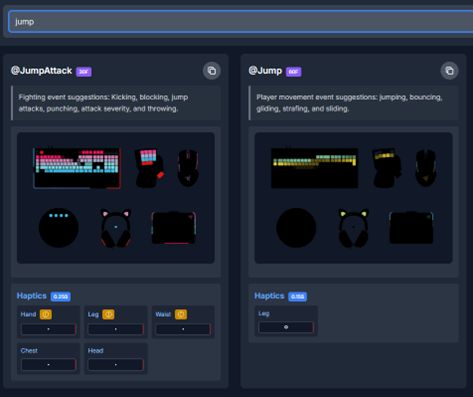
Filters: Folders
Events can be filtered by folder categories to make options easier to find.

Event Reference
Every event in the library with its generated call for each engine. The gallery copy button produces the same code, and the gallery assets are distributed by Synapse automatically, so no assets need to be added to your game.
Event Reference: CharacterStatus
| Event | Plays | C++ | Unreal | C#/Unity |
|---|---|---|---|---|
@Anxious | Chroma and haptics | WyvrnAPI::CoreSetEventName(L"@Anxious"); | UWyvrnSDKPluginBPLibrary::SetEventName("@Anxious"); | WyvrnAPI.CoreSetEventName("@Anxious"); |
@Anxious_Haptic | Haptics only | WyvrnAPI::CoreSetEventName(L"@Anxious_Haptic"); | UWyvrnSDKPluginBPLibrary::SetEventName("@Anxious_Haptic"); | WyvrnAPI.CoreSetEventName("@Anxious_Haptic"); |
@Anxious_Chroma | Chroma only | WyvrnAPI::CoreSetEventName(L"@Anxious_Chroma"); | UWyvrnSDKPluginBPLibrary::SetEventName("@Anxious_Chroma"); | WyvrnAPI.CoreSetEventName("@Anxious_Chroma"); |
@Die | Chroma and haptics | WyvrnAPI::CoreSetEventName(L"@Die"); | UWyvrnSDKPluginBPLibrary::SetEventName("@Die"); | WyvrnAPI.CoreSetEventName("@Die"); |
@Die_Haptic | Haptics only | WyvrnAPI::CoreSetEventName(L"@Die_Haptic"); | UWyvrnSDKPluginBPLibrary::SetEventName("@Die_Haptic"); | WyvrnAPI.CoreSetEventName("@Die_Haptic"); |
@Die_Chroma | Chroma only | WyvrnAPI::CoreSetEventName(L"@Die_Chroma"); | UWyvrnSDKPluginBPLibrary::SetEventName("@Die_Chroma"); | WyvrnAPI.CoreSetEventName("@Die_Chroma"); |
@Focus_OFF | Stops looping effect | WyvrnAPI::CoreSetEventName(L"@Focus_OFF"); | UWyvrnSDKPluginBPLibrary::SetEventName("@Focus_OFF"); | WyvrnAPI.CoreSetEventName("@Focus_OFF"); |
@Focus_OFF_Haptic | Haptics only | WyvrnAPI::CoreSetEventName(L"@Focus_OFF_Haptic"); | UWyvrnSDKPluginBPLibrary::SetEventName("@Focus_OFF_Haptic"); | WyvrnAPI.CoreSetEventName("@Focus_OFF_Haptic"); |
@Focus_OFF_Chroma | Chroma only | WyvrnAPI::CoreSetEventName(L"@Focus_OFF_Chroma"); | UWyvrnSDKPluginBPLibrary::SetEventName("@Focus_OFF_Chroma"); | WyvrnAPI.CoreSetEventName("@Focus_OFF_Chroma"); |
@Focus_ON | Chroma and haptics | WyvrnAPI::CoreSetEventName(L"@Focus_ON"); | UWyvrnSDKPluginBPLibrary::SetEventName("@Focus_ON"); | WyvrnAPI.CoreSetEventName("@Focus_ON"); |
@Focus_ON_Haptic | Haptics only | WyvrnAPI::CoreSetEventName(L"@Focus_ON_Haptic"); | UWyvrnSDKPluginBPLibrary::SetEventName("@Focus_ON_Haptic"); | WyvrnAPI.CoreSetEventName("@Focus_ON_Haptic"); |
@Focus_ON_Chroma | Chroma only | WyvrnAPI::CoreSetEventName(L"@Focus_ON_Chroma"); | UWyvrnSDKPluginBPLibrary::SetEventName("@Focus_ON_Chroma"); | WyvrnAPI.CoreSetEventName("@Focus_ON_Chroma"); |
@Heal | Chroma and haptics | WyvrnAPI::CoreSetEventName(L"@Heal"); | UWyvrnSDKPluginBPLibrary::SetEventName("@Heal"); | WyvrnAPI.CoreSetEventName("@Heal"); |
@Heal_Haptic | Haptics only | WyvrnAPI::CoreSetEventName(L"@Heal_Haptic"); | UWyvrnSDKPluginBPLibrary::SetEventName("@Heal_Haptic"); | WyvrnAPI.CoreSetEventName("@Heal_Haptic"); |
@Heal_Chroma | Chroma only | WyvrnAPI::CoreSetEventName(L"@Heal_Chroma"); | UWyvrnSDKPluginBPLibrary::SetEventName("@Heal_Chroma"); | WyvrnAPI.CoreSetEventName("@Heal_Chroma"); |
@NoMoreStamina | Chroma and haptics | WyvrnAPI::CoreSetEventName(L"@NoMoreStamina"); | UWyvrnSDKPluginBPLibrary::SetEventName("@NoMoreStamina"); | WyvrnAPI.CoreSetEventName("@NoMoreStamina"); |
@NoMoreStamina_Haptic | Haptics only | WyvrnAPI::CoreSetEventName(L"@NoMoreStamina_Haptic"); | UWyvrnSDKPluginBPLibrary::SetEventName("@NoMoreStamina_Haptic"); | WyvrnAPI.CoreSetEventName("@NoMoreStamina_Haptic"); |
@NoMoreStamina_Chroma | Chroma only | WyvrnAPI::CoreSetEventName(L"@NoMoreStamina_Chroma"); | UWyvrnSDKPluginBPLibrary::SetEventName("@NoMoreStamina_Chroma"); | WyvrnAPI.CoreSetEventName("@NoMoreStamina_Chroma"); |
@Struggle_OFF | Stops looping effect | WyvrnAPI::CoreSetEventName(L"@Struggle_OFF"); | UWyvrnSDKPluginBPLibrary::SetEventName("@Struggle_OFF"); | WyvrnAPI.CoreSetEventName("@Struggle_OFF"); |
@Struggle_ON | Chroma and haptics | WyvrnAPI::CoreSetEventName(L"@Struggle_ON"); | UWyvrnSDKPluginBPLibrary::SetEventName("@Struggle_ON"); | WyvrnAPI.CoreSetEventName("@Struggle_ON"); |
@Struggle_ON_Haptic | Haptics only | WyvrnAPI::CoreSetEventName(L"@Struggle_ON_Haptic"); | UWyvrnSDKPluginBPLibrary::SetEventName("@Struggle_ON_Haptic"); | WyvrnAPI.CoreSetEventName("@Struggle_ON_Haptic"); |
@Struggle_ON_Chroma | Chroma only | WyvrnAPI::CoreSetEventName(L"@Struggle_ON_Chroma"); | UWyvrnSDKPluginBPLibrary::SetEventName("@Struggle_ON_Chroma"); | WyvrnAPI.CoreSetEventName("@Struggle_ON_Chroma"); |
@Wounded | Chroma and haptics | WyvrnAPI::CoreSetEventName(L"@Wounded"); | UWyvrnSDKPluginBPLibrary::SetEventName("@Wounded"); | WyvrnAPI.CoreSetEventName("@Wounded"); |
@Wounded_Haptic | Haptics only | WyvrnAPI::CoreSetEventName(L"@Wounded_Haptic"); | UWyvrnSDKPluginBPLibrary::SetEventName("@Wounded_Haptic"); | WyvrnAPI.CoreSetEventName("@Wounded_Haptic"); |
@Wounded_Chroma | Chroma only | WyvrnAPI::CoreSetEventName(L"@Wounded_Chroma"); | UWyvrnSDKPluginBPLibrary::SetEventName("@Wounded_Chroma"); | WyvrnAPI.CoreSetEventName("@Wounded_Chroma"); |
Event Reference: Environment
| Event | Plays | C++ | Unreal | C#/Unity |
|---|---|---|---|---|
@InRain_OFF | Stops looping effect | WyvrnAPI::CoreSetEventName(L"@InRain_OFF"); | UWyvrnSDKPluginBPLibrary::SetEventName("@InRain_OFF"); | WyvrnAPI.CoreSetEventName("@InRain_OFF"); |
@InWater_OFF | Stops looping effect | WyvrnAPI::CoreSetEventName(L"@InWater_OFF"); | UWyvrnSDKPluginBPLibrary::SetEventName("@InWater_OFF"); | WyvrnAPI.CoreSetEventName("@InWater_OFF"); |
@InWater_ON | Chroma and haptics | WyvrnAPI::CoreSetEventName(L"@InWater_ON"); | UWyvrnSDKPluginBPLibrary::SetEventName("@InWater_ON"); | WyvrnAPI.CoreSetEventName("@InWater_ON"); |
@InWater_ON_Haptic | Haptics only | WyvrnAPI::CoreSetEventName(L"@InWater_ON_Haptic"); | UWyvrnSDKPluginBPLibrary::SetEventName("@InWater_ON_Haptic"); | WyvrnAPI.CoreSetEventName("@InWater_ON_Haptic"); |
@InWater_ON_Chroma | Chroma only | WyvrnAPI::CoreSetEventName(L"@InWater_ON_Chroma"); | UWyvrnSDKPluginBPLibrary::SetEventName("@InWater_ON_Chroma"); | WyvrnAPI.CoreSetEventName("@InWater_ON_Chroma"); |
@Rain_ON | Chroma and haptics | WyvrnAPI::CoreSetEventName(L"@Rain_ON"); | UWyvrnSDKPluginBPLibrary::SetEventName("@Rain_ON"); | WyvrnAPI.CoreSetEventName("@Rain_ON"); |
@Rain_ON_Haptic | Haptics only | WyvrnAPI::CoreSetEventName(L"@Rain_ON_Haptic"); | UWyvrnSDKPluginBPLibrary::SetEventName("@Rain_ON_Haptic"); | WyvrnAPI.CoreSetEventName("@Rain_ON_Haptic"); |
@Rain_ON_Chroma | Chroma only | WyvrnAPI::CoreSetEventName(L"@Rain_ON_Chroma"); | UWyvrnSDKPluginBPLibrary::SetEventName("@Rain_ON_Chroma"); | WyvrnAPI.CoreSetEventName("@Rain_ON_Chroma"); |
Event Reference: Fighting
| Event | Plays | C++ | Unreal | C#/Unity |
|---|---|---|---|---|
@Block | Chroma and haptics | WyvrnAPI::CoreSetEventName(L"@Block"); | UWyvrnSDKPluginBPLibrary::SetEventName("@Block"); | WyvrnAPI.CoreSetEventName("@Block"); |
@Block_Haptic | Haptics only | WyvrnAPI::CoreSetEventName(L"@Block_Haptic"); | UWyvrnSDKPluginBPLibrary::SetEventName("@Block_Haptic"); | WyvrnAPI.CoreSetEventName("@Block_Haptic"); |
@Block_Chroma | Chroma only | WyvrnAPI::CoreSetEventName(L"@Block_Chroma"); | UWyvrnSDKPluginBPLibrary::SetEventName("@Block_Chroma"); | WyvrnAPI.CoreSetEventName("@Block_Chroma"); |
@JumpAttack | Chroma and haptics | WyvrnAPI::CoreSetEventName(L"@JumpAttack"); | UWyvrnSDKPluginBPLibrary::SetEventName("@JumpAttack"); | WyvrnAPI.CoreSetEventName("@JumpAttack"); |
@JumpAttack_Haptic | Haptics only | WyvrnAPI::CoreSetEventName(L"@JumpAttack_Haptic"); | UWyvrnSDKPluginBPLibrary::SetEventName("@JumpAttack_Haptic"); | WyvrnAPI.CoreSetEventName("@JumpAttack_Haptic"); |
@JumpAttack_Chroma | Chroma only | WyvrnAPI::CoreSetEventName(L"@JumpAttack_Chroma"); | UWyvrnSDKPluginBPLibrary::SetEventName("@JumpAttack_Chroma"); | WyvrnAPI.CoreSetEventName("@JumpAttack_Chroma"); |
@Kick | Chroma and haptics | WyvrnAPI::CoreSetEventName(L"@Kick"); | UWyvrnSDKPluginBPLibrary::SetEventName("@Kick"); | WyvrnAPI.CoreSetEventName("@Kick"); |
@Kick_Haptic | Haptics only | WyvrnAPI::CoreSetEventName(L"@Kick_Haptic"); | UWyvrnSDKPluginBPLibrary::SetEventName("@Kick_Haptic"); | WyvrnAPI.CoreSetEventName("@Kick_Haptic"); |
@Kick_Chroma | Chroma only | WyvrnAPI::CoreSetEventName(L"@Kick_Chroma"); | UWyvrnSDKPluginBPLibrary::SetEventName("@Kick_Chroma"); | WyvrnAPI.CoreSetEventName("@Kick_Chroma"); |
@LandHuge | Chroma and haptics | WyvrnAPI::CoreSetEventName(L"@LandHuge"); | UWyvrnSDKPluginBPLibrary::SetEventName("@LandHuge"); | WyvrnAPI.CoreSetEventName("@LandHuge"); |
@LandHuge_Haptic | Haptics only | WyvrnAPI::CoreSetEventName(L"@LandHuge_Haptic"); | UWyvrnSDKPluginBPLibrary::SetEventName("@LandHuge_Haptic"); | WyvrnAPI.CoreSetEventName("@LandHuge_Haptic"); |
@LandHuge_Chroma | Chroma only | WyvrnAPI::CoreSetEventName(L"@LandHuge_Chroma"); | UWyvrnSDKPluginBPLibrary::SetEventName("@LandHuge_Chroma"); | WyvrnAPI.CoreSetEventName("@LandHuge_Chroma"); |
@LandLite | Chroma and haptics | WyvrnAPI::CoreSetEventName(L"@LandLite"); | UWyvrnSDKPluginBPLibrary::SetEventName("@LandLite"); | WyvrnAPI.CoreSetEventName("@LandLite"); |
@LandLite_Haptic | Haptics only | WyvrnAPI::CoreSetEventName(L"@LandLite_Haptic"); | UWyvrnSDKPluginBPLibrary::SetEventName("@LandLite_Haptic"); | WyvrnAPI.CoreSetEventName("@LandLite_Haptic"); |
@LandLite_Chroma | Chroma only | WyvrnAPI::CoreSetEventName(L"@LandLite_Chroma"); | UWyvrnSDKPluginBPLibrary::SetEventName("@LandLite_Chroma"); | WyvrnAPI.CoreSetEventName("@LandLite_Chroma"); |
@LandMedium | Chroma and haptics | WyvrnAPI::CoreSetEventName(L"@LandMedium"); | UWyvrnSDKPluginBPLibrary::SetEventName("@LandMedium"); | WyvrnAPI.CoreSetEventName("@LandMedium"); |
@LandMedium_Haptic | Haptics only | WyvrnAPI::CoreSetEventName(L"@LandMedium_Haptic"); | UWyvrnSDKPluginBPLibrary::SetEventName("@LandMedium_Haptic"); | WyvrnAPI.CoreSetEventName("@LandMedium_Haptic"); |
@LandMedium_Chroma | Chroma only | WyvrnAPI::CoreSetEventName(L"@LandMedium_Chroma"); | UWyvrnSDKPluginBPLibrary::SetEventName("@LandMedium_Chroma"); | WyvrnAPI.CoreSetEventName("@LandMedium_Chroma"); |
@PerfectBlock | Chroma and haptics | WyvrnAPI::CoreSetEventName(L"@PerfectBlock"); | UWyvrnSDKPluginBPLibrary::SetEventName("@PerfectBlock"); | WyvrnAPI.CoreSetEventName("@PerfectBlock"); |
@PerfectBlock_Haptic | Haptics only | WyvrnAPI::CoreSetEventName(L"@PerfectBlock_Haptic"); | UWyvrnSDKPluginBPLibrary::SetEventName("@PerfectBlock_Haptic"); | WyvrnAPI.CoreSetEventName("@PerfectBlock_Haptic"); |
@PerfectBlock_Chroma | Chroma only | WyvrnAPI::CoreSetEventName(L"@PerfectBlock_Chroma"); | UWyvrnSDKPluginBPLibrary::SetEventName("@PerfectBlock_Chroma"); | WyvrnAPI.CoreSetEventName("@PerfectBlock_Chroma"); |
@Punch | Chroma and haptics | WyvrnAPI::CoreSetEventName(L"@Punch"); | UWyvrnSDKPluginBPLibrary::SetEventName("@Punch"); | WyvrnAPI.CoreSetEventName("@Punch"); |
@Punch_Haptic | Haptics only | WyvrnAPI::CoreSetEventName(L"@Punch_Haptic"); | UWyvrnSDKPluginBPLibrary::SetEventName("@Punch_Haptic"); | WyvrnAPI.CoreSetEventName("@Punch_Haptic"); |
@Punch_Chroma | Chroma only | WyvrnAPI::CoreSetEventName(L"@Punch_Chroma"); | UWyvrnSDKPluginBPLibrary::SetEventName("@Punch_Chroma"); | WyvrnAPI.CoreSetEventName("@Punch_Chroma"); |
@Throw | Chroma and haptics | WyvrnAPI::CoreSetEventName(L"@Throw"); | UWyvrnSDKPluginBPLibrary::SetEventName("@Throw"); | WyvrnAPI.CoreSetEventName("@Throw"); |
@Throw_Haptic | Haptics only | WyvrnAPI::CoreSetEventName(L"@Throw_Haptic"); | UWyvrnSDKPluginBPLibrary::SetEventName("@Throw_Haptic"); | WyvrnAPI.CoreSetEventName("@Throw_Haptic"); |
@Throw_Chroma | Chroma only | WyvrnAPI::CoreSetEventName(L"@Throw_Chroma"); | UWyvrnSDKPluginBPLibrary::SetEventName("@Throw_Chroma"); | WyvrnAPI.CoreSetEventName("@Throw_Chroma"); |
@Uppercut | Chroma and haptics | WyvrnAPI::CoreSetEventName(L"@Uppercut"); | UWyvrnSDKPluginBPLibrary::SetEventName("@Uppercut"); | WyvrnAPI.CoreSetEventName("@Uppercut"); |
@Uppercut_Haptic | Haptics only | WyvrnAPI::CoreSetEventName(L"@Uppercut_Haptic"); | UWyvrnSDKPluginBPLibrary::SetEventName("@Uppercut_Haptic"); | WyvrnAPI.CoreSetEventName("@Uppercut_Haptic"); |
@Uppercut_Chroma | Chroma only | WyvrnAPI::CoreSetEventName(L"@Uppercut_Chroma"); | UWyvrnSDKPluginBPLibrary::SetEventName("@Uppercut_Chroma"); | WyvrnAPI.CoreSetEventName("@Uppercut_Chroma"); |
Event Reference: Grenades
| Event | Plays | C++ | Unreal | C#/Unity |
|---|---|---|---|---|
@FlashGrenade | Chroma and haptics | WyvrnAPI::CoreSetEventName(L"@FlashGrenade"); | UWyvrnSDKPluginBPLibrary::SetEventName("@FlashGrenade"); | WyvrnAPI.CoreSetEventName("@FlashGrenade"); |
@FlashGrenade_Haptic | Haptics only | WyvrnAPI::CoreSetEventName(L"@FlashGrenade_Haptic"); | UWyvrnSDKPluginBPLibrary::SetEventName("@FlashGrenade_Haptic"); | WyvrnAPI.CoreSetEventName("@FlashGrenade_Haptic"); |
@FlashGrenade_Chroma | Chroma only | WyvrnAPI::CoreSetEventName(L"@FlashGrenade_Chroma"); | UWyvrnSDKPluginBPLibrary::SetEventName("@FlashGrenade_Chroma"); | WyvrnAPI.CoreSetEventName("@FlashGrenade_Chroma"); |
@FragGrenade | Chroma and haptics | WyvrnAPI::CoreSetEventName(L"@FragGrenade"); | UWyvrnSDKPluginBPLibrary::SetEventName("@FragGrenade"); | WyvrnAPI.CoreSetEventName("@FragGrenade"); |
@FragGrenade_Haptic | Haptics only | WyvrnAPI::CoreSetEventName(L"@FragGrenade_Haptic"); | UWyvrnSDKPluginBPLibrary::SetEventName("@FragGrenade_Haptic"); | WyvrnAPI.CoreSetEventName("@FragGrenade_Haptic"); |
@FragGrenade_Chroma | Chroma only | WyvrnAPI::CoreSetEventName(L"@FragGrenade_Chroma"); | UWyvrnSDKPluginBPLibrary::SetEventName("@FragGrenade_Chroma"); | WyvrnAPI.CoreSetEventName("@FragGrenade_Chroma"); |
@GasGrenade | Chroma and haptics | WyvrnAPI::CoreSetEventName(L"@GasGrenade"); | UWyvrnSDKPluginBPLibrary::SetEventName("@GasGrenade"); | WyvrnAPI.CoreSetEventName("@GasGrenade"); |
@GasGrenade_Haptic | Haptics only | WyvrnAPI::CoreSetEventName(L"@GasGrenade_Haptic"); | UWyvrnSDKPluginBPLibrary::SetEventName("@GasGrenade_Haptic"); | WyvrnAPI.CoreSetEventName("@GasGrenade_Haptic"); |
@GasGrenade_Chroma | Chroma only | WyvrnAPI::CoreSetEventName(L"@GasGrenade_Chroma"); | UWyvrnSDKPluginBPLibrary::SetEventName("@GasGrenade_Chroma"); | WyvrnAPI.CoreSetEventName("@GasGrenade_Chroma"); |
@ShockGrenade | Chroma and haptics | WyvrnAPI::CoreSetEventName(L"@ShockGrenade"); | UWyvrnSDKPluginBPLibrary::SetEventName("@ShockGrenade"); | WyvrnAPI.CoreSetEventName("@ShockGrenade"); |
@ShockGrenade_Haptic | Haptics only | WyvrnAPI::CoreSetEventName(L"@ShockGrenade_Haptic"); | UWyvrnSDKPluginBPLibrary::SetEventName("@ShockGrenade_Haptic"); | WyvrnAPI.CoreSetEventName("@ShockGrenade_Haptic"); |
@ShockGrenade_Chroma | Chroma only | WyvrnAPI::CoreSetEventName(L"@ShockGrenade_Chroma"); | UWyvrnSDKPluginBPLibrary::SetEventName("@ShockGrenade_Chroma"); | WyvrnAPI.CoreSetEventName("@ShockGrenade_Chroma"); |
@SmokeGrenade | Chroma and haptics | WyvrnAPI::CoreSetEventName(L"@SmokeGrenade"); | UWyvrnSDKPluginBPLibrary::SetEventName("@SmokeGrenade"); | WyvrnAPI.CoreSetEventName("@SmokeGrenade"); |
@SmokeGrenade_Haptic | Haptics only | WyvrnAPI::CoreSetEventName(L"@SmokeGrenade_Haptic"); | UWyvrnSDKPluginBPLibrary::SetEventName("@SmokeGrenade_Haptic"); | WyvrnAPI.CoreSetEventName("@SmokeGrenade_Haptic"); |
@SmokeGrenade_Chroma | Chroma only | WyvrnAPI::CoreSetEventName(L"@SmokeGrenade_Chroma"); | UWyvrnSDKPluginBPLibrary::SetEventName("@SmokeGrenade_Chroma"); | WyvrnAPI.CoreSetEventName("@SmokeGrenade_Chroma"); |
@ThrowingKnife | Chroma and haptics | WyvrnAPI::CoreSetEventName(L"@ThrowingKnife"); | UWyvrnSDKPluginBPLibrary::SetEventName("@ThrowingKnife"); | WyvrnAPI.CoreSetEventName("@ThrowingKnife"); |
@ThrowingKnife_Haptic | Haptics only | WyvrnAPI::CoreSetEventName(L"@ThrowingKnife_Haptic"); | UWyvrnSDKPluginBPLibrary::SetEventName("@ThrowingKnife_Haptic"); | WyvrnAPI.CoreSetEventName("@ThrowingKnife_Haptic"); |
@ThrowingKnife_Chroma | Chroma only | WyvrnAPI::CoreSetEventName(L"@ThrowingKnife_Chroma"); | UWyvrnSDKPluginBPLibrary::SetEventName("@ThrowingKnife_Chroma"); | WyvrnAPI.CoreSetEventName("@ThrowingKnife_Chroma"); |
Event Reference: Idle
| Event | Plays | C++ | Unreal | C#/Unity |
|---|---|---|---|---|
@Idle_Blue | Chroma only | WyvrnAPI::CoreSetEventName(L"@Idle_Blue"); | UWyvrnSDKPluginBPLibrary::SetEventName("@Idle_Blue"); | WyvrnAPI.CoreSetEventName("@Idle_Blue"); |
@Idle_Green | Chroma only | WyvrnAPI::CoreSetEventName(L"@Idle_Green"); | UWyvrnSDKPluginBPLibrary::SetEventName("@Idle_Green"); | WyvrnAPI.CoreSetEventName("@Idle_Green"); |
@Idle_GreenBlue | Chroma only | WyvrnAPI::CoreSetEventName(L"@Idle_GreenBlue"); | UWyvrnSDKPluginBPLibrary::SetEventName("@Idle_GreenBlue"); | WyvrnAPI.CoreSetEventName("@Idle_GreenBlue"); |
@Idle_Purple | Chroma only | WyvrnAPI::CoreSetEventName(L"@Idle_Purple"); | UWyvrnSDKPluginBPLibrary::SetEventName("@Idle_Purple"); | WyvrnAPI.CoreSetEventName("@Idle_Purple"); |
@Idle_Rainbow | Chroma only | WyvrnAPI::CoreSetEventName(L"@Idle_Rainbow"); | UWyvrnSDKPluginBPLibrary::SetEventName("@Idle_Rainbow"); | WyvrnAPI.CoreSetEventName("@Idle_Rainbow"); |
@Idle_Red | Chroma only | WyvrnAPI::CoreSetEventName(L"@Idle_Red"); | UWyvrnSDKPluginBPLibrary::SetEventName("@Idle_Red"); | WyvrnAPI.CoreSetEventName("@Idle_Red"); |
@Idle_Yellow | Chroma only | WyvrnAPI::CoreSetEventName(L"@Idle_Yellow"); | UWyvrnSDKPluginBPLibrary::SetEventName("@Idle_Yellow"); | WyvrnAPI.CoreSetEventName("@Idle_Yellow"); |
@Idle_YellowRed | Chroma only | WyvrnAPI::CoreSetEventName(L"@Idle_YellowRed"); | UWyvrnSDKPluginBPLibrary::SetEventName("@Idle_YellowRed"); | WyvrnAPI.CoreSetEventName("@Idle_YellowRed"); |
Event Reference: Interaction
| Event | Plays | C++ | Unreal | C#/Unity |
|---|---|---|---|---|
@Bluff | Chroma and haptics | WyvrnAPI::CoreSetEventName(L"@Bluff"); | UWyvrnSDKPluginBPLibrary::SetEventName("@Bluff"); | WyvrnAPI.CoreSetEventName("@Bluff"); |
@Bluff_Haptic | Haptics only | WyvrnAPI::CoreSetEventName(L"@Bluff_Haptic"); | UWyvrnSDKPluginBPLibrary::SetEventName("@Bluff_Haptic"); | WyvrnAPI.CoreSetEventName("@Bluff_Haptic"); |
@Bluff_Chroma | Chroma only | WyvrnAPI::CoreSetEventName(L"@Bluff_Chroma"); | UWyvrnSDKPluginBPLibrary::SetEventName("@Bluff_Chroma"); | WyvrnAPI.CoreSetEventName("@Bluff_Chroma"); |
@Buy | Chroma and haptics | WyvrnAPI::CoreSetEventName(L"@Buy"); | UWyvrnSDKPluginBPLibrary::SetEventName("@Buy"); | WyvrnAPI.CoreSetEventName("@Buy"); |
@Buy_Haptic | Haptics only | WyvrnAPI::CoreSetEventName(L"@Buy_Haptic"); | UWyvrnSDKPluginBPLibrary::SetEventName("@Buy_Haptic"); | WyvrnAPI.CoreSetEventName("@Buy_Haptic"); |
@Buy_Chroma | Chroma only | WyvrnAPI::CoreSetEventName(L"@Buy_Chroma"); | UWyvrnSDKPluginBPLibrary::SetEventName("@Buy_Chroma"); | WyvrnAPI.CoreSetEventName("@Buy_Chroma"); |
@ItemCollected | Chroma and haptics | WyvrnAPI::CoreSetEventName(L"@ItemCollected"); | UWyvrnSDKPluginBPLibrary::SetEventName("@ItemCollected"); | WyvrnAPI.CoreSetEventName("@ItemCollected"); |
@ItemCollected_Haptic | Haptics only | WyvrnAPI::CoreSetEventName(L"@ItemCollected_Haptic"); | UWyvrnSDKPluginBPLibrary::SetEventName("@ItemCollected_Haptic"); | WyvrnAPI.CoreSetEventName("@ItemCollected_Haptic"); |
@ItemCollected_Chroma | Chroma only | WyvrnAPI::CoreSetEventName(L"@ItemCollected_Chroma"); | UWyvrnSDKPluginBPLibrary::SetEventName("@ItemCollected_Chroma"); | WyvrnAPI.CoreSetEventName("@ItemCollected_Chroma"); |
@LockpickFailure | Stops looping effect | WyvrnAPI::CoreSetEventName(L"@LockpickFailure"); | UWyvrnSDKPluginBPLibrary::SetEventName("@LockpickFailure"); | WyvrnAPI.CoreSetEventName("@LockpickFailure"); |
@LockpickFailure_Haptic | Haptics only | WyvrnAPI::CoreSetEventName(L"@LockpickFailure_Haptic"); | UWyvrnSDKPluginBPLibrary::SetEventName("@LockpickFailure_Haptic"); | WyvrnAPI.CoreSetEventName("@LockpickFailure_Haptic"); |
@LockpickFailure_Chroma | Chroma only | WyvrnAPI::CoreSetEventName(L"@LockpickFailure_Chroma"); | UWyvrnSDKPluginBPLibrary::SetEventName("@LockpickFailure_Chroma"); | WyvrnAPI.CoreSetEventName("@LockpickFailure_Chroma"); |
@LockpickPicked | Stops looping effect | WyvrnAPI::CoreSetEventName(L"@LockpickPicked"); | UWyvrnSDKPluginBPLibrary::SetEventName("@LockpickPicked"); | WyvrnAPI.CoreSetEventName("@LockpickPicked"); |
@LockpickPicked_Haptic | Haptics only | WyvrnAPI::CoreSetEventName(L"@LockpickPicked_Haptic"); | UWyvrnSDKPluginBPLibrary::SetEventName("@LockpickPicked_Haptic"); | WyvrnAPI.CoreSetEventName("@LockpickPicked_Haptic"); |
@LockpickPicked_Chroma | Chroma only | WyvrnAPI::CoreSetEventName(L"@LockpickPicked_Chroma"); | UWyvrnSDKPluginBPLibrary::SetEventName("@LockpickPicked_Chroma"); | WyvrnAPI.CoreSetEventName("@LockpickPicked_Chroma"); |
@LockpickStart | Chroma and haptics | WyvrnAPI::CoreSetEventName(L"@LockpickStart"); | UWyvrnSDKPluginBPLibrary::SetEventName("@LockpickStart"); | WyvrnAPI.CoreSetEventName("@LockpickStart"); |
@LockpickStart_Haptic | Haptics only | WyvrnAPI::CoreSetEventName(L"@LockpickStart_Haptic"); | UWyvrnSDKPluginBPLibrary::SetEventName("@LockpickStart_Haptic"); | WyvrnAPI.CoreSetEventName("@LockpickStart_Haptic"); |
@LockpickStart_Chroma | Chroma only | WyvrnAPI::CoreSetEventName(L"@LockpickStart_Chroma"); | UWyvrnSDKPluginBPLibrary::SetEventName("@LockpickStart_Chroma"); | WyvrnAPI.CoreSetEventName("@LockpickStart_Chroma"); |
@LockPickSuccess | Stops looping effect | WyvrnAPI::CoreSetEventName(L"@LockPickSuccess"); | UWyvrnSDKPluginBPLibrary::SetEventName("@LockPickSuccess"); | WyvrnAPI.CoreSetEventName("@LockPickSuccess"); |
@LockPickSuccess_Haptic | Haptics only | WyvrnAPI::CoreSetEventName(L"@LockPickSuccess_Haptic"); | UWyvrnSDKPluginBPLibrary::SetEventName("@LockPickSuccess_Haptic"); | WyvrnAPI.CoreSetEventName("@LockPickSuccess_Haptic"); |
@LockPickSuccess_Chroma | Chroma only | WyvrnAPI::CoreSetEventName(L"@LockPickSuccess_Chroma"); | UWyvrnSDKPluginBPLibrary::SetEventName("@LockPickSuccess_Chroma"); | WyvrnAPI.CoreSetEventName("@LockPickSuccess_Chroma"); |
@LongInteraction | Chroma and haptics | WyvrnAPI::CoreSetEventName(L"@LongInteraction"); | UWyvrnSDKPluginBPLibrary::SetEventName("@LongInteraction"); | WyvrnAPI.CoreSetEventName("@LongInteraction"); |
@LongInteraction_Haptic | Haptics only | WyvrnAPI::CoreSetEventName(L"@LongInteraction_Haptic"); | UWyvrnSDKPluginBPLibrary::SetEventName("@LongInteraction_Haptic"); | WyvrnAPI.CoreSetEventName("@LongInteraction_Haptic"); |
@LongInteraction_Chroma | Chroma only | WyvrnAPI::CoreSetEventName(L"@LongInteraction_Chroma"); | UWyvrnSDKPluginBPLibrary::SetEventName("@LongInteraction_Chroma"); | WyvrnAPI.CoreSetEventName("@LongInteraction_Chroma"); |
@LootItem | Chroma and haptics | WyvrnAPI::CoreSetEventName(L"@LootItem"); | UWyvrnSDKPluginBPLibrary::SetEventName("@LootItem"); | WyvrnAPI.CoreSetEventName("@LootItem"); |
@LootItem_Haptic | Haptics only | WyvrnAPI::CoreSetEventName(L"@LootItem_Haptic"); | UWyvrnSDKPluginBPLibrary::SetEventName("@LootItem_Haptic"); | WyvrnAPI.CoreSetEventName("@LootItem_Haptic"); |
@LootItem_Chroma | Chroma only | WyvrnAPI::CoreSetEventName(L"@LootItem_Chroma"); | UWyvrnSDKPluginBPLibrary::SetEventName("@LootItem_Chroma"); | WyvrnAPI.CoreSetEventName("@LootItem_Chroma"); |
@Pick | Chroma and haptics | WyvrnAPI::CoreSetEventName(L"@Pick"); | UWyvrnSDKPluginBPLibrary::SetEventName("@Pick"); | WyvrnAPI.CoreSetEventName("@Pick"); |
@Pick_Haptic | Haptics only | WyvrnAPI::CoreSetEventName(L"@Pick_Haptic"); | UWyvrnSDKPluginBPLibrary::SetEventName("@Pick_Haptic"); | WyvrnAPI.CoreSetEventName("@Pick_Haptic"); |
@Pick_Chroma | Chroma only | WyvrnAPI::CoreSetEventName(L"@Pick_Chroma"); | UWyvrnSDKPluginBPLibrary::SetEventName("@Pick_Chroma"); | WyvrnAPI.CoreSetEventName("@Pick_Chroma"); |
@Pull | Chroma and haptics | WyvrnAPI::CoreSetEventName(L"@Pull"); | UWyvrnSDKPluginBPLibrary::SetEventName("@Pull"); | WyvrnAPI.CoreSetEventName("@Pull"); |
@Pull_Haptic | Haptics only | WyvrnAPI::CoreSetEventName(L"@Pull_Haptic"); | UWyvrnSDKPluginBPLibrary::SetEventName("@Pull_Haptic"); | WyvrnAPI.CoreSetEventName("@Pull_Haptic"); |
@Pull_Chroma | Chroma only | WyvrnAPI::CoreSetEventName(L"@Pull_Chroma"); | UWyvrnSDKPluginBPLibrary::SetEventName("@Pull_Chroma"); | WyvrnAPI.CoreSetEventName("@Pull_Chroma"); |
@Sabotage_Door | Chroma and haptics | WyvrnAPI::CoreSetEventName(L"@Sabotage_Door"); | UWyvrnSDKPluginBPLibrary::SetEventName("@Sabotage_Door"); | WyvrnAPI.CoreSetEventName("@Sabotage_Door"); |
@Sabotage_Door_Haptic | Haptics only | WyvrnAPI::CoreSetEventName(L"@Sabotage_Door_Haptic"); | UWyvrnSDKPluginBPLibrary::SetEventName("@Sabotage_Door_Haptic"); | WyvrnAPI.CoreSetEventName("@Sabotage_Door_Haptic"); |
@Sabotage_Door_Chroma | Chroma only | WyvrnAPI::CoreSetEventName(L"@Sabotage_Door_Chroma"); | UWyvrnSDKPluginBPLibrary::SetEventName("@Sabotage_Door_Chroma"); | WyvrnAPI.CoreSetEventName("@Sabotage_Door_Chroma"); |
@SafecrackClose | Chroma and haptics | WyvrnAPI::CoreSetEventName(L"@SafecrackClose"); | UWyvrnSDKPluginBPLibrary::SetEventName("@SafecrackClose"); | WyvrnAPI.CoreSetEventName("@SafecrackClose"); |
@SafecrackClose_Haptic | Haptics only | WyvrnAPI::CoreSetEventName(L"@SafecrackClose_Haptic"); | UWyvrnSDKPluginBPLibrary::SetEventName("@SafecrackClose_Haptic"); | WyvrnAPI.CoreSetEventName("@SafecrackClose_Haptic"); |
@SafecrackClose_Chroma | Chroma only | WyvrnAPI::CoreSetEventName(L"@SafecrackClose_Chroma"); | UWyvrnSDKPluginBPLibrary::SetEventName("@SafecrackClose_Chroma"); | WyvrnAPI.CoreSetEventName("@SafecrackClose_Chroma"); |
@SafecrackDefault | Chroma and haptics | WyvrnAPI::CoreSetEventName(L"@SafecrackDefault"); | UWyvrnSDKPluginBPLibrary::SetEventName("@SafecrackDefault"); | WyvrnAPI.CoreSetEventName("@SafecrackDefault"); |
@SafecrackDefault_Haptic | Haptics only | WyvrnAPI::CoreSetEventName(L"@SafecrackDefault_Haptic"); | UWyvrnSDKPluginBPLibrary::SetEventName("@SafecrackDefault_Haptic"); | WyvrnAPI.CoreSetEventName("@SafecrackDefault_Haptic"); |
@SafecrackDefault_Chroma | Chroma only | WyvrnAPI::CoreSetEventName(L"@SafecrackDefault_Chroma"); | UWyvrnSDKPluginBPLibrary::SetEventName("@SafecrackDefault_Chroma"); | WyvrnAPI.CoreSetEventName("@SafecrackDefault_Chroma"); |
@SafecrackVeryclose | Chroma and haptics | WyvrnAPI::CoreSetEventName(L"@SafecrackVeryclose"); | UWyvrnSDKPluginBPLibrary::SetEventName("@SafecrackVeryclose"); | WyvrnAPI.CoreSetEventName("@SafecrackVeryclose"); |
@SafecrackVeryclose_Haptic | Haptics only | WyvrnAPI::CoreSetEventName(L"@SafecrackVeryclose_Haptic"); | UWyvrnSDKPluginBPLibrary::SetEventName("@SafecrackVeryclose_Haptic"); | WyvrnAPI.CoreSetEventName("@SafecrackVeryclose_Haptic"); |
@SafecrackVeryclose_Chroma | Chroma only | WyvrnAPI::CoreSetEventName(L"@SafecrackVeryclose_Chroma"); | UWyvrnSDKPluginBPLibrary::SetEventName("@SafecrackVeryclose_Chroma"); | WyvrnAPI.CoreSetEventName("@SafecrackVeryclose_Chroma"); |
@Scanning_OFF | Stops looping effect | WyvrnAPI::CoreSetEventName(L"@Scanning_OFF"); | UWyvrnSDKPluginBPLibrary::SetEventName("@Scanning_OFF"); | WyvrnAPI.CoreSetEventName("@Scanning_OFF"); |
@Scanning_ON | Chroma and haptics | WyvrnAPI::CoreSetEventName(L"@Scanning_ON"); | UWyvrnSDKPluginBPLibrary::SetEventName("@Scanning_ON"); | WyvrnAPI.CoreSetEventName("@Scanning_ON"); |
@Scanning_ON_Haptic | Haptics only | WyvrnAPI::CoreSetEventName(L"@Scanning_ON_Haptic"); | UWyvrnSDKPluginBPLibrary::SetEventName("@Scanning_ON_Haptic"); | WyvrnAPI.CoreSetEventName("@Scanning_ON_Haptic"); |
@Scanning_ON_Chroma | Chroma only | WyvrnAPI::CoreSetEventName(L"@Scanning_ON_Chroma"); | UWyvrnSDKPluginBPLibrary::SetEventName("@Scanning_ON_Chroma"); | WyvrnAPI.CoreSetEventName("@Scanning_ON_Chroma"); |
@UseDoor | Chroma and haptics | WyvrnAPI::CoreSetEventName(L"@UseDoor"); | UWyvrnSDKPluginBPLibrary::SetEventName("@UseDoor"); | WyvrnAPI.CoreSetEventName("@UseDoor"); |
@UseDoor_Haptic | Haptics only | WyvrnAPI::CoreSetEventName(L"@UseDoor_Haptic"); | UWyvrnSDKPluginBPLibrary::SetEventName("@UseDoor_Haptic"); | WyvrnAPI.CoreSetEventName("@UseDoor_Haptic"); |
@UseDoor_Chroma | Chroma only | WyvrnAPI::CoreSetEventName(L"@UseDoor_Chroma"); | UWyvrnSDKPluginBPLibrary::SetEventName("@UseDoor_Chroma"); | WyvrnAPI.CoreSetEventName("@UseDoor_Chroma"); |
Event Reference: PlayerMovement
| Event | Plays | C++ | Unreal | C#/Unity |
|---|---|---|---|---|
@Bounce | Chroma and haptics | WyvrnAPI::CoreSetEventName(L"@Bounce"); | UWyvrnSDKPluginBPLibrary::SetEventName("@Bounce"); | WyvrnAPI.CoreSetEventName("@Bounce"); |
@Bounce_Haptic | Haptics only | WyvrnAPI::CoreSetEventName(L"@Bounce_Haptic"); | UWyvrnSDKPluginBPLibrary::SetEventName("@Bounce_Haptic"); | WyvrnAPI.CoreSetEventName("@Bounce_Haptic"); |
@Bounce_Chroma | Chroma only | WyvrnAPI::CoreSetEventName(L"@Bounce_Chroma"); | UWyvrnSDKPluginBPLibrary::SetEventName("@Bounce_Chroma"); | WyvrnAPI.CoreSetEventName("@Bounce_Chroma"); |
@Jump | Chroma and haptics | WyvrnAPI::CoreSetEventName(L"@Jump"); | UWyvrnSDKPluginBPLibrary::SetEventName("@Jump"); | WyvrnAPI.CoreSetEventName("@Jump"); |
@Jump_Haptic | Haptics only | WyvrnAPI::CoreSetEventName(L"@Jump_Haptic"); | UWyvrnSDKPluginBPLibrary::SetEventName("@Jump_Haptic"); | WyvrnAPI.CoreSetEventName("@Jump_Haptic"); |
@Jump_Chroma | Chroma only | WyvrnAPI::CoreSetEventName(L"@Jump_Chroma"); | UWyvrnSDKPluginBPLibrary::SetEventName("@Jump_Chroma"); | WyvrnAPI.CoreSetEventName("@Jump_Chroma"); |
@Mantle | Chroma and haptics | WyvrnAPI::CoreSetEventName(L"@Mantle"); | UWyvrnSDKPluginBPLibrary::SetEventName("@Mantle"); | WyvrnAPI.CoreSetEventName("@Mantle"); |
@Mantle_Haptic | Haptics only | WyvrnAPI::CoreSetEventName(L"@Mantle_Haptic"); | UWyvrnSDKPluginBPLibrary::SetEventName("@Mantle_Haptic"); | WyvrnAPI.CoreSetEventName("@Mantle_Haptic"); |
@Mantle_Chroma | Chroma only | WyvrnAPI::CoreSetEventName(L"@Mantle_Chroma"); | UWyvrnSDKPluginBPLibrary::SetEventName("@Mantle_Chroma"); | WyvrnAPI.CoreSetEventName("@Mantle_Chroma"); |
@Start_GlideLeft_OFF | Stops looping effect | WyvrnAPI::CoreSetEventName(L"@Start_GlideLeft_OFF"); | UWyvrnSDKPluginBPLibrary::SetEventName("@Start_GlideLeft_OFF"); | WyvrnAPI.CoreSetEventName("@Start_GlideLeft_OFF"); |
@Start_GlideLeft_ON | Chroma and haptics | WyvrnAPI::CoreSetEventName(L"@Start_GlideLeft_ON"); | UWyvrnSDKPluginBPLibrary::SetEventName("@Start_GlideLeft_ON"); | WyvrnAPI.CoreSetEventName("@Start_GlideLeft_ON"); |
@Start_GlideLeft_ON_Haptic | Haptics only | WyvrnAPI::CoreSetEventName(L"@Start_GlideLeft_ON_Haptic"); | UWyvrnSDKPluginBPLibrary::SetEventName("@Start_GlideLeft_ON_Haptic"); | WyvrnAPI.CoreSetEventName("@Start_GlideLeft_ON_Haptic"); |
@Start_GlideLeft_ON_Chroma | Chroma only | WyvrnAPI::CoreSetEventName(L"@Start_GlideLeft_ON_Chroma"); | UWyvrnSDKPluginBPLibrary::SetEventName("@Start_GlideLeft_ON_Chroma"); | WyvrnAPI.CoreSetEventName("@Start_GlideLeft_ON_Chroma"); |
@Start_GlideOnTheWind_OFF | Stops looping effect | WyvrnAPI::CoreSetEventName(L"@Start_GlideOnTheWind_OFF"); | UWyvrnSDKPluginBPLibrary::SetEventName("@Start_GlideOnTheWind_OFF"); | WyvrnAPI.CoreSetEventName("@Start_GlideOnTheWind_OFF"); |
@Start_GlideOnTheWind_ON | Chroma and haptics | WyvrnAPI::CoreSetEventName(L"@Start_GlideOnTheWind_ON"); | UWyvrnSDKPluginBPLibrary::SetEventName("@Start_GlideOnTheWind_ON"); | WyvrnAPI.CoreSetEventName("@Start_GlideOnTheWind_ON"); |
@Start_GlideOnTheWind_ON_Haptic | Haptics only | WyvrnAPI::CoreSetEventName(L"@Start_GlideOnTheWind_ON_Haptic"); | UWyvrnSDKPluginBPLibrary::SetEventName("@Start_GlideOnTheWind_ON_Haptic"); | WyvrnAPI.CoreSetEventName("@Start_GlideOnTheWind_ON_Haptic"); |
@Start_GlideOnTheWind_ON_Chroma | Chroma only | WyvrnAPI::CoreSetEventName(L"@Start_GlideOnTheWind_ON_Chroma"); | UWyvrnSDKPluginBPLibrary::SetEventName("@Start_GlideOnTheWind_ON_Chroma"); | WyvrnAPI.CoreSetEventName("@Start_GlideOnTheWind_ON_Chroma"); |
@Start_GlideRight_OFF | Stops looping effect | WyvrnAPI::CoreSetEventName(L"@Start_GlideRight_OFF"); | UWyvrnSDKPluginBPLibrary::SetEventName("@Start_GlideRight_OFF"); | WyvrnAPI.CoreSetEventName("@Start_GlideRight_OFF"); |
@Start_GlideRight_ON | Chroma and haptics | WyvrnAPI::CoreSetEventName(L"@Start_GlideRight_ON"); | UWyvrnSDKPluginBPLibrary::SetEventName("@Start_GlideRight_ON"); | WyvrnAPI.CoreSetEventName("@Start_GlideRight_ON"); |
@Start_GlideRight_ON_Haptic | Haptics only | WyvrnAPI::CoreSetEventName(L"@Start_GlideRight_ON_Haptic"); | UWyvrnSDKPluginBPLibrary::SetEventName("@Start_GlideRight_ON_Haptic"); | WyvrnAPI.CoreSetEventName("@Start_GlideRight_ON_Haptic"); |
@Start_GlideRight_ON_Chroma | Chroma only | WyvrnAPI::CoreSetEventName(L"@Start_GlideRight_ON_Chroma"); | UWyvrnSDKPluginBPLibrary::SetEventName("@Start_GlideRight_ON_Chroma"); | WyvrnAPI.CoreSetEventName("@Start_GlideRight_ON_Chroma"); |
@Start_Slide_OFF | Stops looping effect | WyvrnAPI::CoreSetEventName(L"@Start_Slide_OFF"); | UWyvrnSDKPluginBPLibrary::SetEventName("@Start_Slide_OFF"); | WyvrnAPI.CoreSetEventName("@Start_Slide_OFF"); |
@Start_Slide_ON | Chroma and haptics | WyvrnAPI::CoreSetEventName(L"@Start_Slide_ON"); | UWyvrnSDKPluginBPLibrary::SetEventName("@Start_Slide_ON"); | WyvrnAPI.CoreSetEventName("@Start_Slide_ON"); |
@Start_Slide_ON_Haptic | Haptics only | WyvrnAPI::CoreSetEventName(L"@Start_Slide_ON_Haptic"); | UWyvrnSDKPluginBPLibrary::SetEventName("@Start_Slide_ON_Haptic"); | WyvrnAPI.CoreSetEventName("@Start_Slide_ON_Haptic"); |
@Start_Slide_ON_Chroma | Chroma only | WyvrnAPI::CoreSetEventName(L"@Start_Slide_ON_Chroma"); | UWyvrnSDKPluginBPLibrary::SetEventName("@Start_Slide_ON_Chroma"); | WyvrnAPI.CoreSetEventName("@Start_Slide_ON_Chroma"); |
@Start_Sticking | Chroma and haptics | WyvrnAPI::CoreSetEventName(L"@Start_Sticking"); | UWyvrnSDKPluginBPLibrary::SetEventName("@Start_Sticking"); | WyvrnAPI.CoreSetEventName("@Start_Sticking"); |
@Start_Sticking_Haptic | Haptics only | WyvrnAPI::CoreSetEventName(L"@Start_Sticking_Haptic"); | UWyvrnSDKPluginBPLibrary::SetEventName("@Start_Sticking_Haptic"); | WyvrnAPI.CoreSetEventName("@Start_Sticking_Haptic"); |
@Start_Sticking_Chroma | Chroma only | WyvrnAPI::CoreSetEventName(L"@Start_Sticking_Chroma"); | UWyvrnSDKPluginBPLibrary::SetEventName("@Start_Sticking_Chroma"); | WyvrnAPI.CoreSetEventName("@Start_Sticking_Chroma"); |
@Start_WallSlideLeft_OFF | Stops looping effect | WyvrnAPI::CoreSetEventName(L"@Start_WallSlideLeft_OFF"); | UWyvrnSDKPluginBPLibrary::SetEventName("@Start_WallSlideLeft_OFF"); | WyvrnAPI.CoreSetEventName("@Start_WallSlideLeft_OFF"); |
@Start_WallSlideLeft_ON | Chroma and haptics | WyvrnAPI::CoreSetEventName(L"@Start_WallSlideLeft_ON"); | UWyvrnSDKPluginBPLibrary::SetEventName("@Start_WallSlideLeft_ON"); | WyvrnAPI.CoreSetEventName("@Start_WallSlideLeft_ON"); |
@Start_WallSlideLeft_ON_Haptic | Haptics only | WyvrnAPI::CoreSetEventName(L"@Start_WallSlideLeft_ON_Haptic"); | UWyvrnSDKPluginBPLibrary::SetEventName("@Start_WallSlideLeft_ON_Haptic"); | WyvrnAPI.CoreSetEventName("@Start_WallSlideLeft_ON_Haptic"); |
@Start_WallSlideLeft_ON_Chroma | Chroma only | WyvrnAPI::CoreSetEventName(L"@Start_WallSlideLeft_ON_Chroma"); | UWyvrnSDKPluginBPLibrary::SetEventName("@Start_WallSlideLeft_ON_Chroma"); | WyvrnAPI.CoreSetEventName("@Start_WallSlideLeft_ON_Chroma"); |
@Start_WallSlideRight_OFF | Stops looping effect | WyvrnAPI::CoreSetEventName(L"@Start_WallSlideRight_OFF"); | UWyvrnSDKPluginBPLibrary::SetEventName("@Start_WallSlideRight_OFF"); | WyvrnAPI.CoreSetEventName("@Start_WallSlideRight_OFF"); |
@Start_WallSlideRight_ON | Chroma and haptics | WyvrnAPI::CoreSetEventName(L"@Start_WallSlideRight_ON"); | UWyvrnSDKPluginBPLibrary::SetEventName("@Start_WallSlideRight_ON"); | WyvrnAPI.CoreSetEventName("@Start_WallSlideRight_ON"); |
@Start_WallSlideRight_ON_Haptic | Haptics only | WyvrnAPI::CoreSetEventName(L"@Start_WallSlideRight_ON_Haptic"); | UWyvrnSDKPluginBPLibrary::SetEventName("@Start_WallSlideRight_ON_Haptic"); | WyvrnAPI.CoreSetEventName("@Start_WallSlideRight_ON_Haptic"); |
@Start_WallSlideRight_ON_Chroma | Chroma only | WyvrnAPI::CoreSetEventName(L"@Start_WallSlideRight_ON_Chroma"); | UWyvrnSDKPluginBPLibrary::SetEventName("@Start_WallSlideRight_ON_Chroma"); | WyvrnAPI.CoreSetEventName("@Start_WallSlideRight_ON_Chroma"); |
Event Reference: TakeDamage
| Event | Plays | C++ | Unreal | C#/Unity |
|---|---|---|---|---|
@AnomalyDamage | Chroma and haptics | WyvrnAPI::CoreSetEventName(L"@AnomalyDamage"); | UWyvrnSDKPluginBPLibrary::SetEventName("@AnomalyDamage"); | WyvrnAPI.CoreSetEventName("@AnomalyDamage"); |
@AnomalyDamage_Haptic | Haptics only | WyvrnAPI::CoreSetEventName(L"@AnomalyDamage_Haptic"); | UWyvrnSDKPluginBPLibrary::SetEventName("@AnomalyDamage_Haptic"); | WyvrnAPI.CoreSetEventName("@AnomalyDamage_Haptic"); |
@AnomalyDamage_Chroma | Chroma only | WyvrnAPI::CoreSetEventName(L"@AnomalyDamage_Chroma"); | UWyvrnSDKPluginBPLibrary::SetEventName("@AnomalyDamage_Chroma"); | WyvrnAPI.CoreSetEventName("@AnomalyDamage_Chroma"); |
@BulletHit | Chroma and haptics | WyvrnAPI::CoreSetEventName(L"@BulletHit"); | UWyvrnSDKPluginBPLibrary::SetEventName("@BulletHit"); | WyvrnAPI.CoreSetEventName("@BulletHit"); |
@BulletHit_Haptic | Haptics only | WyvrnAPI::CoreSetEventName(L"@BulletHit_Haptic"); | UWyvrnSDKPluginBPLibrary::SetEventName("@BulletHit_Haptic"); | WyvrnAPI.CoreSetEventName("@BulletHit_Haptic"); |
@BulletHit_Chroma | Chroma only | WyvrnAPI::CoreSetEventName(L"@BulletHit_Chroma"); | UWyvrnSDKPluginBPLibrary::SetEventName("@BulletHit_Chroma"); | WyvrnAPI.CoreSetEventName("@BulletHit_Chroma"); |
@ChemicalDamage | Chroma and haptics | WyvrnAPI::CoreSetEventName(L"@ChemicalDamage"); | UWyvrnSDKPluginBPLibrary::SetEventName("@ChemicalDamage"); | WyvrnAPI.CoreSetEventName("@ChemicalDamage"); |
@ChemicalDamage_Haptic | Haptics only | WyvrnAPI::CoreSetEventName(L"@ChemicalDamage_Haptic"); | UWyvrnSDKPluginBPLibrary::SetEventName("@ChemicalDamage_Haptic"); | WyvrnAPI.CoreSetEventName("@ChemicalDamage_Haptic"); |
@ChemicalDamage_Chroma | Chroma only | WyvrnAPI::CoreSetEventName(L"@ChemicalDamage_Chroma"); | UWyvrnSDKPluginBPLibrary::SetEventName("@ChemicalDamage_Chroma"); | WyvrnAPI.CoreSetEventName("@ChemicalDamage_Chroma"); |
@ContinuousDamage | Chroma and haptics | WyvrnAPI::CoreSetEventName(L"@ContinuousDamage"); | UWyvrnSDKPluginBPLibrary::SetEventName("@ContinuousDamage"); | WyvrnAPI.CoreSetEventName("@ContinuousDamage"); |
@ContinuousDamage_Haptic | Haptics only | WyvrnAPI::CoreSetEventName(L"@ContinuousDamage_Haptic"); | UWyvrnSDKPluginBPLibrary::SetEventName("@ContinuousDamage_Haptic"); | WyvrnAPI.CoreSetEventName("@ContinuousDamage_Haptic"); |
@ContinuousDamage_Chroma | Chroma only | WyvrnAPI::CoreSetEventName(L"@ContinuousDamage_Chroma"); | UWyvrnSDKPluginBPLibrary::SetEventName("@ContinuousDamage_Chroma"); | WyvrnAPI.CoreSetEventName("@ContinuousDamage_Chroma"); |
@DamageNormal | Chroma and haptics | WyvrnAPI::CoreSetEventName(L"@DamageNormal"); | UWyvrnSDKPluginBPLibrary::SetEventName("@DamageNormal"); | WyvrnAPI.CoreSetEventName("@DamageNormal"); |
@DamageNormal_Haptic | Haptics only | WyvrnAPI::CoreSetEventName(L"@DamageNormal_Haptic"); | UWyvrnSDKPluginBPLibrary::SetEventName("@DamageNormal_Haptic"); | WyvrnAPI.CoreSetEventName("@DamageNormal_Haptic"); |
@DamageNormal_Chroma | Chroma only | WyvrnAPI::CoreSetEventName(L"@DamageNormal_Chroma"); | UWyvrnSDKPluginBPLibrary::SetEventName("@DamageNormal_Chroma"); | WyvrnAPI.CoreSetEventName("@DamageNormal_Chroma"); |
@Encroached_OFF | Stops looping effect | WyvrnAPI::CoreSetEventName(L"@Encroached_OFF"); | UWyvrnSDKPluginBPLibrary::SetEventName("@Encroached_OFF"); | WyvrnAPI.CoreSetEventName("@Encroached_OFF"); |
@Encroached_ON | Chroma and haptics | WyvrnAPI::CoreSetEventName(L"@Encroached_ON"); | UWyvrnSDKPluginBPLibrary::SetEventName("@Encroached_ON"); | WyvrnAPI.CoreSetEventName("@Encroached_ON"); |
@Encroached_ON_Haptic | Haptics only | WyvrnAPI::CoreSetEventName(L"@Encroached_ON_Haptic"); | UWyvrnSDKPluginBPLibrary::SetEventName("@Encroached_ON_Haptic"); | WyvrnAPI.CoreSetEventName("@Encroached_ON_Haptic"); |
@Encroached_ON_Chroma | Chroma only | WyvrnAPI::CoreSetEventName(L"@Encroached_ON_Chroma"); | UWyvrnSDKPluginBPLibrary::SetEventName("@Encroached_ON_Chroma"); | WyvrnAPI.CoreSetEventName("@Encroached_ON_Chroma"); |
@Knockdown | Chroma and haptics | WyvrnAPI::CoreSetEventName(L"@Knockdown"); | UWyvrnSDKPluginBPLibrary::SetEventName("@Knockdown"); | WyvrnAPI.CoreSetEventName("@Knockdown"); |
@Knockdown_Haptic | Haptics only | WyvrnAPI::CoreSetEventName(L"@Knockdown_Haptic"); | UWyvrnSDKPluginBPLibrary::SetEventName("@Knockdown_Haptic"); | WyvrnAPI.CoreSetEventName("@Knockdown_Haptic"); |
@Knockdown_Chroma | Chroma only | WyvrnAPI::CoreSetEventName(L"@Knockdown_Chroma"); | UWyvrnSDKPluginBPLibrary::SetEventName("@Knockdown_Chroma"); | WyvrnAPI.CoreSetEventName("@Knockdown_Chroma"); |
@LethalDamage | Chroma and haptics | WyvrnAPI::CoreSetEventName(L"@LethalDamage"); | UWyvrnSDKPluginBPLibrary::SetEventName("@LethalDamage"); | WyvrnAPI.CoreSetEventName("@LethalDamage"); |
@LethalDamage_Haptic | Haptics only | WyvrnAPI::CoreSetEventName(L"@LethalDamage_Haptic"); | UWyvrnSDKPluginBPLibrary::SetEventName("@LethalDamage_Haptic"); | WyvrnAPI.CoreSetEventName("@LethalDamage_Haptic"); |
@LethalDamage_Chroma | Chroma only | WyvrnAPI::CoreSetEventName(L"@LethalDamage_Chroma"); | UWyvrnSDKPluginBPLibrary::SetEventName("@LethalDamage_Chroma"); | WyvrnAPI.CoreSetEventName("@LethalDamage_Chroma"); |
@PhysicalDamage | Chroma and haptics | WyvrnAPI::CoreSetEventName(L"@PhysicalDamage"); | UWyvrnSDKPluginBPLibrary::SetEventName("@PhysicalDamage"); | WyvrnAPI.CoreSetEventName("@PhysicalDamage"); |
@PhysicalDamage_Haptic | Haptics only | WyvrnAPI::CoreSetEventName(L"@PhysicalDamage_Haptic"); | UWyvrnSDKPluginBPLibrary::SetEventName("@PhysicalDamage_Haptic"); | WyvrnAPI.CoreSetEventName("@PhysicalDamage_Haptic"); |
@PhysicalDamage_Chroma | Chroma only | WyvrnAPI::CoreSetEventName(L"@PhysicalDamage_Chroma"); | UWyvrnSDKPluginBPLibrary::SetEventName("@PhysicalDamage_Chroma"); | WyvrnAPI.CoreSetEventName("@PhysicalDamage_Chroma"); |
@PoisonDamage_OFF | Stops looping effect | WyvrnAPI::CoreSetEventName(L"@PoisonDamage_OFF"); | UWyvrnSDKPluginBPLibrary::SetEventName("@PoisonDamage_OFF"); | WyvrnAPI.CoreSetEventName("@PoisonDamage_OFF"); |
@PoisonDamage_ON | Chroma and haptics | WyvrnAPI::CoreSetEventName(L"@PoisonDamage_ON"); | UWyvrnSDKPluginBPLibrary::SetEventName("@PoisonDamage_ON"); | WyvrnAPI.CoreSetEventName("@PoisonDamage_ON"); |
@PoisonDamage_ON_Haptic | Haptics only | WyvrnAPI::CoreSetEventName(L"@PoisonDamage_ON_Haptic"); | UWyvrnSDKPluginBPLibrary::SetEventName("@PoisonDamage_ON_Haptic"); | WyvrnAPI.CoreSetEventName("@PoisonDamage_ON_Haptic"); |
@PoisonDamage_ON_Chroma | Chroma only | WyvrnAPI::CoreSetEventName(L"@PoisonDamage_ON_Chroma"); | UWyvrnSDKPluginBPLibrary::SetEventName("@PoisonDamage_ON_Chroma"); | WyvrnAPI.CoreSetEventName("@PoisonDamage_ON_Chroma"); |
@Slowed_OFF | Stops looping effect | WyvrnAPI::CoreSetEventName(L"@Slowed_OFF"); | UWyvrnSDKPluginBPLibrary::SetEventName("@Slowed_OFF"); | WyvrnAPI.CoreSetEventName("@Slowed_OFF"); |
@Slowed_ON | Chroma and haptics | WyvrnAPI::CoreSetEventName(L"@Slowed_ON"); | UWyvrnSDKPluginBPLibrary::SetEventName("@Slowed_ON"); | WyvrnAPI.CoreSetEventName("@Slowed_ON"); |
@Slowed_ON_Haptic | Haptics only | WyvrnAPI::CoreSetEventName(L"@Slowed_ON_Haptic"); | UWyvrnSDKPluginBPLibrary::SetEventName("@Slowed_ON_Haptic"); | WyvrnAPI.CoreSetEventName("@Slowed_ON_Haptic"); |
@Slowed_ON_Chroma | Chroma only | WyvrnAPI::CoreSetEventName(L"@Slowed_ON_Chroma"); | UWyvrnSDKPluginBPLibrary::SetEventName("@Slowed_ON_Chroma"); | WyvrnAPI.CoreSetEventName("@Slowed_ON_Chroma"); |
@SoftDamage | Chroma and haptics | WyvrnAPI::CoreSetEventName(L"@SoftDamage"); | UWyvrnSDKPluginBPLibrary::SetEventName("@SoftDamage"); | WyvrnAPI.CoreSetEventName("@SoftDamage"); |
@SoftDamage_Haptic | Haptics only | WyvrnAPI::CoreSetEventName(L"@SoftDamage_Haptic"); | UWyvrnSDKPluginBPLibrary::SetEventName("@SoftDamage_Haptic"); | WyvrnAPI.CoreSetEventName("@SoftDamage_Haptic"); |
@SoftDamage_Chroma | Chroma only | WyvrnAPI::CoreSetEventName(L"@SoftDamage_Chroma"); | UWyvrnSDKPluginBPLibrary::SetEventName("@SoftDamage_Chroma"); | WyvrnAPI.CoreSetEventName("@SoftDamage_Chroma"); |
@StunDamage | Chroma and haptics | WyvrnAPI::CoreSetEventName(L"@StunDamage"); | UWyvrnSDKPluginBPLibrary::SetEventName("@StunDamage"); | WyvrnAPI.CoreSetEventName("@StunDamage"); |
@StunDamage_Haptic | Haptics only | WyvrnAPI::CoreSetEventName(L"@StunDamage_Haptic"); | UWyvrnSDKPluginBPLibrary::SetEventName("@StunDamage_Haptic"); | WyvrnAPI.CoreSetEventName("@StunDamage_Haptic"); |
@StunDamage_Chroma | Chroma only | WyvrnAPI::CoreSetEventName(L"@StunDamage_Chroma"); | UWyvrnSDKPluginBPLibrary::SetEventName("@StunDamage_Chroma"); | WyvrnAPI.CoreSetEventName("@StunDamage_Chroma"); |
@WaterDamage | Chroma and haptics | WyvrnAPI::CoreSetEventName(L"@WaterDamage"); | UWyvrnSDKPluginBPLibrary::SetEventName("@WaterDamage"); | WyvrnAPI.CoreSetEventName("@WaterDamage"); |
@WaterDamage_Haptic | Haptics only | WyvrnAPI::CoreSetEventName(L"@WaterDamage_Haptic"); | UWyvrnSDKPluginBPLibrary::SetEventName("@WaterDamage_Haptic"); | WyvrnAPI.CoreSetEventName("@WaterDamage_Haptic"); |
@WaterDamage_Chroma | Chroma only | WyvrnAPI::CoreSetEventName(L"@WaterDamage_Chroma"); | UWyvrnSDKPluginBPLibrary::SetEventName("@WaterDamage_Chroma"); | WyvrnAPI.CoreSetEventName("@WaterDamage_Chroma"); |
Event Reference: UI
| Event | Plays | C++ | Unreal | C#/Unity |
|---|---|---|---|---|
@Ui_Interaction | Chroma and haptics | WyvrnAPI::CoreSetEventName(L"@Ui_Interaction"); | UWyvrnSDKPluginBPLibrary::SetEventName("@Ui_Interaction"); | WyvrnAPI.CoreSetEventName("@Ui_Interaction"); |
@Ui_Interaction_Haptic | Haptics only | WyvrnAPI::CoreSetEventName(L"@Ui_Interaction_Haptic"); | UWyvrnSDKPluginBPLibrary::SetEventName("@Ui_Interaction_Haptic"); | WyvrnAPI.CoreSetEventName("@Ui_Interaction_Haptic"); |
@Ui_Interaction_Chroma | Chroma only | WyvrnAPI::CoreSetEventName(L"@Ui_Interaction_Chroma"); | UWyvrnSDKPluginBPLibrary::SetEventName("@Ui_Interaction_Chroma"); | WyvrnAPI.CoreSetEventName("@Ui_Interaction_Chroma"); |
Event Reference: Vehicles
| Event | Plays | C++ | Unreal | C#/Unity |
|---|---|---|---|---|
@Boost | Chroma and haptics | WyvrnAPI::CoreSetEventName(L"@Boost"); | UWyvrnSDKPluginBPLibrary::SetEventName("@Boost"); | WyvrnAPI.CoreSetEventName("@Boost"); |
@Boost_Haptic | Haptics only | WyvrnAPI::CoreSetEventName(L"@Boost_Haptic"); | UWyvrnSDKPluginBPLibrary::SetEventName("@Boost_Haptic"); | WyvrnAPI.CoreSetEventName("@Boost_Haptic"); |
@Boost_Chroma | Chroma only | WyvrnAPI::CoreSetEventName(L"@Boost_Chroma"); | UWyvrnSDKPluginBPLibrary::SetEventName("@Boost_Chroma"); | WyvrnAPI.CoreSetEventName("@Boost_Chroma"); |
@CrashLeft_Low | Chroma and haptics | WyvrnAPI::CoreSetEventName(L"@CrashLeft_Low"); | UWyvrnSDKPluginBPLibrary::SetEventName("@CrashLeft_Low"); | WyvrnAPI.CoreSetEventName("@CrashLeft_Low"); |
@CrashLeft_Low_Haptic | Haptics only | WyvrnAPI::CoreSetEventName(L"@CrashLeft_Low_Haptic"); | UWyvrnSDKPluginBPLibrary::SetEventName("@CrashLeft_Low_Haptic"); | WyvrnAPI.CoreSetEventName("@CrashLeft_Low_Haptic"); |
@CrashLeft_Low_Chroma | Chroma only | WyvrnAPI::CoreSetEventName(L"@CrashLeft_Low_Chroma"); | UWyvrnSDKPluginBPLibrary::SetEventName("@CrashLeft_Low_Chroma"); | WyvrnAPI.CoreSetEventName("@CrashLeft_Low_Chroma"); |
@CrashLeft_Medium | Chroma and haptics | WyvrnAPI::CoreSetEventName(L"@CrashLeft_Medium"); | UWyvrnSDKPluginBPLibrary::SetEventName("@CrashLeft_Medium"); | WyvrnAPI.CoreSetEventName("@CrashLeft_Medium"); |
@CrashLeft_Medium_Haptic | Haptics only | WyvrnAPI::CoreSetEventName(L"@CrashLeft_Medium_Haptic"); | UWyvrnSDKPluginBPLibrary::SetEventName("@CrashLeft_Medium_Haptic"); | WyvrnAPI.CoreSetEventName("@CrashLeft_Medium_Haptic"); |
@CrashLeft_Medium_Chroma | Chroma only | WyvrnAPI::CoreSetEventName(L"@CrashLeft_Medium_Chroma"); | UWyvrnSDKPluginBPLibrary::SetEventName("@CrashLeft_Medium_Chroma"); | WyvrnAPI.CoreSetEventName("@CrashLeft_Medium_Chroma"); |
@CrashLeft_Strong | Chroma and haptics | WyvrnAPI::CoreSetEventName(L"@CrashLeft_Strong"); | UWyvrnSDKPluginBPLibrary::SetEventName("@CrashLeft_Strong"); | WyvrnAPI.CoreSetEventName("@CrashLeft_Strong"); |
@CrashLeft_Strong_Haptic | Haptics only | WyvrnAPI::CoreSetEventName(L"@CrashLeft_Strong_Haptic"); | UWyvrnSDKPluginBPLibrary::SetEventName("@CrashLeft_Strong_Haptic"); | WyvrnAPI.CoreSetEventName("@CrashLeft_Strong_Haptic"); |
@CrashLeft_Strong_Chroma | Chroma only | WyvrnAPI::CoreSetEventName(L"@CrashLeft_Strong_Chroma"); | UWyvrnSDKPluginBPLibrary::SetEventName("@CrashLeft_Strong_Chroma"); | WyvrnAPI.CoreSetEventName("@CrashLeft_Strong_Chroma"); |
@CrashRight_Low | Chroma and haptics | WyvrnAPI::CoreSetEventName(L"@CrashRight_Low"); | UWyvrnSDKPluginBPLibrary::SetEventName("@CrashRight_Low"); | WyvrnAPI.CoreSetEventName("@CrashRight_Low"); |
@CrashRight_Low_Haptic | Haptics only | WyvrnAPI::CoreSetEventName(L"@CrashRight_Low_Haptic"); | UWyvrnSDKPluginBPLibrary::SetEventName("@CrashRight_Low_Haptic"); | WyvrnAPI.CoreSetEventName("@CrashRight_Low_Haptic"); |
@CrashRight_Low_Chroma | Chroma only | WyvrnAPI::CoreSetEventName(L"@CrashRight_Low_Chroma"); | UWyvrnSDKPluginBPLibrary::SetEventName("@CrashRight_Low_Chroma"); | WyvrnAPI.CoreSetEventName("@CrashRight_Low_Chroma"); |
@CrashRight_Medium | Chroma and haptics | WyvrnAPI::CoreSetEventName(L"@CrashRight_Medium"); | UWyvrnSDKPluginBPLibrary::SetEventName("@CrashRight_Medium"); | WyvrnAPI.CoreSetEventName("@CrashRight_Medium"); |
@CrashRight_Medium_Haptic | Haptics only | WyvrnAPI::CoreSetEventName(L"@CrashRight_Medium_Haptic"); | UWyvrnSDKPluginBPLibrary::SetEventName("@CrashRight_Medium_Haptic"); | WyvrnAPI.CoreSetEventName("@CrashRight_Medium_Haptic"); |
@CrashRight_Medium_Chroma | Chroma only | WyvrnAPI::CoreSetEventName(L"@CrashRight_Medium_Chroma"); | UWyvrnSDKPluginBPLibrary::SetEventName("@CrashRight_Medium_Chroma"); | WyvrnAPI.CoreSetEventName("@CrashRight_Medium_Chroma"); |
@CrashRight_Strong | Chroma and haptics | WyvrnAPI::CoreSetEventName(L"@CrashRight_Strong"); | UWyvrnSDKPluginBPLibrary::SetEventName("@CrashRight_Strong"); | WyvrnAPI.CoreSetEventName("@CrashRight_Strong"); |
@CrashRight_Strong_Haptic | Haptics only | WyvrnAPI::CoreSetEventName(L"@CrashRight_Strong_Haptic"); | UWyvrnSDKPluginBPLibrary::SetEventName("@CrashRight_Strong_Haptic"); | WyvrnAPI.CoreSetEventName("@CrashRight_Strong_Haptic"); |
@CrashRight_Strong_Chroma | Chroma only | WyvrnAPI::CoreSetEventName(L"@CrashRight_Strong_Chroma"); | UWyvrnSDKPluginBPLibrary::SetEventName("@CrashRight_Strong_Chroma"); | WyvrnAPI.CoreSetEventName("@CrashRight_Strong_Chroma"); |
@Drift_Left_OFF | Stops looping effect | WyvrnAPI::CoreSetEventName(L"@Drift_Left_OFF"); | UWyvrnSDKPluginBPLibrary::SetEventName("@Drift_Left_OFF"); | WyvrnAPI.CoreSetEventName("@Drift_Left_OFF"); |
@Drift_Left_ON | Haptics only | WyvrnAPI::CoreSetEventName(L"@Drift_Left_ON"); | UWyvrnSDKPluginBPLibrary::SetEventName("@Drift_Left_ON"); | WyvrnAPI.CoreSetEventName("@Drift_Left_ON"); |
@Drift_Right_OFF | Stops looping effect | WyvrnAPI::CoreSetEventName(L"@Drift_Right_OFF"); | UWyvrnSDKPluginBPLibrary::SetEventName("@Drift_Right_OFF"); | WyvrnAPI.CoreSetEventName("@Drift_Right_OFF"); |
@Drift_Right_ON | Haptics only | WyvrnAPI::CoreSetEventName(L"@Drift_Right_ON"); | UWyvrnSDKPluginBPLibrary::SetEventName("@Drift_Right_ON"); | WyvrnAPI.CoreSetEventName("@Drift_Right_ON"); |
@Engine_Start | Chroma and haptics | WyvrnAPI::CoreSetEventName(L"@Engine_Start"); | UWyvrnSDKPluginBPLibrary::SetEventName("@Engine_Start"); | WyvrnAPI.CoreSetEventName("@Engine_Start"); |
@Engine_Start_Haptic | Haptics only | WyvrnAPI::CoreSetEventName(L"@Engine_Start_Haptic"); | UWyvrnSDKPluginBPLibrary::SetEventName("@Engine_Start_Haptic"); | WyvrnAPI.CoreSetEventName("@Engine_Start_Haptic"); |
@Engine_Start_Chroma | Chroma only | WyvrnAPI::CoreSetEventName(L"@Engine_Start_Chroma"); | UWyvrnSDKPluginBPLibrary::SetEventName("@Engine_Start_Chroma"); | WyvrnAPI.CoreSetEventName("@Engine_Start_Chroma"); |
@Engine_Stop | Stops looping effect | WyvrnAPI::CoreSetEventName(L"@Engine_Stop"); | UWyvrnSDKPluginBPLibrary::SetEventName("@Engine_Stop"); | WyvrnAPI.CoreSetEventName("@Engine_Stop"); |
@GearChange | Chroma and haptics | WyvrnAPI::CoreSetEventName(L"@GearChange"); | UWyvrnSDKPluginBPLibrary::SetEventName("@GearChange"); | WyvrnAPI.CoreSetEventName("@GearChange"); |
@GearChange_Haptic | Haptics only | WyvrnAPI::CoreSetEventName(L"@GearChange_Haptic"); | UWyvrnSDKPluginBPLibrary::SetEventName("@GearChange_Haptic"); | WyvrnAPI.CoreSetEventName("@GearChange_Haptic"); |
@GearChange_Chroma | Chroma only | WyvrnAPI::CoreSetEventName(L"@GearChange_Chroma"); | UWyvrnSDKPluginBPLibrary::SetEventName("@GearChange_Chroma"); | WyvrnAPI.CoreSetEventName("@GearChange_Chroma"); |
@LeftWheel_Asphalt | Stops looping effect | WyvrnAPI::CoreSetEventName(L"@LeftWheel_Asphalt"); | UWyvrnSDKPluginBPLibrary::SetEventName("@LeftWheel_Asphalt"); | WyvrnAPI.CoreSetEventName("@LeftWheel_Asphalt"); |
@LeftWheel_Asphalt_Haptic | Haptics only | WyvrnAPI::CoreSetEventName(L"@LeftWheel_Asphalt_Haptic"); | UWyvrnSDKPluginBPLibrary::SetEventName("@LeftWheel_Asphalt_Haptic"); | WyvrnAPI.CoreSetEventName("@LeftWheel_Asphalt_Haptic"); |
@LeftWheel_Asphalt_Chroma | Chroma only | WyvrnAPI::CoreSetEventName(L"@LeftWheel_Asphalt_Chroma"); | UWyvrnSDKPluginBPLibrary::SetEventName("@LeftWheel_Asphalt_Chroma"); | WyvrnAPI.CoreSetEventName("@LeftWheel_Asphalt_Chroma"); |
@LeftWheel_Grass | Stops looping effect | WyvrnAPI::CoreSetEventName(L"@LeftWheel_Grass"); | UWyvrnSDKPluginBPLibrary::SetEventName("@LeftWheel_Grass"); | WyvrnAPI.CoreSetEventName("@LeftWheel_Grass"); |
@LeftWheel_Grass_Haptic | Haptics only | WyvrnAPI::CoreSetEventName(L"@LeftWheel_Grass_Haptic"); | UWyvrnSDKPluginBPLibrary::SetEventName("@LeftWheel_Grass_Haptic"); | WyvrnAPI.CoreSetEventName("@LeftWheel_Grass_Haptic"); |
@LeftWheel_Grass_Chroma | Chroma only | WyvrnAPI::CoreSetEventName(L"@LeftWheel_Grass_Chroma"); | UWyvrnSDKPluginBPLibrary::SetEventName("@LeftWheel_Grass_Chroma"); | WyvrnAPI.CoreSetEventName("@LeftWheel_Grass_Chroma"); |
@LeftWheel_Gravel | Stops looping effect | WyvrnAPI::CoreSetEventName(L"@LeftWheel_Gravel"); | UWyvrnSDKPluginBPLibrary::SetEventName("@LeftWheel_Gravel"); | WyvrnAPI.CoreSetEventName("@LeftWheel_Gravel"); |
@LeftWheel_Gravel_Haptic | Haptics only | WyvrnAPI::CoreSetEventName(L"@LeftWheel_Gravel_Haptic"); | UWyvrnSDKPluginBPLibrary::SetEventName("@LeftWheel_Gravel_Haptic"); | WyvrnAPI.CoreSetEventName("@LeftWheel_Gravel_Haptic"); |
@LeftWheel_Gravel_Chroma | Chroma only | WyvrnAPI::CoreSetEventName(L"@LeftWheel_Gravel_Chroma"); | UWyvrnSDKPluginBPLibrary::SetEventName("@LeftWheel_Gravel_Chroma"); | WyvrnAPI.CoreSetEventName("@LeftWheel_Gravel_Chroma"); |
@LeftWheel_Ice | Stops looping effect | WyvrnAPI::CoreSetEventName(L"@LeftWheel_Ice"); | UWyvrnSDKPluginBPLibrary::SetEventName("@LeftWheel_Ice"); | WyvrnAPI.CoreSetEventName("@LeftWheel_Ice"); |
@LeftWheel_Ice_Haptic | Haptics only | WyvrnAPI::CoreSetEventName(L"@LeftWheel_Ice_Haptic"); | UWyvrnSDKPluginBPLibrary::SetEventName("@LeftWheel_Ice_Haptic"); | WyvrnAPI.CoreSetEventName("@LeftWheel_Ice_Haptic"); |
@LeftWheel_Ice_Chroma | Chroma only | WyvrnAPI::CoreSetEventName(L"@LeftWheel_Ice_Chroma"); | UWyvrnSDKPluginBPLibrary::SetEventName("@LeftWheel_Ice_Chroma"); | WyvrnAPI.CoreSetEventName("@LeftWheel_Ice_Chroma"); |
@LeftWheel_Mud | Chroma and haptics | WyvrnAPI::CoreSetEventName(L"@LeftWheel_Mud"); | UWyvrnSDKPluginBPLibrary::SetEventName("@LeftWheel_Mud"); | WyvrnAPI.CoreSetEventName("@LeftWheel_Mud"); |
@LeftWheel_Mud_Haptic | Haptics only | WyvrnAPI::CoreSetEventName(L"@LeftWheel_Mud_Haptic"); | UWyvrnSDKPluginBPLibrary::SetEventName("@LeftWheel_Mud_Haptic"); | WyvrnAPI.CoreSetEventName("@LeftWheel_Mud_Haptic"); |
@LeftWheel_Mud_Chroma | Chroma only | WyvrnAPI::CoreSetEventName(L"@LeftWheel_Mud_Chroma"); | UWyvrnSDKPluginBPLibrary::SetEventName("@LeftWheel_Mud_Chroma"); | WyvrnAPI.CoreSetEventName("@LeftWheel_Mud_Chroma"); |
@LeftWheel_Sand | Stops looping effect | WyvrnAPI::CoreSetEventName(L"@LeftWheel_Sand"); | UWyvrnSDKPluginBPLibrary::SetEventName("@LeftWheel_Sand"); | WyvrnAPI.CoreSetEventName("@LeftWheel_Sand"); |
@LeftWheel_Sand_Haptic | Haptics only | WyvrnAPI::CoreSetEventName(L"@LeftWheel_Sand_Haptic"); | UWyvrnSDKPluginBPLibrary::SetEventName("@LeftWheel_Sand_Haptic"); | WyvrnAPI.CoreSetEventName("@LeftWheel_Sand_Haptic"); |
@LeftWheel_Sand_Chroma | Chroma only | WyvrnAPI::CoreSetEventName(L"@LeftWheel_Sand_Chroma"); | UWyvrnSDKPluginBPLibrary::SetEventName("@LeftWheel_Sand_Chroma"); | WyvrnAPI.CoreSetEventName("@LeftWheel_Sand_Chroma"); |
@LeftWheel_Snow | Stops looping effect | WyvrnAPI::CoreSetEventName(L"@LeftWheel_Snow"); | UWyvrnSDKPluginBPLibrary::SetEventName("@LeftWheel_Snow"); | WyvrnAPI.CoreSetEventName("@LeftWheel_Snow"); |
@LeftWheel_Snow_Haptic | Haptics only | WyvrnAPI::CoreSetEventName(L"@LeftWheel_Snow_Haptic"); | UWyvrnSDKPluginBPLibrary::SetEventName("@LeftWheel_Snow_Haptic"); | WyvrnAPI.CoreSetEventName("@LeftWheel_Snow_Haptic"); |
@LeftWheel_Snow_Chroma | Chroma only | WyvrnAPI::CoreSetEventName(L"@LeftWheel_Snow_Chroma"); | UWyvrnSDKPluginBPLibrary::SetEventName("@LeftWheel_Snow_Chroma"); | WyvrnAPI.CoreSetEventName("@LeftWheel_Snow_Chroma"); |
@LeftWheel_Water | Stops looping effect | WyvrnAPI::CoreSetEventName(L"@LeftWheel_Water"); | UWyvrnSDKPluginBPLibrary::SetEventName("@LeftWheel_Water"); | WyvrnAPI.CoreSetEventName("@LeftWheel_Water"); |
@LeftWheel_Water_Haptic | Haptics only | WyvrnAPI::CoreSetEventName(L"@LeftWheel_Water_Haptic"); | UWyvrnSDKPluginBPLibrary::SetEventName("@LeftWheel_Water_Haptic"); | WyvrnAPI.CoreSetEventName("@LeftWheel_Water_Haptic"); |
@LeftWheel_Water_Chroma | Chroma only | WyvrnAPI::CoreSetEventName(L"@LeftWheel_Water_Chroma"); | UWyvrnSDKPluginBPLibrary::SetEventName("@LeftWheel_Water_Chroma"); | WyvrnAPI.CoreSetEventName("@LeftWheel_Water_Chroma"); |
@Motor | Chroma and haptics | WyvrnAPI::CoreSetEventName(L"@Motor"); | UWyvrnSDKPluginBPLibrary::SetEventName("@Motor"); | WyvrnAPI.CoreSetEventName("@Motor"); |
@Motor_Haptic | Haptics only | WyvrnAPI::CoreSetEventName(L"@Motor_Haptic"); | UWyvrnSDKPluginBPLibrary::SetEventName("@Motor_Haptic"); | WyvrnAPI.CoreSetEventName("@Motor_Haptic"); |
@Motor_Chroma | Chroma only | WyvrnAPI::CoreSetEventName(L"@Motor_Chroma"); | UWyvrnSDKPluginBPLibrary::SetEventName("@Motor_Chroma"); | WyvrnAPI.CoreSetEventName("@Motor_Chroma"); |
@NoMoreGas | Chroma and haptics | WyvrnAPI::CoreSetEventName(L"@NoMoreGas"); | UWyvrnSDKPluginBPLibrary::SetEventName("@NoMoreGas"); | WyvrnAPI.CoreSetEventName("@NoMoreGas"); |
@NoMoreGas_Haptic | Haptics only | WyvrnAPI::CoreSetEventName(L"@NoMoreGas_Haptic"); | UWyvrnSDKPluginBPLibrary::SetEventName("@NoMoreGas_Haptic"); | WyvrnAPI.CoreSetEventName("@NoMoreGas_Haptic"); |
@NoMoreGas_Chroma | Chroma only | WyvrnAPI::CoreSetEventName(L"@NoMoreGas_Chroma"); | UWyvrnSDKPluginBPLibrary::SetEventName("@NoMoreGas_Chroma"); | WyvrnAPI.CoreSetEventName("@NoMoreGas_Chroma"); |
@OverDrive_OFF | Stops looping effect | WyvrnAPI::CoreSetEventName(L"@OverDrive_OFF"); | UWyvrnSDKPluginBPLibrary::SetEventName("@OverDrive_OFF"); | WyvrnAPI.CoreSetEventName("@OverDrive_OFF"); |
@OverDrive_ON | Chroma and haptics | WyvrnAPI::CoreSetEventName(L"@OverDrive_ON"); | UWyvrnSDKPluginBPLibrary::SetEventName("@OverDrive_ON"); | WyvrnAPI.CoreSetEventName("@OverDrive_ON"); |
@OverDrive_ON_Haptic | Haptics only | WyvrnAPI::CoreSetEventName(L"@OverDrive_ON_Haptic"); | UWyvrnSDKPluginBPLibrary::SetEventName("@OverDrive_ON_Haptic"); | WyvrnAPI.CoreSetEventName("@OverDrive_ON_Haptic"); |
@OverDrive_ON_Chroma | Chroma only | WyvrnAPI::CoreSetEventName(L"@OverDrive_ON_Chroma"); | UWyvrnSDKPluginBPLibrary::SetEventName("@OverDrive_ON_Chroma"); | WyvrnAPI.CoreSetEventName("@OverDrive_ON_Chroma"); |
@PutGas | Chroma and haptics | WyvrnAPI::CoreSetEventName(L"@PutGas"); | UWyvrnSDKPluginBPLibrary::SetEventName("@PutGas"); | WyvrnAPI.CoreSetEventName("@PutGas"); |
@PutGas_Haptic | Haptics only | WyvrnAPI::CoreSetEventName(L"@PutGas_Haptic"); | UWyvrnSDKPluginBPLibrary::SetEventName("@PutGas_Haptic"); | WyvrnAPI.CoreSetEventName("@PutGas_Haptic"); |
@PutGas_Chroma | Chroma only | WyvrnAPI::CoreSetEventName(L"@PutGas_Chroma"); | UWyvrnSDKPluginBPLibrary::SetEventName("@PutGas_Chroma"); | WyvrnAPI.CoreSetEventName("@PutGas_Chroma"); |
@RightWheel_Asphalt | Stops looping effect | WyvrnAPI::CoreSetEventName(L"@RightWheel_Asphalt"); | UWyvrnSDKPluginBPLibrary::SetEventName("@RightWheel_Asphalt"); | WyvrnAPI.CoreSetEventName("@RightWheel_Asphalt"); |
@RightWheel_Asphalt_Haptic | Haptics only | WyvrnAPI::CoreSetEventName(L"@RightWheel_Asphalt_Haptic"); | UWyvrnSDKPluginBPLibrary::SetEventName("@RightWheel_Asphalt_Haptic"); | WyvrnAPI.CoreSetEventName("@RightWheel_Asphalt_Haptic"); |
@RightWheel_Asphalt_Chroma | Chroma only | WyvrnAPI::CoreSetEventName(L"@RightWheel_Asphalt_Chroma"); | UWyvrnSDKPluginBPLibrary::SetEventName("@RightWheel_Asphalt_Chroma"); | WyvrnAPI.CoreSetEventName("@RightWheel_Asphalt_Chroma"); |
@RightWheel_Grass | Stops looping effect | WyvrnAPI::CoreSetEventName(L"@RightWheel_Grass"); | UWyvrnSDKPluginBPLibrary::SetEventName("@RightWheel_Grass"); | WyvrnAPI.CoreSetEventName("@RightWheel_Grass"); |
@RightWheel_Grass_Haptic | Haptics only | WyvrnAPI::CoreSetEventName(L"@RightWheel_Grass_Haptic"); | UWyvrnSDKPluginBPLibrary::SetEventName("@RightWheel_Grass_Haptic"); | WyvrnAPI.CoreSetEventName("@RightWheel_Grass_Haptic"); |
@RightWheel_Grass_Chroma | Chroma only | WyvrnAPI::CoreSetEventName(L"@RightWheel_Grass_Chroma"); | UWyvrnSDKPluginBPLibrary::SetEventName("@RightWheel_Grass_Chroma"); | WyvrnAPI.CoreSetEventName("@RightWheel_Grass_Chroma"); |
@RightWheel_Gravel | Stops looping effect | WyvrnAPI::CoreSetEventName(L"@RightWheel_Gravel"); | UWyvrnSDKPluginBPLibrary::SetEventName("@RightWheel_Gravel"); | WyvrnAPI.CoreSetEventName("@RightWheel_Gravel"); |
@RightWheel_Gravel_Haptic | Haptics only | WyvrnAPI::CoreSetEventName(L"@RightWheel_Gravel_Haptic"); | UWyvrnSDKPluginBPLibrary::SetEventName("@RightWheel_Gravel_Haptic"); | WyvrnAPI.CoreSetEventName("@RightWheel_Gravel_Haptic"); |
@RightWheel_Gravel_Chroma | Chroma only | WyvrnAPI::CoreSetEventName(L"@RightWheel_Gravel_Chroma"); | UWyvrnSDKPluginBPLibrary::SetEventName("@RightWheel_Gravel_Chroma"); | WyvrnAPI.CoreSetEventName("@RightWheel_Gravel_Chroma"); |
@RightWheel_Ice | Stops looping effect | WyvrnAPI::CoreSetEventName(L"@RightWheel_Ice"); | UWyvrnSDKPluginBPLibrary::SetEventName("@RightWheel_Ice"); | WyvrnAPI.CoreSetEventName("@RightWheel_Ice"); |
@RightWheel_Ice_Haptic | Haptics only | WyvrnAPI::CoreSetEventName(L"@RightWheel_Ice_Haptic"); | UWyvrnSDKPluginBPLibrary::SetEventName("@RightWheel_Ice_Haptic"); | WyvrnAPI.CoreSetEventName("@RightWheel_Ice_Haptic"); |
@RightWheel_Ice_Chroma | Chroma only | WyvrnAPI::CoreSetEventName(L"@RightWheel_Ice_Chroma"); | UWyvrnSDKPluginBPLibrary::SetEventName("@RightWheel_Ice_Chroma"); | WyvrnAPI.CoreSetEventName("@RightWheel_Ice_Chroma"); |
@RightWheel_Mud | Chroma and haptics | WyvrnAPI::CoreSetEventName(L"@RightWheel_Mud"); | UWyvrnSDKPluginBPLibrary::SetEventName("@RightWheel_Mud"); | WyvrnAPI.CoreSetEventName("@RightWheel_Mud"); |
@RightWheel_Mud_Haptic | Haptics only | WyvrnAPI::CoreSetEventName(L"@RightWheel_Mud_Haptic"); | UWyvrnSDKPluginBPLibrary::SetEventName("@RightWheel_Mud_Haptic"); | WyvrnAPI.CoreSetEventName("@RightWheel_Mud_Haptic"); |
@RightWheel_Mud_Chroma | Chroma only | WyvrnAPI::CoreSetEventName(L"@RightWheel_Mud_Chroma"); | UWyvrnSDKPluginBPLibrary::SetEventName("@RightWheel_Mud_Chroma"); | WyvrnAPI.CoreSetEventName("@RightWheel_Mud_Chroma"); |
@RightWheel_Sand | Stops looping effect | WyvrnAPI::CoreSetEventName(L"@RightWheel_Sand"); | UWyvrnSDKPluginBPLibrary::SetEventName("@RightWheel_Sand"); | WyvrnAPI.CoreSetEventName("@RightWheel_Sand"); |
@RightWheel_Sand_Haptic | Haptics only | WyvrnAPI::CoreSetEventName(L"@RightWheel_Sand_Haptic"); | UWyvrnSDKPluginBPLibrary::SetEventName("@RightWheel_Sand_Haptic"); | WyvrnAPI.CoreSetEventName("@RightWheel_Sand_Haptic"); |
@RightWheel_Sand_Chroma | Chroma only | WyvrnAPI::CoreSetEventName(L"@RightWheel_Sand_Chroma"); | UWyvrnSDKPluginBPLibrary::SetEventName("@RightWheel_Sand_Chroma"); | WyvrnAPI.CoreSetEventName("@RightWheel_Sand_Chroma"); |
@RightWheel_Snow | Stops looping effect | WyvrnAPI::CoreSetEventName(L"@RightWheel_Snow"); | UWyvrnSDKPluginBPLibrary::SetEventName("@RightWheel_Snow"); | WyvrnAPI.CoreSetEventName("@RightWheel_Snow"); |
@RightWheel_Snow_Haptic | Haptics only | WyvrnAPI::CoreSetEventName(L"@RightWheel_Snow_Haptic"); | UWyvrnSDKPluginBPLibrary::SetEventName("@RightWheel_Snow_Haptic"); | WyvrnAPI.CoreSetEventName("@RightWheel_Snow_Haptic"); |
@RightWheel_Snow_Chroma | Chroma only | WyvrnAPI::CoreSetEventName(L"@RightWheel_Snow_Chroma"); | UWyvrnSDKPluginBPLibrary::SetEventName("@RightWheel_Snow_Chroma"); | WyvrnAPI.CoreSetEventName("@RightWheel_Snow_Chroma"); |
@RightWheel_Water | Stops looping effect | WyvrnAPI::CoreSetEventName(L"@RightWheel_Water"); | UWyvrnSDKPluginBPLibrary::SetEventName("@RightWheel_Water"); | WyvrnAPI.CoreSetEventName("@RightWheel_Water"); |
@RightWheel_Water_Haptic | Haptics only | WyvrnAPI::CoreSetEventName(L"@RightWheel_Water_Haptic"); | UWyvrnSDKPluginBPLibrary::SetEventName("@RightWheel_Water_Haptic"); | WyvrnAPI.CoreSetEventName("@RightWheel_Water_Haptic"); |
@RightWheel_Water_Chroma | Chroma only | WyvrnAPI::CoreSetEventName(L"@RightWheel_Water_Chroma"); | UWyvrnSDKPluginBPLibrary::SetEventName("@RightWheel_Water_Chroma"); | WyvrnAPI.CoreSetEventName("@RightWheel_Water_Chroma"); |
Event Reference: Weapons
| Event | Plays | C++ | Unreal | C#/Unity |
|---|---|---|---|---|
@AssaultRifle | Chroma and haptics | WyvrnAPI::CoreSetEventName(L"@AssaultRifle"); | UWyvrnSDKPluginBPLibrary::SetEventName("@AssaultRifle"); | WyvrnAPI.CoreSetEventName("@AssaultRifle"); |
@AssaultRifle_Haptic | Haptics only | WyvrnAPI::CoreSetEventName(L"@AssaultRifle_Haptic"); | UWyvrnSDKPluginBPLibrary::SetEventName("@AssaultRifle_Haptic"); | WyvrnAPI.CoreSetEventName("@AssaultRifle_Haptic"); |
@AssaultRifle_Chroma | Chroma only | WyvrnAPI::CoreSetEventName(L"@AssaultRifle_Chroma"); | UWyvrnSDKPluginBPLibrary::SetEventName("@AssaultRifle_Chroma"); | WyvrnAPI.CoreSetEventName("@AssaultRifle_Chroma"); |
@DartPhone | Chroma and haptics | WyvrnAPI::CoreSetEventName(L"@DartPhone"); | UWyvrnSDKPluginBPLibrary::SetEventName("@DartPhone"); | WyvrnAPI.CoreSetEventName("@DartPhone"); |
@DartPhone_Haptic | Haptics only | WyvrnAPI::CoreSetEventName(L"@DartPhone_Haptic"); | UWyvrnSDKPluginBPLibrary::SetEventName("@DartPhone_Haptic"); | WyvrnAPI.CoreSetEventName("@DartPhone_Haptic"); |
@DartPhone_Chroma | Chroma only | WyvrnAPI::CoreSetEventName(L"@DartPhone_Chroma"); | UWyvrnSDKPluginBPLibrary::SetEventName("@DartPhone_Chroma"); | WyvrnAPI.CoreSetEventName("@DartPhone_Chroma"); |
@FlameThrower | Chroma and haptics | WyvrnAPI::CoreSetEventName(L"@FlameThrower"); | UWyvrnSDKPluginBPLibrary::SetEventName("@FlameThrower"); | WyvrnAPI.CoreSetEventName("@FlameThrower"); |
@FlameThrower_Haptic | Haptics only | WyvrnAPI::CoreSetEventName(L"@FlameThrower_Haptic"); | UWyvrnSDKPluginBPLibrary::SetEventName("@FlameThrower_Haptic"); | WyvrnAPI.CoreSetEventName("@FlameThrower_Haptic"); |
@FlameThrower_Chroma | Chroma only | WyvrnAPI::CoreSetEventName(L"@FlameThrower_Chroma"); | UWyvrnSDKPluginBPLibrary::SetEventName("@FlameThrower_Chroma"); | WyvrnAPI.CoreSetEventName("@FlameThrower_Chroma"); |
@HackWatch | Chroma and haptics | WyvrnAPI::CoreSetEventName(L"@HackWatch"); | UWyvrnSDKPluginBPLibrary::SetEventName("@HackWatch"); | WyvrnAPI.CoreSetEventName("@HackWatch"); |
@HackWatch_Haptic | Haptics only | WyvrnAPI::CoreSetEventName(L"@HackWatch_Haptic"); | UWyvrnSDKPluginBPLibrary::SetEventName("@HackWatch_Haptic"); | WyvrnAPI.CoreSetEventName("@HackWatch_Haptic"); |
@HackWatch_Chroma | Chroma only | WyvrnAPI::CoreSetEventName(L"@HackWatch_Chroma"); | UWyvrnSDKPluginBPLibrary::SetEventName("@HackWatch_Chroma"); | WyvrnAPI.CoreSetEventName("@HackWatch_Chroma"); |
@Pistol | Chroma and haptics | WyvrnAPI::CoreSetEventName(L"@Pistol"); | UWyvrnSDKPluginBPLibrary::SetEventName("@Pistol"); | WyvrnAPI.CoreSetEventName("@Pistol"); |
@Pistol_Haptic | Haptics only | WyvrnAPI::CoreSetEventName(L"@Pistol_Haptic"); | UWyvrnSDKPluginBPLibrary::SetEventName("@Pistol_Haptic"); | WyvrnAPI.CoreSetEventName("@Pistol_Haptic"); |
@Pistol_Chroma | Chroma only | WyvrnAPI::CoreSetEventName(L"@Pistol_Chroma"); | UWyvrnSDKPluginBPLibrary::SetEventName("@Pistol_Chroma"); | WyvrnAPI.CoreSetEventName("@Pistol_Chroma"); |
@Revolver | Chroma and haptics | WyvrnAPI::CoreSetEventName(L"@Revolver"); | UWyvrnSDKPluginBPLibrary::SetEventName("@Revolver"); | WyvrnAPI.CoreSetEventName("@Revolver"); |
@Revolver_Haptic | Haptics only | WyvrnAPI::CoreSetEventName(L"@Revolver_Haptic"); | UWyvrnSDKPluginBPLibrary::SetEventName("@Revolver_Haptic"); | WyvrnAPI.CoreSetEventName("@Revolver_Haptic"); |
@Revolver_Chroma | Chroma only | WyvrnAPI::CoreSetEventName(L"@Revolver_Chroma"); | UWyvrnSDKPluginBPLibrary::SetEventName("@Revolver_Chroma"); | WyvrnAPI.CoreSetEventName("@Revolver_Chroma"); |
@RocketLauncher | Chroma and haptics | WyvrnAPI::CoreSetEventName(L"@RocketLauncher"); | UWyvrnSDKPluginBPLibrary::SetEventName("@RocketLauncher"); | WyvrnAPI.CoreSetEventName("@RocketLauncher"); |
@RocketLauncher_Haptic | Haptics only | WyvrnAPI::CoreSetEventName(L"@RocketLauncher_Haptic"); | UWyvrnSDKPluginBPLibrary::SetEventName("@RocketLauncher_Haptic"); | WyvrnAPI.CoreSetEventName("@RocketLauncher_Haptic"); |
@RocketLauncher_Chroma | Chroma only | WyvrnAPI::CoreSetEventName(L"@RocketLauncher_Chroma"); | UWyvrnSDKPluginBPLibrary::SetEventName("@RocketLauncher_Chroma"); | WyvrnAPI.CoreSetEventName("@RocketLauncher_Chroma"); |
@SemiAutomaticRifle | Chroma and haptics | WyvrnAPI::CoreSetEventName(L"@SemiAutomaticRifle"); | UWyvrnSDKPluginBPLibrary::SetEventName("@SemiAutomaticRifle"); | WyvrnAPI.CoreSetEventName("@SemiAutomaticRifle"); |
@SemiAutomaticRifle_Haptic | Haptics only | WyvrnAPI::CoreSetEventName(L"@SemiAutomaticRifle_Haptic"); | UWyvrnSDKPluginBPLibrary::SetEventName("@SemiAutomaticRifle_Haptic"); | WyvrnAPI.CoreSetEventName("@SemiAutomaticRifle_Haptic"); |
@SemiAutomaticRifle_Chroma | Chroma only | WyvrnAPI::CoreSetEventName(L"@SemiAutomaticRifle_Chroma"); | UWyvrnSDKPluginBPLibrary::SetEventName("@SemiAutomaticRifle_Chroma"); | WyvrnAPI.CoreSetEventName("@SemiAutomaticRifle_Chroma"); |
@ShockWaveCamera | Chroma and haptics | WyvrnAPI::CoreSetEventName(L"@ShockWaveCamera"); | UWyvrnSDKPluginBPLibrary::SetEventName("@ShockWaveCamera"); | WyvrnAPI.CoreSetEventName("@ShockWaveCamera"); |
@ShockWaveCamera_Haptic | Haptics only | WyvrnAPI::CoreSetEventName(L"@ShockWaveCamera_Haptic"); | UWyvrnSDKPluginBPLibrary::SetEventName("@ShockWaveCamera_Haptic"); | WyvrnAPI.CoreSetEventName("@ShockWaveCamera_Haptic"); |
@ShockWaveCamera_Chroma | Chroma only | WyvrnAPI::CoreSetEventName(L"@ShockWaveCamera_Chroma"); | UWyvrnSDKPluginBPLibrary::SetEventName("@ShockWaveCamera_Chroma"); | WyvrnAPI.CoreSetEventName("@ShockWaveCamera_Chroma"); |
@Shotgun | Chroma and haptics | WyvrnAPI::CoreSetEventName(L"@Shotgun"); | UWyvrnSDKPluginBPLibrary::SetEventName("@Shotgun"); | WyvrnAPI.CoreSetEventName("@Shotgun"); |
@Shotgun_Haptic | Haptics only | WyvrnAPI::CoreSetEventName(L"@Shotgun_Haptic"); | UWyvrnSDKPluginBPLibrary::SetEventName("@Shotgun_Haptic"); | WyvrnAPI.CoreSetEventName("@Shotgun_Haptic"); |
@Shotgun_Chroma | Chroma only | WyvrnAPI::CoreSetEventName(L"@Shotgun_Chroma"); | UWyvrnSDKPluginBPLibrary::SetEventName("@Shotgun_Chroma"); | WyvrnAPI.CoreSetEventName("@Shotgun_Chroma"); |
@SMG | Chroma and haptics | WyvrnAPI::CoreSetEventName(L"@SMG"); | UWyvrnSDKPluginBPLibrary::SetEventName("@SMG"); | WyvrnAPI.CoreSetEventName("@SMG"); |
@SMG_Haptic | Haptics only | WyvrnAPI::CoreSetEventName(L"@SMG_Haptic"); | UWyvrnSDKPluginBPLibrary::SetEventName("@SMG_Haptic"); | WyvrnAPI.CoreSetEventName("@SMG_Haptic"); |
@SMG_Chroma | Chroma only | WyvrnAPI::CoreSetEventName(L"@SMG_Chroma"); | UWyvrnSDKPluginBPLibrary::SetEventName("@SMG_Chroma"); | WyvrnAPI.CoreSetEventName("@SMG_Chroma"); |
@SmockPods | Chroma and haptics | WyvrnAPI::CoreSetEventName(L"@SmockPods"); | UWyvrnSDKPluginBPLibrary::SetEventName("@SmockPods"); | WyvrnAPI.CoreSetEventName("@SmockPods"); |
@SmockPods_Haptic | Haptics only | WyvrnAPI::CoreSetEventName(L"@SmockPods_Haptic"); | UWyvrnSDKPluginBPLibrary::SetEventName("@SmockPods_Haptic"); | WyvrnAPI.CoreSetEventName("@SmockPods_Haptic"); |
@SmockPods_Chroma | Chroma only | WyvrnAPI::CoreSetEventName(L"@SmockPods_Chroma"); | UWyvrnSDKPluginBPLibrary::SetEventName("@SmockPods_Chroma"); | WyvrnAPI.CoreSetEventName("@SmockPods_Chroma"); |
@Sniper | Chroma and haptics | WyvrnAPI::CoreSetEventName(L"@Sniper"); | UWyvrnSDKPluginBPLibrary::SetEventName("@Sniper"); | WyvrnAPI.CoreSetEventName("@Sniper"); |
@Sniper_Haptic | Haptics only | WyvrnAPI::CoreSetEventName(L"@Sniper_Haptic"); | UWyvrnSDKPluginBPLibrary::SetEventName("@Sniper_Haptic"); | WyvrnAPI.CoreSetEventName("@Sniper_Haptic"); |
@Sniper_Chroma | Chroma only | WyvrnAPI::CoreSetEventName(L"@Sniper_Chroma"); | UWyvrnSDKPluginBPLibrary::SetEventName("@Sniper_Chroma"); | WyvrnAPI.CoreSetEventName("@Sniper_Chroma"); |