THX Spatial Audio+
Table of Contents
Introduction
THX Spatial Audio+ is a spatial audio processing plugin for Audiokinetic Wwise.
Specifications:
- Platform: Windows x64
- Wwise Version: 2024.1 and 2025.1
- Channel Configuration: 7.1.4 input (12 channels) to Stereo output (2 channels)
Installation
-
Download the plugin from this link.
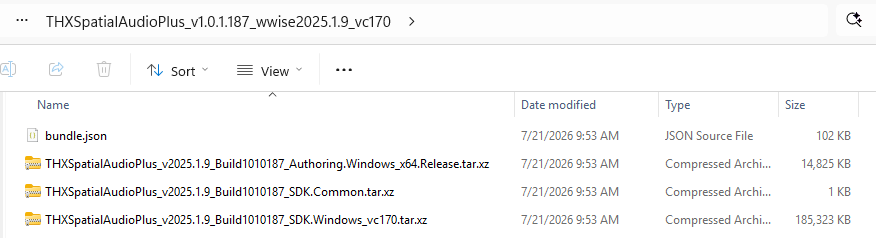
-
Follow the Audiokinetic documentation to install the plugin.
- Start the Audiokinetic Launcher.
- Open the Plug-ins tab.
- Choose the Wwise version and click Add from directory.
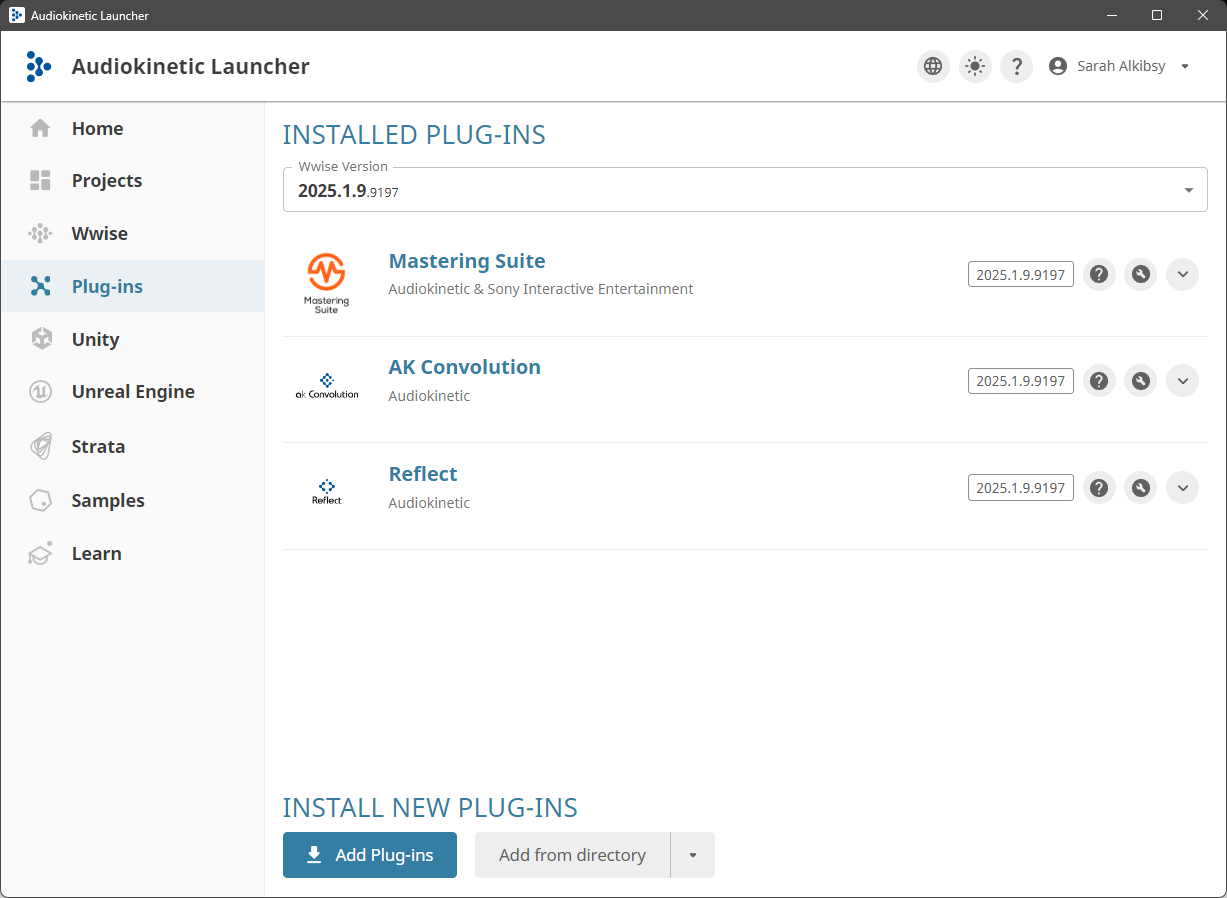
-
Select the folder with the unzipped files and press Modify.
- The plugin will be installed to the selected version of Wwise.
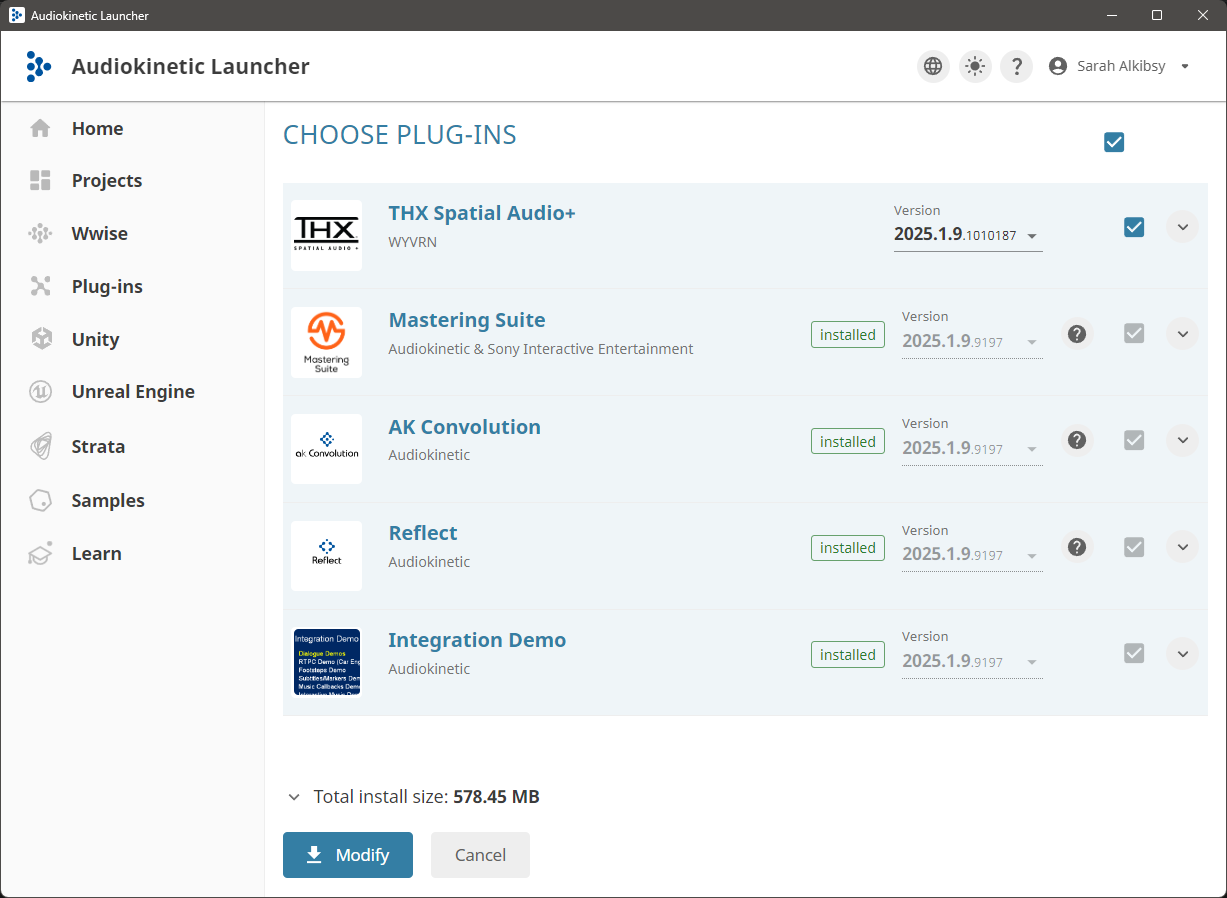
-
Follow additional steps to install plugins to the engine integration. The Unreal/Unity Audiokinetic documentation can be found here.
- Go to the Unreal Engine tab in the launcher.
- Select the project using integration and click Modify Wwise in Project.

- Click Modify on the next page.
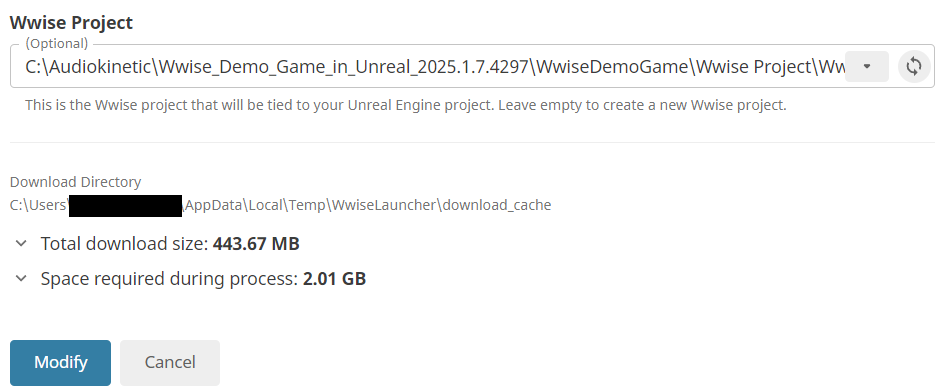
Note: UE5 Wwise Integration uses dynamic libraries by default. That is the suggested way of usage.
Usage
Authoring
-
Create a new Wwise project.
-
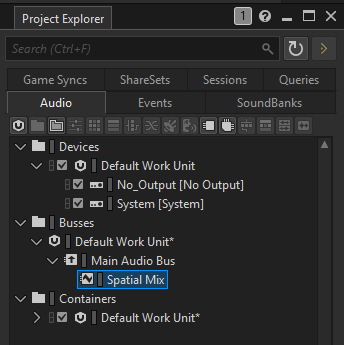
Add a child Audio Bus to the Master Audio Bus.
-
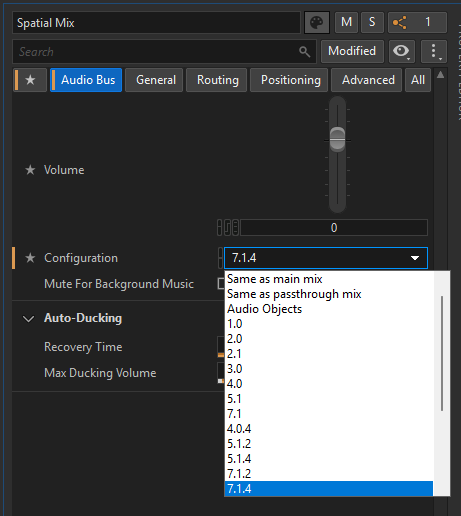
Choose 7.1.4 channel configuration for this new bus.
-
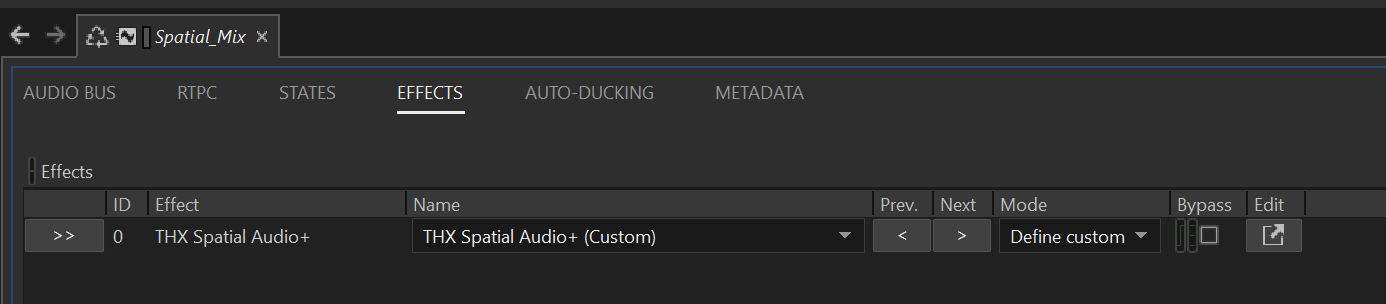
Add the THX Spatial Audio+ plugin to this Audio Bus.
-
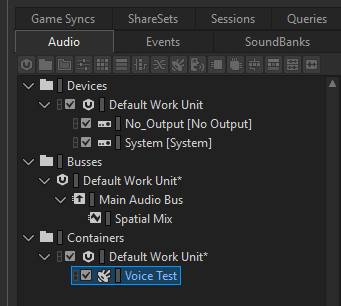
Create a test SFX in the Containers (Actor-Mixer) hierarchy.
-
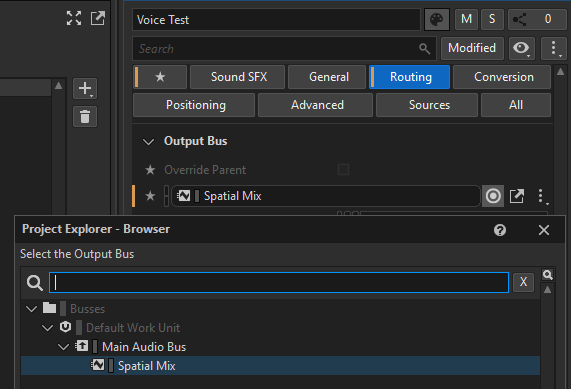
Route it to the Audio Bus created with the THX Spatial Audio+ plugin.
-
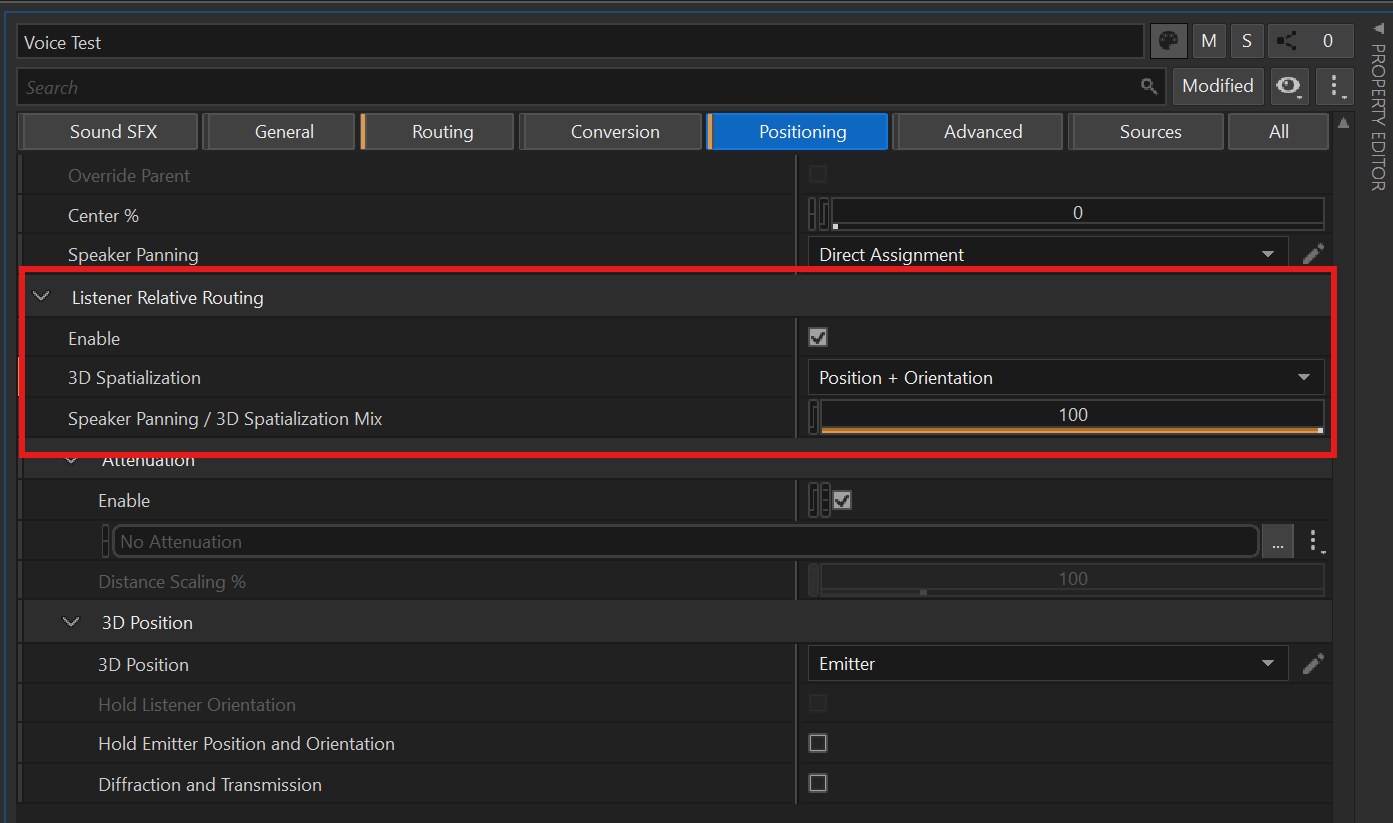
Enable 3D positioning for this SFX.
-
When playing the SFX, THX Spatial Audio+ processing will be applied.
Parameters
THX Spatial Audio+ provides a set of parameters to control the binauralization effect.
Room Direct
Controls the direct path of the signal, representing the audio reaching the listener without reflections or reverb.

- Room Direct Enabled: Enables or disables the direct path of the signal.
- Direct Gain: Controls the gain level of the direct signal in decibels.
- EQ: A 10-band equalizer applied to the direct signal path.
- Direct EQ Enabled: Enables or disables the 10-band equalizer.
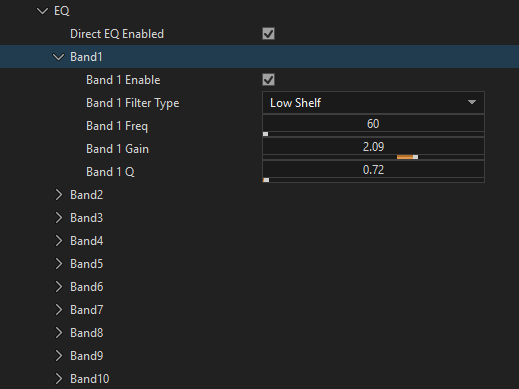
- Band Enabled: Enables or disables the EQ band.
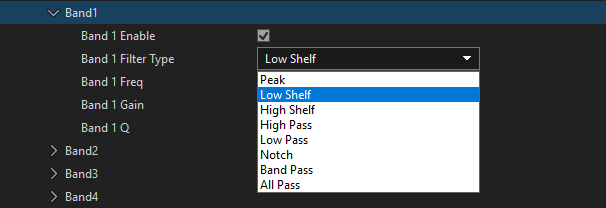
- Band Filter type: Selects the filter type for each EQ band (Peak, Low Shelf, High Shelf, High Pass, Low Pass, Notch, Band Pass, All Pass).
- Band Frequency: Sets the center frequency of the EQ band in Hz.
- Band Gain: Controls the gain of the EQ band in decibels.
- Band Q: Controls the Q-factor (bandwidth) of the EQ band.
- Direct EQ Enabled: Enables or disables the 10-band equalizer.
Late Reverb
Generates the late reverb to simulate the acoustic characteristics of a room.
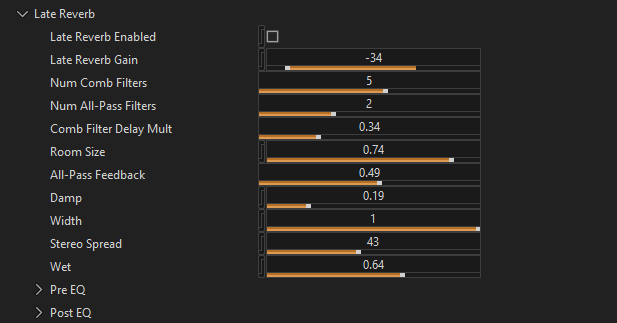
- Late Reverb Enabled: Enables or disables the late reverb processing.
- Late Reverb Gain: Controls the gain level of the late reverb in decibels.
- Num Comb Filters: Sets the number of comb filters used to generate the reverb.
- Num All-Pass Filters: Sets the number of all-pass filters.
- Comb Filter Delay Mult: Multiplies the delay times of comb filters, affecting perceived room size.
- Room Size: Controls the perceived size of the reverb space.
- All-Pass Feedback: Controls the feedback amount in all-pass filters.
- Damp: Controls high-frequency damping to reduce brightness.
- Width: Controls the stereo width of the reverb output.
- Stereo Spread: Creates stereo separation and spatial width.
- Wet: Controls the level of the wet (reverberated) signal in the output mix.
- Pre EQ: 10-band equalizers applied before processing.
- Post EQ: 10-band equalizers applied after processing.
Early Reflections
Calculates and processes early reflections, simulating the first few sound reflections arriving before the reverb tail.
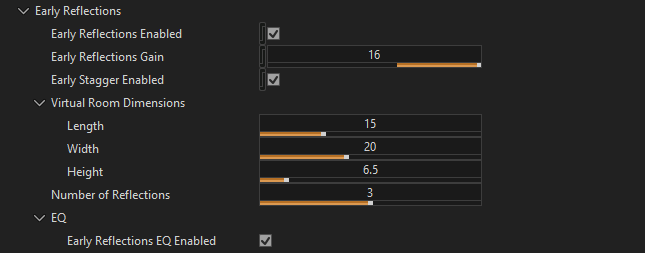
- Early Reflections Enabled: Enables or disables early reflections processing.
- Early Reflections Gain: Controls the gain level of early reflections in decibels.
- Early Stagger Enabled: Adds a random delay offset to each reflection for natural patterns.
- Virtual Room Dimensions: Defines virtual room dimensions (Length, Width, Height) for timing calculations.
- Number of Reflections: Sets the maximum number of reflections to process per emitter.
- EQ: 10-band equalizer applied to the early reflections path.
Emitters
Defines virtual emitter (loudspeaker) positions in spherical coordinates relative to the listener. They represent the 7.1.4 channels: L+R (left/right), C (center), LFE (subwoofer), LRS+RRS (rear surround), LS+RS (surround), LTF+RTF (top front), LTR+RTR (top rear).
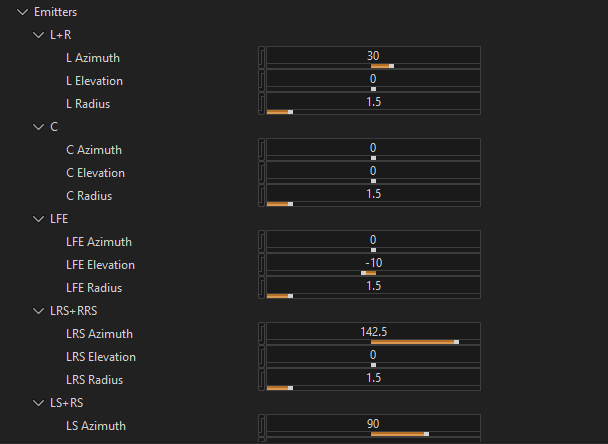
- Azimuth: Horizontal angle of the emitter relative to the listener (degrees from front center).
- Elevation: Vertical angle of the emitter relative to the listener (degrees from horizontal plane).
- Radius: Distance from the listener to the emitter position in meters.
Presets
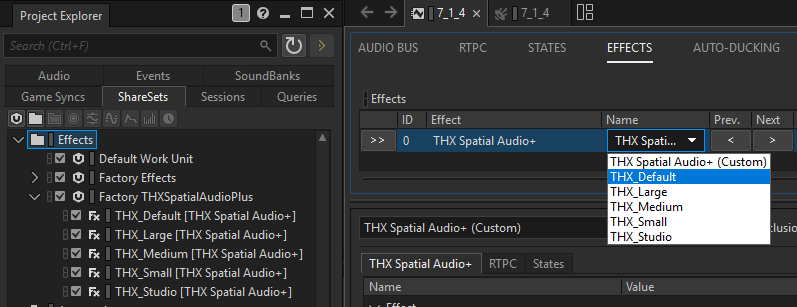
To import the presets, use Project -> "Import Factory Assets..." and then select "THXSpatialAudioPlus". The following presets are provided (as ShareSets):
- THX_Default
- THX_Large
- THX_Medium
- THX_Small
- THX_Studio
Passthrough
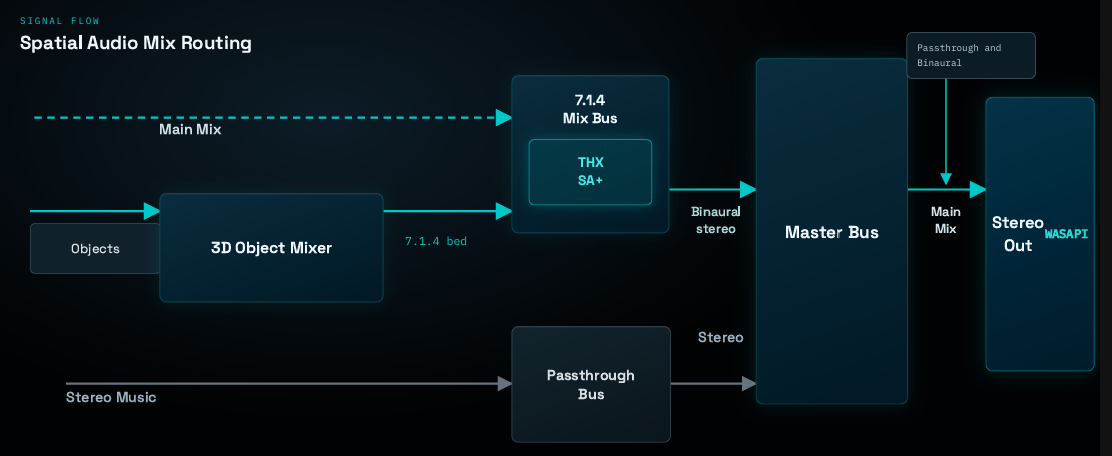
Since THX Spatial Audio+ binauralization shall be placed at the last stage of processing, we suggest the following workflow for passthrough compatibility.
- Setup a Spatial Mix buffer as described in Authoring.
- Insert Wwise 3D Audio Mixer effect to Audio Objects bus, which mixes all objects to 7.1.4 channels.
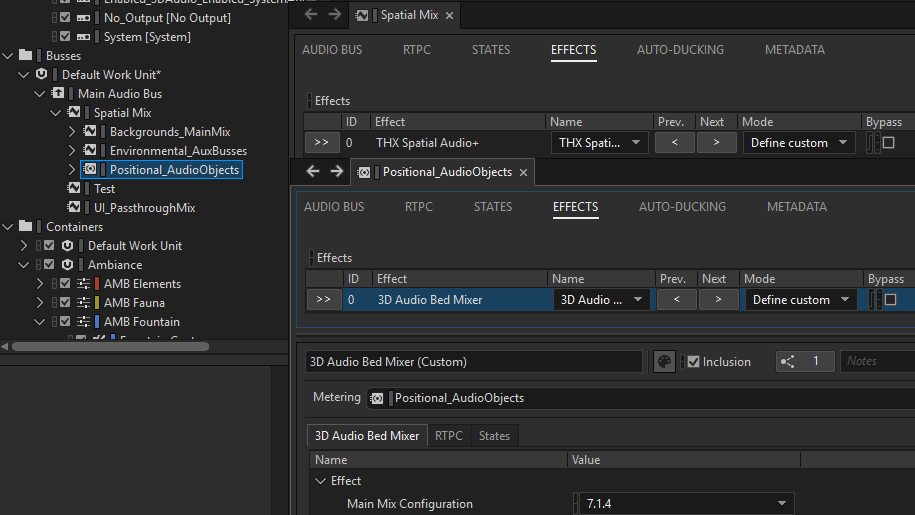
- The plugin renders the 7.1.4 mix to stereo. The resulting two-channel output is then mixed with the Passthrough bus and sent to the output device (WASAPI).
UE5
Packaging
When packaging your Unreal Engine project, THXSpatialAudioPlus.dll is automatically copied to the packaging output (e.g., Plugins\WwiseSoundEngine\ThirdParty\x64_vc170\Debug\bin).
However, you must also copy data.bin (the file installed with the plugin into the Authoring/SDK folders). There are two ways to ensure this:
- Manually: Place
data.bininto the same folder asTHXSpatialAudioPlus.dllin the packaged build. - Automatically: Modify the Wwise integration code before packaging.
- Open
Plugins/WwiseSoundEngine/Source/WwiseSoundEngine/WwiseSoundEngineVersionBase.Build.cs - Inside
Apply(...), replace the runtime dependency block with the following snippet:
- Open
	SE.PublicDelayLoadDLLs.AddRange(WwiseUEPlatformInstance.GetPublicDelayLoadDLLs());
	foreach (var RuntimeDependency in WwiseUEPlatformInstance.GetRuntimeDependencies())
	{
	    SE.RuntimeDependencies.Add(RuntimeDependency);
}
- Replace it with the following snippet so that data.bin is staged automatically
SE.PublicDelayLoadDLLs.AddRange(WwiseUEPlatformInstance.GetPublicDelayLoadDLLs());
string runtimeBinDir = null;

foreach (var RuntimeDependency in WwiseUEPlatformInstance.GetRuntimeDependencies())
{
    SE.RuntimeDependencies.Add(RuntimeDependency);
    if (runtimeBinDir == null)
    {
        runtimeBinDir = Path.GetDirectoryName(RuntimeDependency);
    }
}

if (!string.IsNullOrEmpty(runtimeBinDir))
{
    var dataBinPath = Path.Combine(runtimeBinDir, "data.bin");
    if (File.Exists(dataBinPath))
    {
        SE.RuntimeDependencies.Add(dataBinPath, StagedFileType.NonUFS);
    }
}
- Rebuild project / engine to update Wwise UE integration.
- In the final packaged folder (for example YourProject\Plugins\WwiseSoundEngine\ThirdParty\x64_vc170\Debug\bin) verify that data.bin sits next to THXSpatialAudioPlus.dll. If it is still missing, double-check that the file was already present under ThirdParty/.../bin/ before you started packaging.